Managing Email Server Configuration
Managing Email Server Configuration
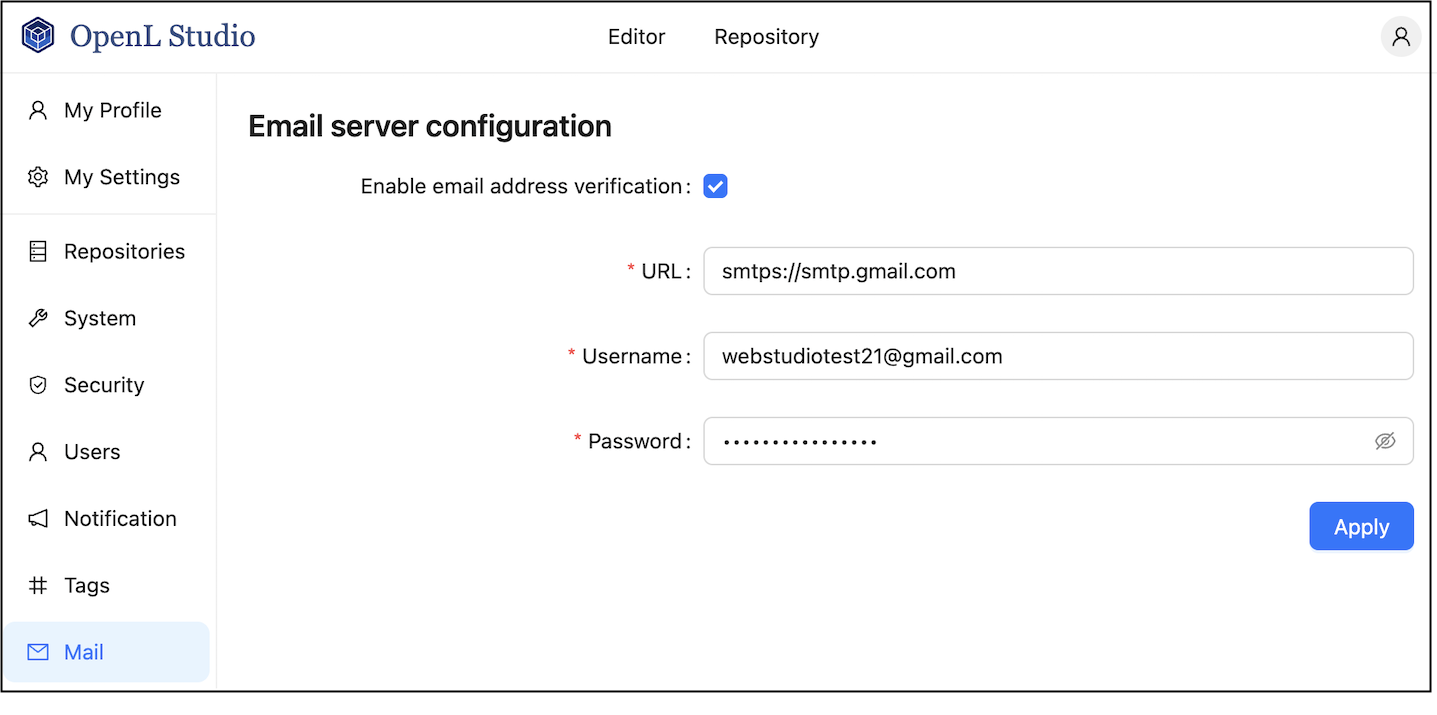
OpenL Studio supports sending emails for mailbox verification.
To manage email server configuration, proceed as follows:
- In the ADMIN tab, click Mail on the left.
- Ensure that the Enable email address verification check box is selected.
- Specify the sender’s URL, username, and password for dispatching verification emails through this email server.
-
Click Apply All and Restart.
When a sender is defined for the specific server, it can be used to send emails for verification of the non-verified mailboxes manually defined by a user.
If the user email is not verified, an orange exclamation mark is displayed next to this user email in the user list. Hover over the mark to see the Email not verified tooltip.
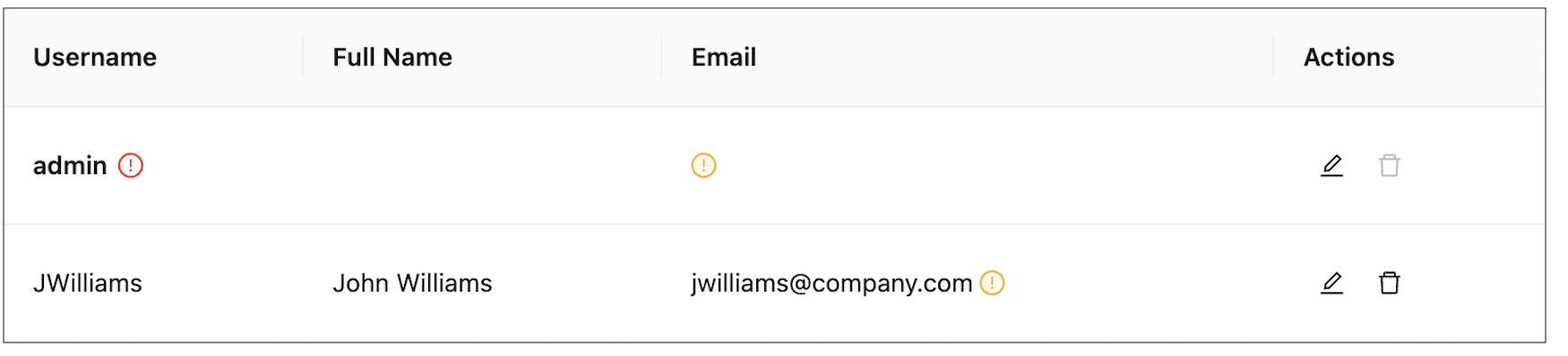
-
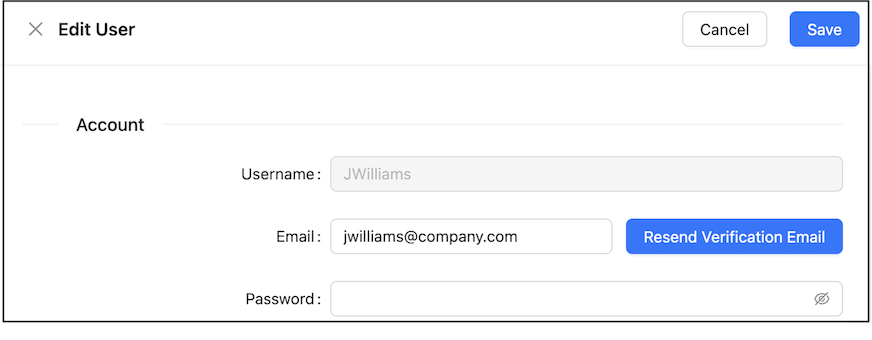
If the verification email is not received for some reason, to resend it, in the Users tab, open the user record and click Resend.
A user can resend the verification email on his or her own by clicking the username in the top right corner, selecting User Details, and clicking Resend.
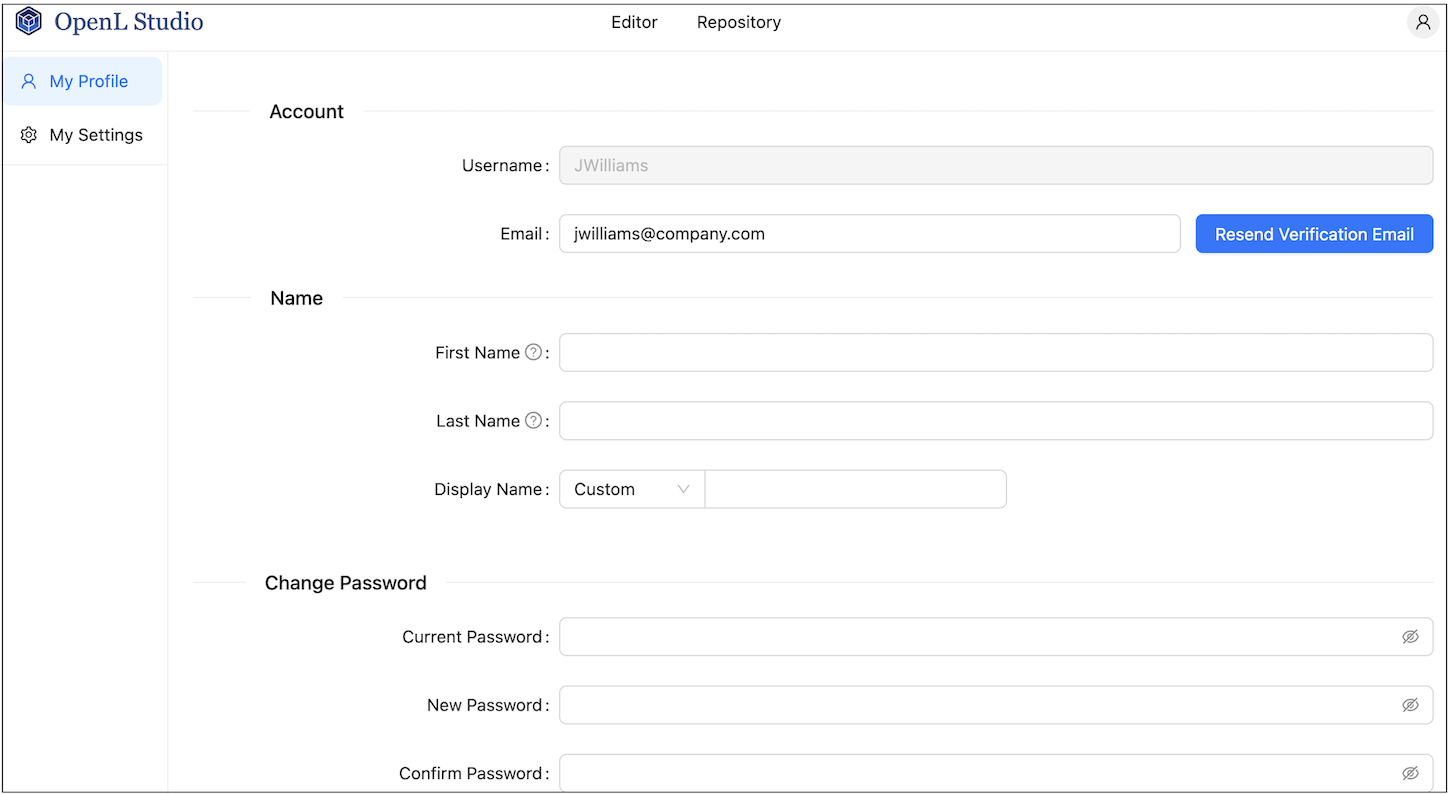
A user initiating verification email resending
The verification email resembles the following:
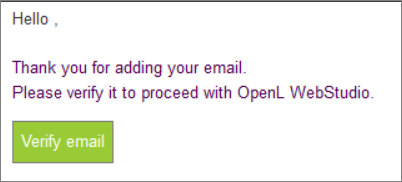
Verification email example