Managing Groups
The Groups tab is available only in OpenL Studio environments integrated with an external user management system, such as Active Directory, LDAP, or an SSO provider. In environments without external user management, the Groups tab is hidden and user access is managed directly on each user in the Users tab.
Groups registered in OpenL Studio are matched to groups from the external directory. Each group can be granted access to one or more resources with a specific role.
The following topics are included in this section:
- Understanding Roles
- Understanding the Default Group
- Viewing a List of Groups
- Inviting a Group
- Editing a Group
- Deleting a Group
Understanding Roles
Instead of selecting individual privileges, access in OpenL Studio is controlled by assigning a role to a **resource **. A resource is either a repository or an individual project within a repository.
The following roles are available:
| Role | Description | View | Create | Edit | Delete | Manage |
|---|---|---|---|---|---|---|
| Viewer | Read-only access to the resource. Users can view content, open projects, and run and trace test tables, but cannot make any changes. | ✓ | ||||
| Contributor | Full read and write access to the resource. Users can create, edit, and delete content within the resource, but cannot manage user permissions. | ✓ | ✓ | ✓ | ✓ | |
| Manager | Full access including the ability to assign roles to other users and groups on the resources they manage. | ✓ | ✓ | ✓ | ✓ | ✓ |
Where the individual permissions that make up each role:
- View — Allows viewing and reading the content of the resource, and performing actions that do not alter it.
- Edit — Allows modifying and saving changes to the existing content of the resource. This includes updating, correcting, and formatting content, but does not permit creating new resources or deleting existing ones.
- Create — Allows adding a new lower-level resource within the resource. For example, when granted on a repository, this permission allows creating new projects in that repository, but does not affect the repository itself.
- Delete — Allows removing a lower-level resource from within the resource. The resource is deleted from the system. For example, when granted on a repository, this permission allows deleting projects from that repository, but does not affect the repository itself.
- Manage — Allows assigning roles to users and groups on the resources the user manages.
Note: The Create and Delete permissions are only effective when the Permit creating and deleting projects option is enabled in the Security tab. When this option is disabled, users cannot create or delete projects regardless of their assigned role.
Note: The Administrator designation is separate from the above ACL roles and grants system-wide administrative access, including the ability to manage users, groups, and global configuration.
Deploying a project requires access to two repositories simultaneously: the user must have at least Viewer access on the design repository where the source project resides, and at least Contributor access on the target deployment repository. A Viewer role on the deployment repository alone is not sufficient to perform a deployment.
Role Inheritance and Conflict Resolution
Roles can be assigned at two levels: the repository level and the project level. When a role is assigned at the repository level, it applies to all projects within that repository unless a more specific project-level role is also configured.
The following rules apply when resolving a user’s effective access:
-
Project-level role takes precedence over repository-level role. When a role is explicitly assigned on a project, that role determines the user’s access to that project, regardless of what role the user has on the parent repository.
-
Repository-level role is inherited when no project-level role is set. If no explicit ACL entry exists for a project, the user’s access falls back to the role assigned at the repository level.
-
When a user belongs to multiple groups, the most permissive role applies. If a user is a member of two groups and one group has Viewer access and the other has Contributor access on the same resource, the user effectively has Contributor access.
Examples:
| Repository Role | Project Role | Effective Access on the Project |
|---|---|---|
| Viewer | Contributor | Contributor — the explicit project role overrides the repository role |
| Contributor | Viewer | Viewer — the explicit project role overrides the repository role |
| Contributor | (none) | Contributor — the repository role is inherited |
| (none) | Viewer | Viewer — only the project-level role applies |
Understanding the Default Group
At the top of both the Groups and Users tabs, OpenL Studio displays the currently configured Default Group along with an info tooltip.
The Default Group is automatically applied to every user in the system, including users who have not been assigned to any other group. This means that if the Default Group has access to a resource, all users effectively inherit that access regardless of their individual group assignments.
To change the Default Group, go to Security → Default Group in the administration settings as described in Understanding the Default Group.
Viewing a List of Groups
To view the list of groups, proceed as follows:
-
In the Administration panel, select the Groups tab.
The system displays a list of invited groups, including their names, descriptions, and number of members:
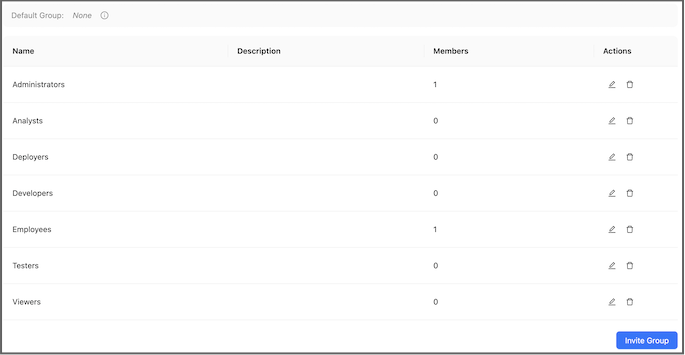
Groups list in the Groups tab
To find a group, start typing its name in the search field above the list. The list is filtered as you type. The search is case-insensitive and matches any part of the name. To reset the filter, clear the search field.
To see the users belonging to a group, click the expand arrow next to the group name. Both directly assigned users and users coming from the matched external group are displayed. Hovering over a username displays the user’s full name.
By default, 10 groups are displayed per page. To change the number of displayed rows, select 10, 25, 50, or 100 in the page size selector next to the pager. The pager displays the currently visible rows and the total number of groups.
- To invite a new group, proceed as described in Inviting a Group.
- To edit a group, proceed as described in Editing a Group.
- To delete a group, proceed as described in Deleting a Group.
Inviting a Group
Inviting a group registers an external directory group in OpenL Studio and assigns it a role on one or more resources.
To invite a group, proceed as follows:
-
Click the Invite Group button.
The Invite Group dialog appears.
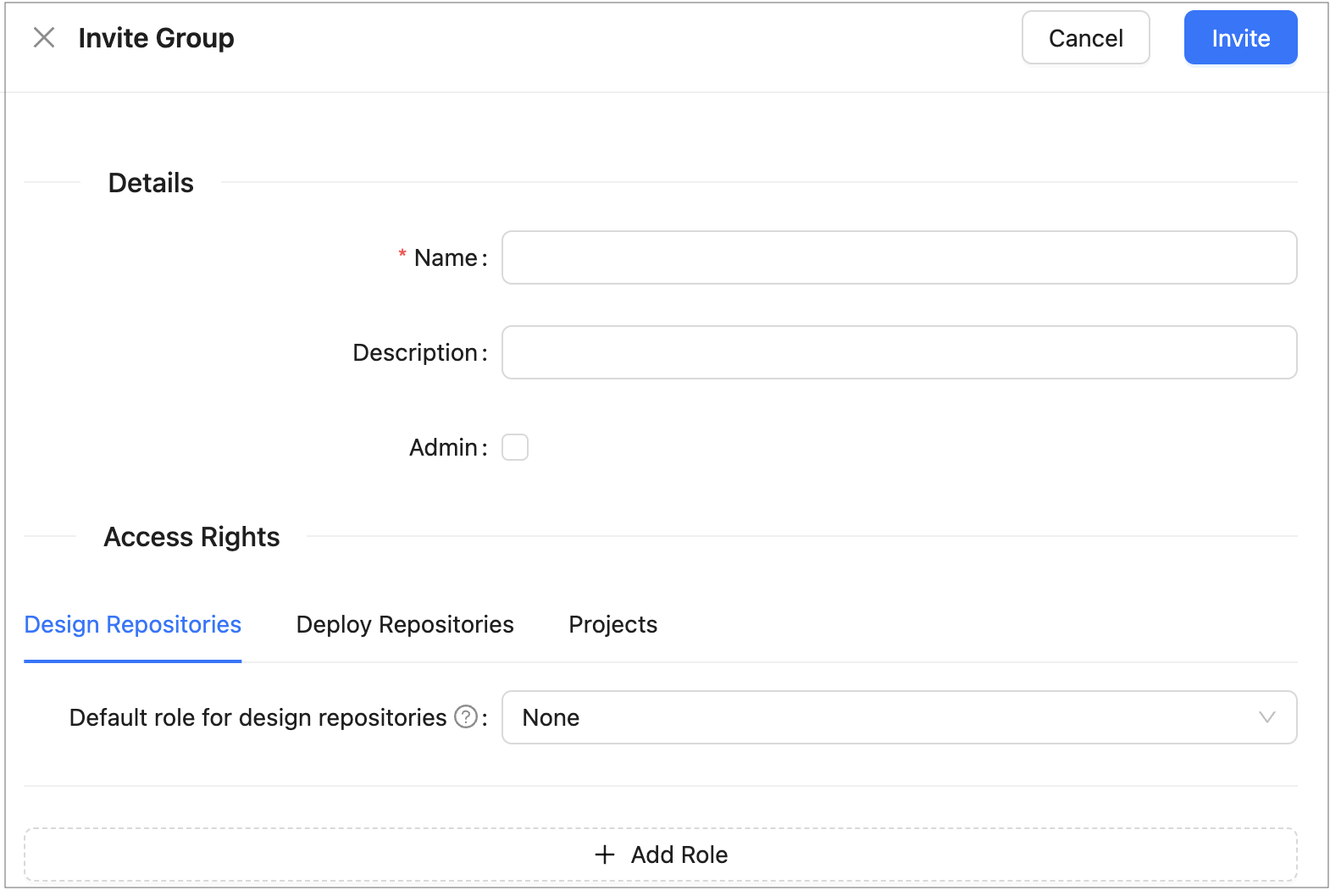
Invite Group dialog
-
In the Name field, type the group name. As you type, a list of matching groups from the connected directory service is displayed. Select an existing group from the list.
-
Optionally, provide a description in the Description field.
-
To designate this group as OpenL Studio Administrators, select the Admin check box.
When this option is selected, the access management fields are disabled because administrator groups have system-wide access and do not require resource-level role assignments.
-
In the Access Rights section, configure the group’s access to repositories and projects:
Field Description Resource The repository or project to which access is granted. Select from the available repositories and projects listed in the system. Role The role to assign for the selected resource: Viewer, Contributor, or Manager. 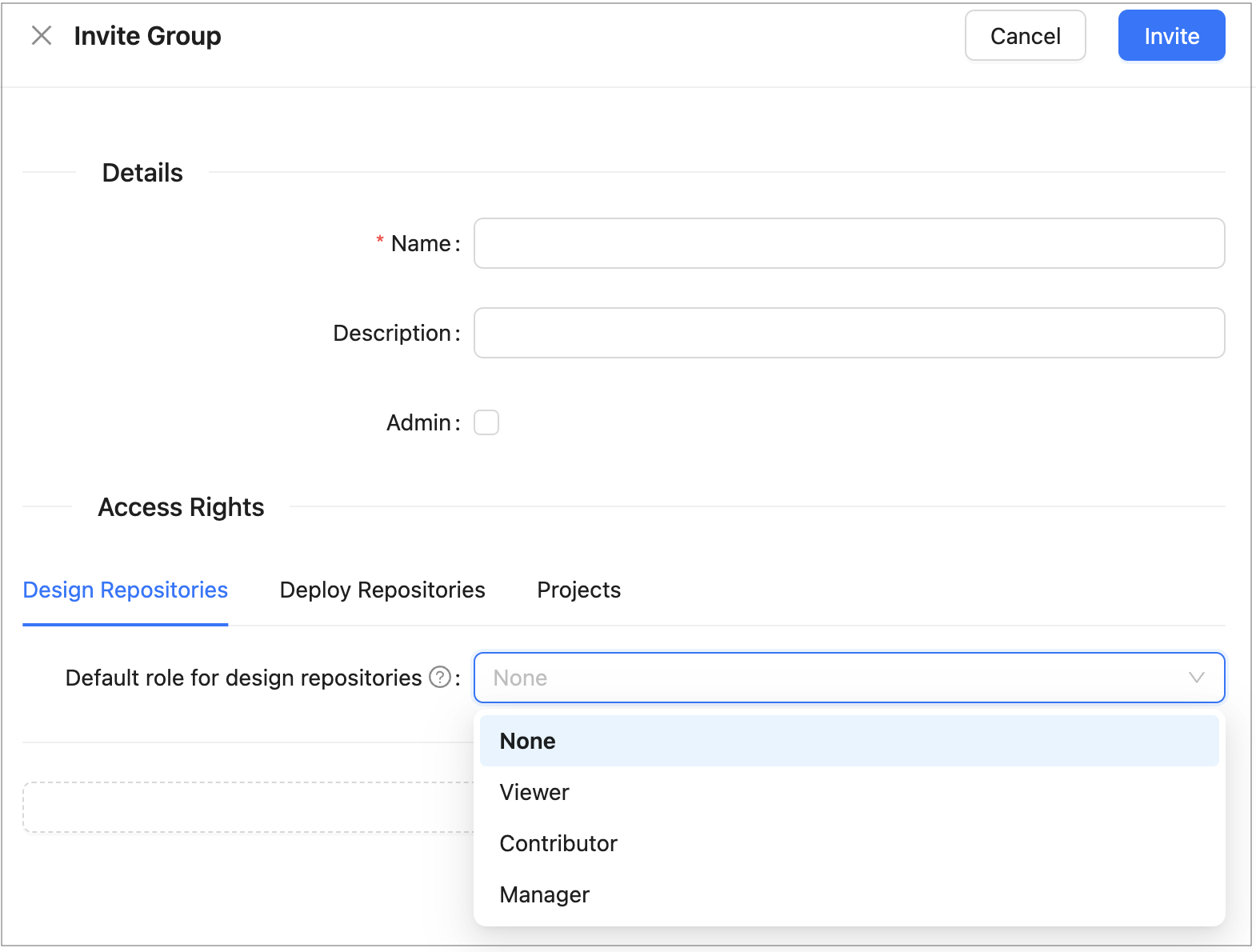
Access Management section of the Invite Group dialog
To grant access to multiple resources, add a new row for each resource. The same resource cannot be assigned more than one role.
-
Click Save to complete.
Editing a Group
To modify a group, proceed as follows:
- In the group list, locate the group to be changed and click the Edit icon.
- In the edit form, change the group name, description, administrator designation, or resource access assignments as needed.
- Click Save to complete.
Deleting a Group
To delete a group, proceed as follows:
- In the group list, locate the group to be deleted and click the Delete icon.
- Click OK in the confirmation dialog.