Managing Users
In OpenL Studio, access to repositories and projects is controlled through role-based ACL assignments. In environments without external user management, access is managed directly per user in the Users tab. In environments integrated with an external user management system, access can additionally be managed at the group level through the Groups tab.
The initial administrator account is configured through the security.administrators property in the application
configuration. The administrator can then create and manage additional users through the Administration panel.
The following topics are included in this section:
- Viewing a List of Users
- Creating a User
- Editing a User
- Deleting a User
- Managing Users in Case of Third Party Identity Provider
Viewing a List of Users
To view a list of users, proceed as follows:
-
In the Administration panel, select the Users tab.
The system displays a list of OpenL Studio users.
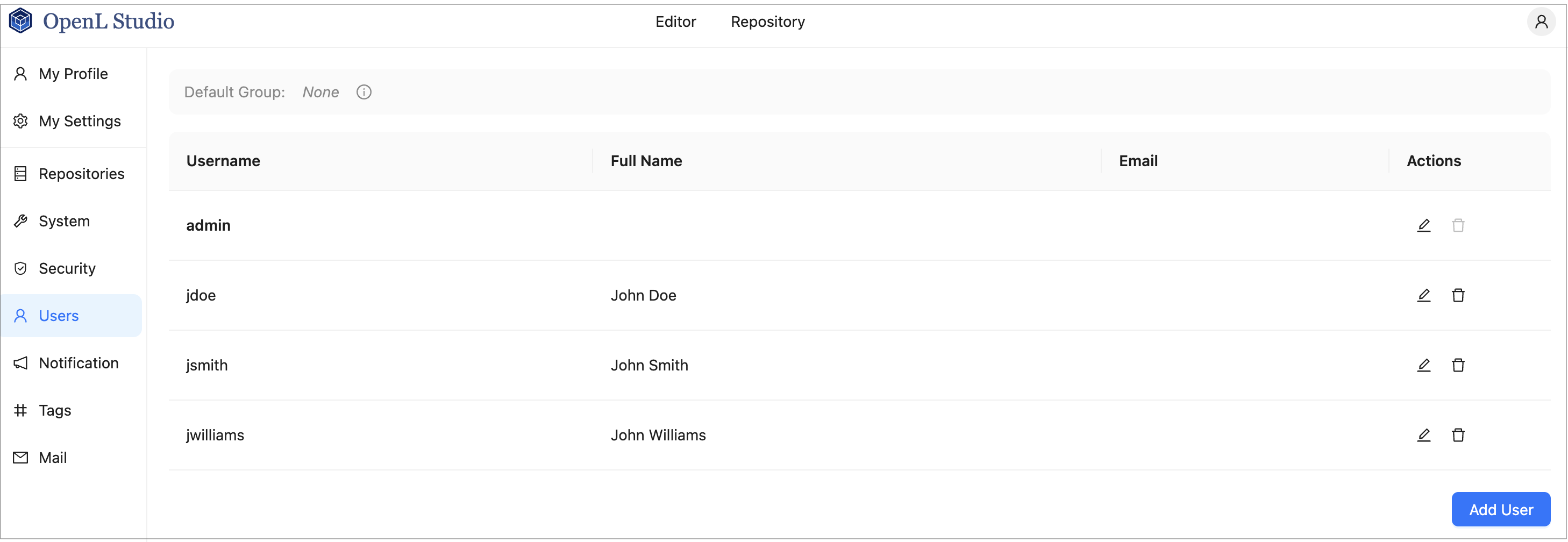
Users list in the Users tab
The Last Login column displays the time of the last successful sign-in for every user. Users who have never signed in are marked as Never.
The list is sorted by username. To sort the list by another column, click the column header. Clicking the header again reverses the sort order.
To find a user, start typing a username, full name, or email in the search field above the list. The list is filtered as you type. The search is case-insensitive and matches any part of these values. To reset the filter, clear the search field.
By default, 10 users are displayed per page. To change the number of displayed rows, select 10, 25, 50, or 100 in the page size selector next to the pager. The pager displays the currently visible rows and the total number of users.
In environments integrated with an external user management system, the Groups column displays each user’s group memberships as color-coded tags:
- Green — an external identity provider group that matches a group registered in OpenL Studio. Permissions assigned to that group in OpenL Studio are applied to the user.
- Red — an administrator group.
- Blue — the configured Default Group.
- Gray — an external identity provider group that does not match any group registered in OpenL Studio. Unmatched groups are shown individually or collapsed into a +N badge indicating the count of unmatched groups. Clicking the badge expands the full list.
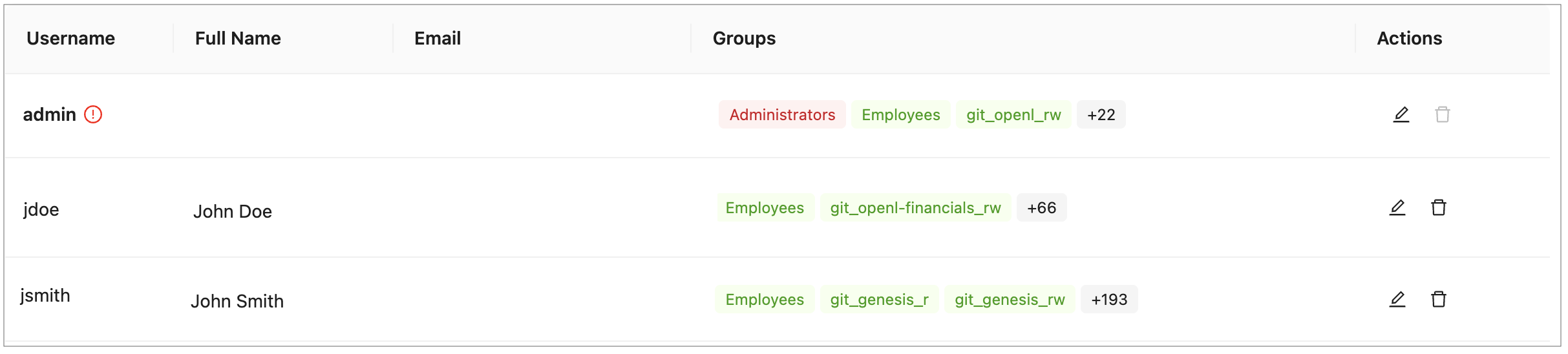
Users list showing color-coded group membership
-
In the Users tab, perform either of the following:
- To create a user, proceed as described in Creating a User.
- To edit a user, proceed as described in Editing a User.
- To delete a user from the system, proceed as described in Deleting a User.
Creating a User
To create a new user, proceed as follows:
-
On the Users tab, click Add User.
The system displays the Add User form.
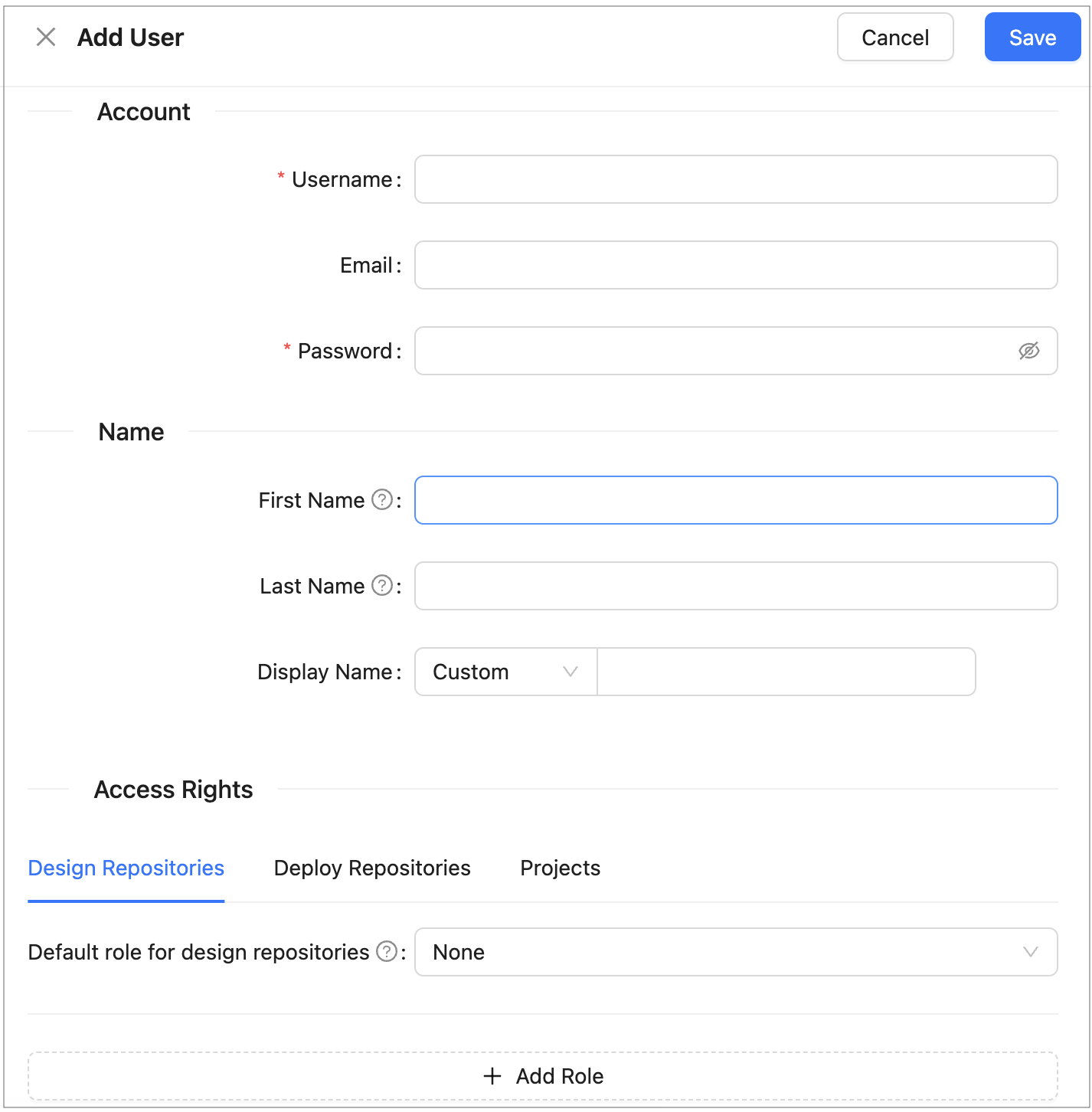
Creating a user
- In the Username field, specify the user login name.
-
In the Email field, enter the user email. This field is required.
-
In the Password field, enter a password.
This field is unavailable for external users.
-
Optionally, enter the user’s first and last name.
-
To change the display name pattern, in the appropriate field, select either First Last or Last First.
If the Custom option is selected, the field becomes editable and any display name can be entered.
The Display Name field is required regardless of the selected pattern.
-
In the Access Rights section, configure the user’s access to repositories and projects:
Field Description Resource The repository or project to which access is granted. Select from the available repositories and projects. Mandatory. Role The role to assign for the selected resource: Viewer, Contributor, or Manager. Mandatory. To grant access to multiple resources, add a new row for each resource. The same resource cannot be assigned more than one role.
For a description of available roles and their permissions, see Understanding Roles.
- Click Save to complete.
The system displays the new user in the Users list. If the username and password values are the same, an exclamation mark is displayed next to the username. A user can change the password to improve security.

User list with a password security warning
Editing a User
To edit a user, proceed as follows:
- In the Users list, locate the user to be modified and click the username.
-
In the Edit User form, modify user data or access management settings as required.
The username and the administrator accounts defined in the
security.administratorsproperty cannot be changed. Email and Display Name cannot be empty.For external users synchronized with Active Directory or an SSO provider, only fields not provided by the external system are editable.
- Click Save to save the changes.
Deleting a User
The Administrators group in OpenL Studio must contain at least one administrator. The only remaining administrator cannot be deleted.
Initial users created during OpenL Studio installation and the currently logged in user cannot be deleted.
To delete a user, proceed as follows:
- In the Users list, locate the user for deletion and click the Delete icon.
- Click OK in the confirmation dialog.
Managing Users in Case of Third Party Identity Provider
There are some differences in managing users when OpenL Studio is configured to authenticate against a third party identity provider, such as an SSO provider or Active Directory.
A user is created in OpenL Studio automatically upon the user’s first login using credentials from the identity provider. Users cannot be added manually. User information such as first name, last name, display name, and email address is retrieved from the identity provider and saved to OpenL Studio with those fields locked for editing. If some information is not available from the identity provider, the corresponding fields are editable in OpenL Studio. An exception applies to SSO with external user management, where user data cannot be edited in Admin > Users and only partial data can be edited in the user profile section.
On each login, OpenL Studio synchronizes user information with the identity provider and updates any fields that have changed.
When the first or last name has changed:
- If the display name was set to “first name + space + last name”, it is updated to reflect the new values.
- If the display name was set to “last name + space + first name”, it is updated to reflect the new values.
- If the display name is set to Custom and is non-empty in OpenL Studio but is empty in the identity provider, the local value is preserved upon synchronization.
In integrated environments, the Edit User form shows read-only account and personal information synchronized from the identity provider. The form also displays the following:
- Access Rights: Administrators can add direct resource-level role assignments on top of the inherited group permissions.
Permissions can be managed at the group level by inviting a group with the same name as defined in the identity provider and assigning it the required roles. Group membership is automatically resolved from the identity provider at login and does not require manual maintenance in OpenL Studio. Additional resource-level role assignments can also be applied directly on a user.