Dev Properties
The Dev properties group impacts the OpenL Tablets features and enables system behavior management depending on a property value.
For example, the Scope property defines whether properties are applicable to a particular category of rules or for the module. If Scope is defined as Module, the properties are applied for all tables in the current module. If Scope is defined as Category, use the Category property to specify the exact category to which the property is applicable.

The properties are defined for the ‘Police-Scoring’ category
The following topics are included in this section:
Dev Properties List
The Dev group properties are listed in the following table:
| Property | Name to be used in rule tables |
Type | Table type | Level at which property can be defined |
Description |
|---|---|---|---|---|---|
| ID | id | Table | All | Table | Unique ID to be used for calling a particular table in a set of overloaded tables without using business dimension properties. Note: Constraints for the ID value are the same as for any OpenL function. |
| Build Phase | buildPhase | String | All | Module, Category, Table | Property used to manage dependencies between build phases. Note: Reserved for future use. |
| Validate DT | validateDT | String | Decision Table | Module, Category, Table | Validation mode for decision tables. In the wrong case an appropriate warning is issued. Possible values are as follows: - on: checks for uncovered or overlapped cases. - off: validation is turned off. - gap: checks for uncovered cases. - overlap: checks for overlapped cases. |
| Fail On Miss | failOnMiss | Boolean | Decision Table | Module, Category, Table | Rule behavior in case no rules were matched: - If the property is set to TRUE, an error occurs along with the corresponding explanation. - If the property is set to FALSE, the table output is set to NULL. |
| Scope | scope | String | Properties | Module, Category | Scope for the Properties table. |
| Datatype Package | datatypePackage | String | DataType | Table | Name of the Java package for generating the data type. |
| Precision | precision | Integer | Test Table | Module, Category, Table | Precision of comparing the returned results with the expected ones while launching test tables. |
| Auto Type Discovery | autoType | Boolean | Properties Spreadsheet |
Module, Category, Table | Auto detection of data type for a value of the Spreadsheet cell with formula. The default value is true. If the value is true, the type can be left undefined. |
| Concurrent Execution | parallel | Boolean | Module, Category, Table | Controls whether to parallel the execution of a rule when the rule is called for an array instead of a single value as input parameter. Default is false. |
|
| Calculate All Cells | calculateAllCells | Boolean | Spreadsheet | Module, Category, Table | Returns a particular type. Default is true when calculation is started from the beginning of the spreadsheet. If this property is set to false, calculation is started from the last line of the spreadsheet. |
| Empty Result Processing | emptyResultProcessing | String | Decision table | Module, Category, Table | Identifier of whether to process blank parameter value cells and return an empty result if found, when set to RETURN, or ignore and find the first non-empty result value, when set to SKIP (default). |
The following example illustrates how the property emptyResultProcessing works depending on property values when x=1:
<!DOCTYPE html>
| SmartRules Integer codes(Integer x) | ||
|---|---|---|
| properties | emptyResultProcessing | SKIP |
| X | RESULT | |
| 1-100 | ||
| 1-200 | 3 | |
| 1-300 | 4 | |
| SmartRules Integer codes(Integer x) | ||
|---|---|---|
| properties | emptyResultProcessing | RETURN |
| X | RESULT | |
| 1-100 | ||
| 1-200 | 3 | |
| 1-300 | 4 | |
Using the Precision Property in Testing
This section describes how to use the precision property. The property must be used for testing purpose and is only applicable to the test tables.
There are cases when it is impossible or not needed to define the exact numeric value of an expected result in test tables. For example, non-terminating rational numbers such as π (3.1415926535897…) must be approximated so that it can be written in a cell of a table.
The Precision property is used as a measure of accuracy of the expected value to the returned value to a certain precision. Assume the precision of the expected value A is N. The expected value A is true only if
|A – B| < 1/10N, where B – returned value.
It means that if the expected value is close enough to the returned value, the expected value is considered to be true.
Consider the following examples. A simple rule FinRatioWeight has two tests, FinRatioWeightTest1 and FinRatioWeightTest2:
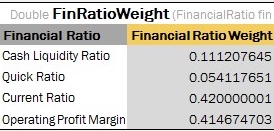
An example of Simple Rule
The first test table has the Precision property defined with value 5:
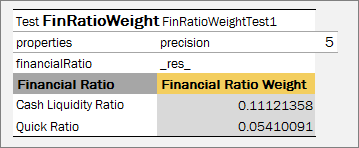
An Example of Test table with Precision Dev property
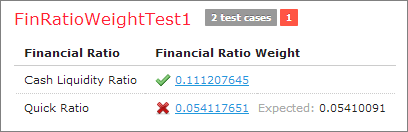
An example of Test with precision defined
When this test is launched, the first test case is passed because |0.11121358 - 0.111207645| = 0.5935*10-5 < 0.00001; but the second is failed because |0.05410091 - 0.054117651| = 1.6741*10-5 > 0.00001.
OpenL Tablets allows specifying precision for a particular column which contains expected result values using the following syntax:
  _res_ (N)
  _res_.$<ColumnName>$<RowName> (N)
  _res_.<attribute name> (N)
An example of the table using shortcut definition is as follows.
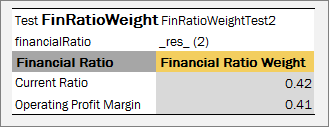
Example of using shortcut definition of Precision Property
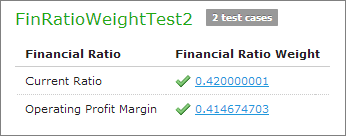
An example of Test with precision for the column defined
Precision property shortcut definition is required when results of the whole test are considered with one level of rounding, and some expected result columns are rounded to another number of figures to the right of a decimal point.
Precision defined for the column has higher priority than precision defined at the table level.
Precision can be zero or a negative value, Integer numbers only.