Using Repository Editor
Using Repository Editor
This chapter describes tasks that can be performed in repository editor. For general information on repository editor, see Introducing Repository Editor.
The following topics are included in this chapter:
- Browsing Design Repository
- Filtering and Grouping the Project Tree
- Creating Projects in Design Repository
- Opening a Project
- Closing a Project
- Saving a Project
- Viewing Project Properties
- Modifying Project Contents
- Copying a Project
- Removing a Project
- Deploying a Project
- Comparing Project Revisions
- Exporting a Project or a File
- Unlocking a Project
- Browsing the Deployment Repository
- User Data for Git Commits
Browsing Design Repository
Repository editor displays all projects in user’s workspace and Design repository. The project tree is organized into the following categories:
| Category | Description |
|---|---|
| Projects | Contains OpenL Tablets rule projects. |
Projects from all repositories are displayed in a common list that is sorted alphabetically.
The status of each project in the tree is identified by a specific icon. The following table describes the icons in the project tree:
| Icon | Description |
|---|---|
 |
Project is closed. It is available only in Design repository and must be opened to copy it to user’s workspace. |
 |
Project is opened for viewing. It is copied to user’s workspace and can be modified. If the product is restored from the previous revision, its status is set to Viewing Revision, otherwise its status is set to No Changes. |
 |
Project is edited by the current user. It is copied to user’s workspace and is modified. Other users cannot edit the project. To save changes, the project must be saved. |
 |
Project is closed by the current user but edited by another user (Closed – Locked). Current user cannot edit the project. |
 |
Project is opened for viewing by the current user but edited by another user (Viewing Revision - Locked). Current user cannot edit the project but can browse the project in Rules Editor. |
 |
Project exists only in user’s workspace but not in Design repository (Local). Other users do not see this project. User can delete the project, or export it and import the archive into Design repository as described in Saving a Project. |
Filtering and Grouping the Project Tree
Projects in the repository editor are filtered the same way as in Rules Editor.
To filter projects by name, enter the name in the filter text box. All projects matching the name are displayed in the Projects list.
To group projects by repository or tag types, click the Group Projects icon  and select the required values. Please note that values of tags for grouping are taken from the most recent version of a project. If user has changed project tags in an opened project, a project is required to be saved in order for a change to be reflected in a tree. For more information on tag definition for a project, see Managing Tags.
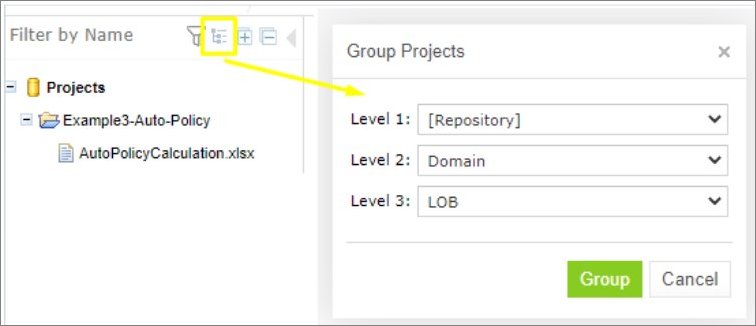
Grouping projects by tags
To expand or collapse the repository tree, use the expand and collapse icons  .
.
Creating Projects in Design Repository
OpenL Studio allows users to create new rule projects in the Design repository in one of the following ways:
| Way | Section |
|---|---|
| Create a rule project from a template | Creating a Project from Template |
| Create a rule project from Excel files | Creating a Project from Excel Files |
| Create a rule project from an OpenAPI file | Creating a Project from OpenAPI file |
| Create a rule project from a zip archive | Creating a Project from ZIP Archive |
| Copy an existing rule project | Copying a Project |
Whatever the way used, new projects are created in the No Changes status that means they are open and can be modified.
For a Git Design repository that supports branches, every creation method displays one Branch field after a repository is selected. Select an existing branch from the suggestions, or type a valid new branch name in the same field. When the name does not exist, OpenL Studio creates the branch from the repository default branch and then creates the project there. The project is immediately visible to other authorized users, and its Branch value is the branch where it was created. In an empty repository, the first project creates the selected valid branch, including a non-default branch. Names that violate Git naming rules or the repository branch-name pattern are shown as errors below the field and are not submitted.
Projects with the same name can be created in different repositories. These projects cannot be in the same status. If the first project is in the No Changes status, the second one is assigned the Closed status. After closing the first project, the second can be opened.
Creating a Project from Template
This section describes how to create a project using a template and includes the following topics:
Creating a Project Using a Default Repository Template
This is the easiest way to create a rule project in the Design repository that must be preferably used for demonstration or introductory purposes.
While creating a project from template, use the following template types:
| Template type | Description |
|---|---|
| Simple Templates | Include the following: - Sample Project is a very simple project consisting of one rule table and hence, one Excel file. - Empty Project allows creating a project with an empty Excel file. Open the project and create tables as needed. |
| Examples | Provide several simple projects demonstrating how OpenL Tablets can be used in various business domains. |
| Tutorials | Represents projects designed to familiarize users with OpenL Tablets step-by-step, from simple features and concepts to more complex ones. |
Every built-in template uses the standard project layout. It contains rules.xml in the project root, stores rule
workbooks in rules/, and stores test workbooks, when present, in tests/.
Projects represented as Examples and Tutorials can be used not only to learn how they are organized and work, but also to create user’s own projects from them.
To create a new project from template, proceed as follows:
-
In the top line menu, click Create Project.
The Create Project from window appears.
-
Clicks the Template tab.
Note: This tab is normally selected by default.
All project templates are organized into three areas: Simple Templates, Examples and Tutorials described above in this topic.
-
Navigate to the required template and click its name.
The name appears in the Project Name field. The following example demonstrates creating a project based on the example.
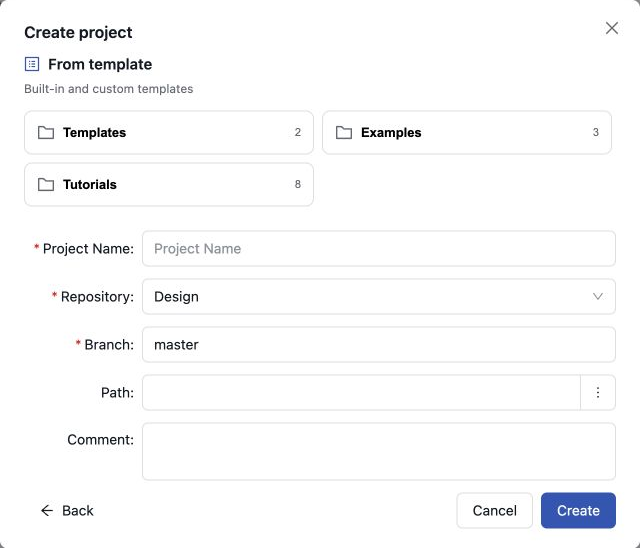
Creating a simple project from a template
-
Select a repository.
If there is only one repository, it is selected by default. Otherwise, a list of repositories is displayed. If a Git repository with non-flat structure is selected, the Path field with the / default value is displayed and can be modified as required. The path is defined inside the repository and can start with or without /.
- For a branch-capable repository, select an existing branch or enter a new branch name in the Branch field.
-
Click Create.
If tag types are defined as described in the Managing Tags section, a tag pop-up window appears. For more details, see the Specifying tags for a new project section.
A new project is created in Design repository. Initially, project structure corresponds to the selected project template but can be constructed manually.
- To construct the project structure, add folders and upload files as described in Modifying Project Contents.
Creating a Project Using a Custom Template
A custom project template can be created and then used during new projects definition. To create a new custom project template, proceed as follows:
-
If the OpenL Studio home directory
\<OPENL_HOME>,create the following directory:\<OPENL_HOME>\project-templates -
Create a subfolder with a template category name.
An example is
\<OPENL_HOME>\project-templates\My Custom Templates. -
For project templates that store files with project rules, create subfolders.
For example,
\<OPENL_HOME>\project-templates\My Custom Templates\MyRule1\rating.xlsxwill be presented as the MyRule1 template project in theMy Custom Templatescategory containing therating.xlsxfile.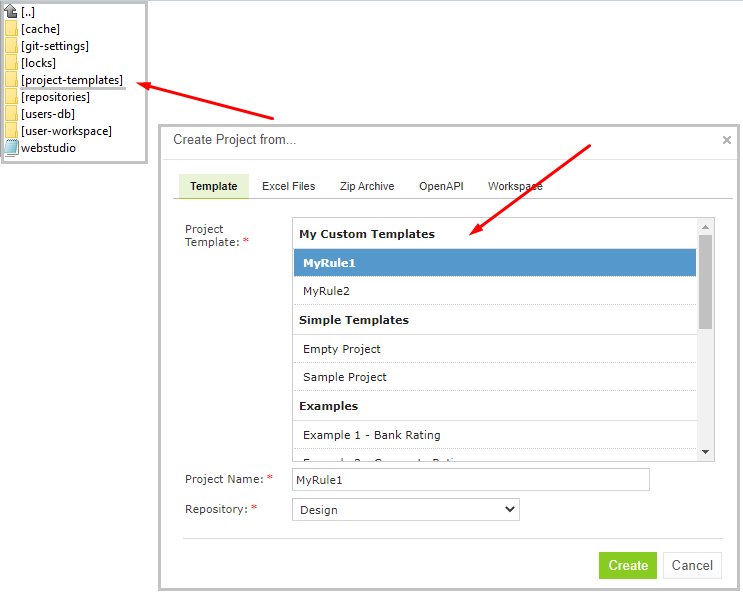
Creating a custom project template
Creating a Project from Excel Files
A rule project in the Design repository can be created by loading one or more Excel files that contain OpenL rule tables or entire rule projects.
Proceed as follows:
- Click Create Project in the top line menu.
- In the Create Project from dialog, click the Excel Files tab.
- Click the Add button, locate the necessary Excel file in a file system and click Open.
-
If required, repeat the previous step to add more files for the project.
All files are listed in the File area.
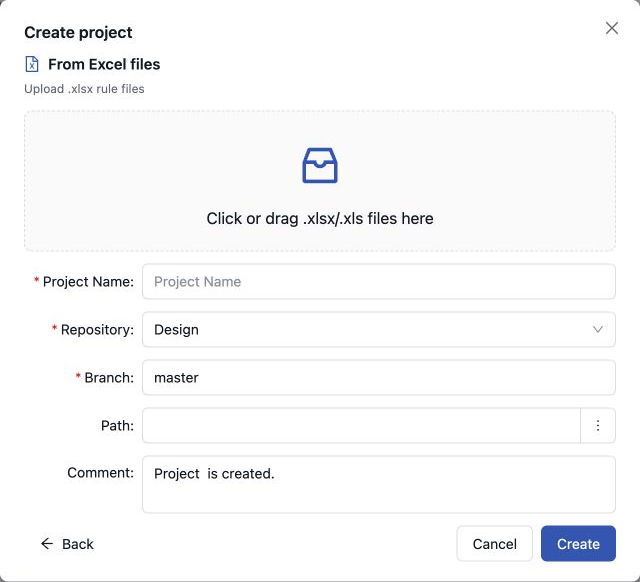
Creating a project from Excel files
A file can be removed from the list by clicking the corresponding Clear link. To delete all files, click Clear All.
- In the Project Name field, enter the name by which the project must be represented in Design repository.
-
Select a repository.
For more information on available repositories, see Creating a Project from Template.
- For a branch-capable repository, select an existing branch or enter a new branch name in the Branch field.
- Click Create to complete.
OpenL Studio creates rules.xml in the project root and stores all uploaded workbooks in the rules/ folder.
If tag types are defined as described in the Managing Tags section, a tag pop-up window appears. For more details, see the Specifying tags for a new project section.
Creating a Project from OpenAPI file
A rule project in the Design repository can be created by uploading the OpenAPI file.
The OpenAPI Specification (OAS) defines a standard, language-agnostic interface to RESTful APIs which allows both humans and computers to discover and understand the capabilities of the service without access to source code, documentation, or through network traffic inspection.
The algorithm for generating a project from an OpenAPI file is described in the Appendix B: OpenAPI Project Generation Algorithm.
The OpenAPI file must have a valid structure and a JSON, YAML(YML) extension.
To create a project from the OpenAPI file, proceed as follows:
- Click Create Project in the top line menu.
- In the Create Project from window, click the OpenAPI tab.
- Click Add, select the required OpenAPI file in a file system, and double click it or click Open.
-
To remove an uploaded file, click Clear.
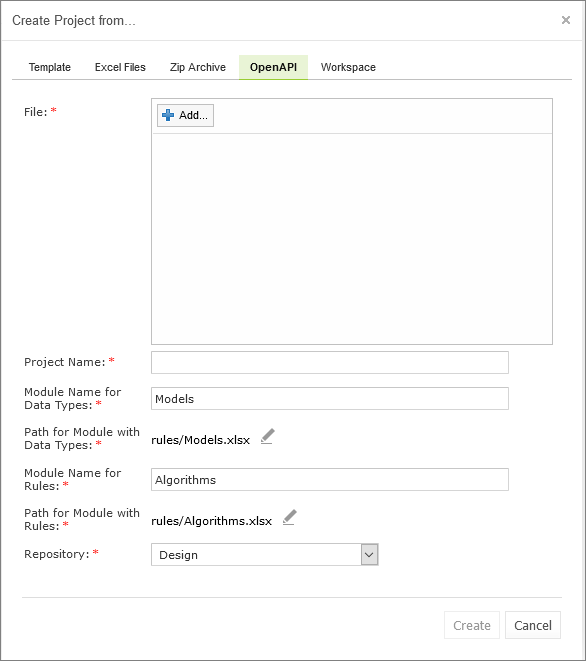
Creating a project from an OpenAPI file
- In the Project Name field, enter the name by which the project must be presented in the Design repository.
- If necessary, modify the file location and generated modules name.
-
Select a repository.
For more information on available repositories, see Creating a Project from Template.
- For a branch-capable repository, select an existing branch or enter a new branch name in the Branch field.
- Click Create.
With the default file locations, OpenL Studio stores the generated Models and Algorithms workbooks in the rules/
folder. The generated rules.xml relies on the standard module layout and omits redundant project and module
declarations. Nonstandard module names or file locations are declared explicitly.
The uploaded OpenAPI file is stored in the project root. Its name is normalized to openapi.json for a JSON file or
openapi.yaml for a YAML or YML file, regardless of the uploaded file name. The generated rules.xml does not contain
an openapi block. The normalized file is discovered automatically in the default reconciliation mode, so it validates
the project without continuing to regenerate the workbooks and overwrite subsequent edits.
If tag types are defined as described in the Managing Tags section, a tag pop-up window appears. For more details, see the Specifying tags for a new project section.
Creating a Project from ZIP Archive
OpenL Studio provides a control for loading rule projects archived in a ZIP file into Design repository. The procedure resembles creating a project from Excel files described above although there are a few differences.
ZIP is the only supported archive format — .rar or .7z archives cannot be used. A project folder is accepted as well, because OpenL Studio packs it into a zip archive in the browser first and validates it exactly like an uploaded one — the folder must be a project, holding a rules.xml or an Excel file at its root.
The archive must also arrive in full. OpenL Studio reads the directory the archive keeps at its end, so an upload that was cut short is rejected instead of becoming a project with part of its content, and checks the files the archive carries against the checksums recorded for them. An archive that unpacks to more than 2 GB keeps the first check and skips the checksums, so that verifying it cannot itself be turned into an attack.
- Click Create Project in the top line menu.
- In the Create Project from dialog, click the Zip Archive tab.
-
Choose Archive or Folder, click the Add button, locate the necessary zip archive or project folder, and click Open.
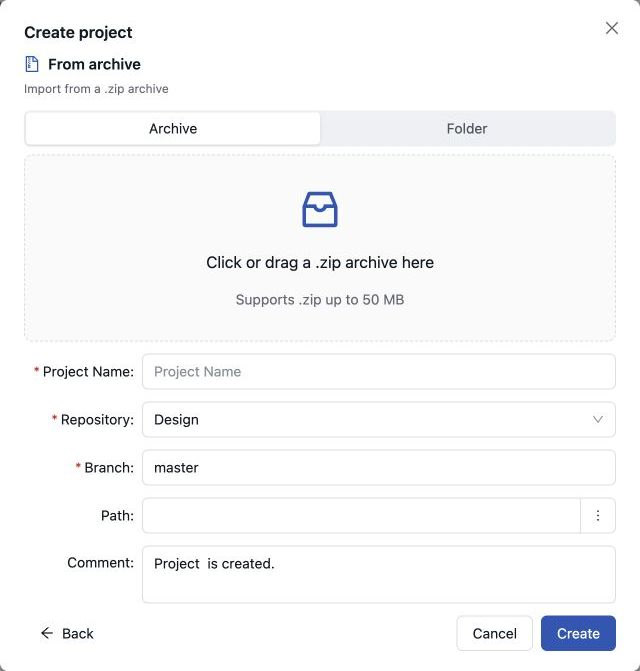
Creating a project from ZIP file
Project Name text box is automatically populated with the project name defined in
rules.xml,if the uploaded ZIP file containsrules.xml,or with the file name. -
If necessary, modify the project name.
It will be updated in
rules.xmlaccordingly. -
Select a repository.
For more information on available repositories, see Creating a Project from Template.
- For a branch-capable repository, select an existing branch or enter a new branch name in the Branch field.
-
Click Create to complete.
The new project opens in the workspace right away, the same as a project created from a template or Excel files.
If the archive has no rules.xml in its root, OpenL Studio creates one without moving any files in the archive. The
generated descriptor declares *.xlsx as the module pattern for workbooks in the project root. Root-level workbooks
in older Excel formats are declared as individual modules so they remain available.
If tag types are defined as described in the Managing Tags section, or if the project already contains tags, a tag pop-up window appears. For more details, see the Specifying tags for a new project section.
Specifying tags for a new project
Project tags are stored in the tags.properties file located in the root directory of the project.
A new project may already contain tag values. This can happen, for instance, when a ZIP file is imported or an existing project is copied. In such cases, a project might include tags that are not configured or incorrectly configured in OpenL Studio. This occurs when the corresponding tag type is not configured at all, or if the tag type is not extensible and the specified tag value is not allowed.
If the project contains tags that cannot be applied, a Missing tags pop-up window is displayed. This window lists the tag values, explains why they cannot be applied, and indicates what will happen next. If a tag type is not configured in OpenL Studio, the corresponding tag will be ignored. If a tag value is not permitted, a follow-up dialog prompts the user to enter a valid value.
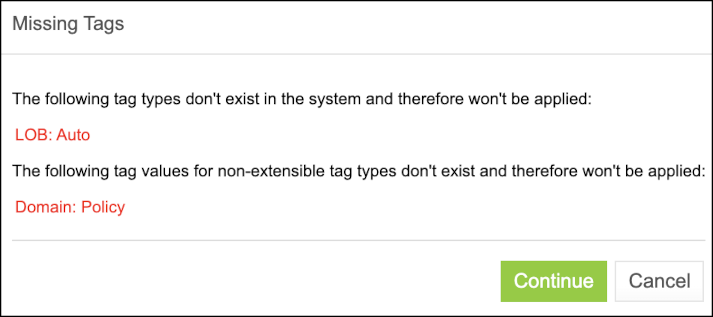
Some tags are not configured properly
If the tag types are defined as described in the Managing Tags section, a pop-up window appears, prompting the user to specify project tags.
Default tag values are determined in the following order:
- If the project already contains a tag value, it is used as the default.
- If a tag value can be derived from the project name templates, it is applied.
- Otherwise, None is set as the default.
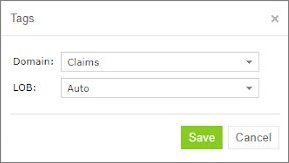
Selecting project tags
If a tag type is defined as optional, the project can remain with the tag value None. If the tag type is defined as extensible, new tags can be created in the pop-up window by clicking on the required tag field and entering a new value. Otherwise, only predefined tag values can be used.
Opening a Project
An opened project is copied to user’s workspace and becomes available for selection in Rules Editor. The project is opened for viewing and can be modified if it is not locked by another user. When a user modifies a project, its status is set to In Editing and it becomes locked for other users who now can only view it.
To open a project, in the project tree, select the project and, in the right pane, click one of the following buttons as required:
| Button | Description |
|---|---|
| Open | Opens the latest revision of project. |
| Open Revision | Displays window where user can specify which project revision must be opened. |
When the project declares dependencies, Open first asks whether to open them together with it. Opening them is the default, because the project needs them to compile.
The same window warns about every dependency the branch of the project does not hold. The project is compiled against them as they are, which can fail, and the two kinds are dealt with differently:
- A dependency of the same repository that the workspace keeps on another branch is switched over to the branch of the project before opening it. Branches of one repository are not switched together: each project keeps the branch it was switched to.
- A dependency marked Not Found stays unavailable until the branch of the project contains it, so switching branches does not help. Bring the project into that branch, or open the depending project on a branch that already has it.
A dependency of another repository is never reported here: repositories keep no branches in step, so its branch means nothing to this project.
Any project revision can be opened, with the project status set to Viewing Revision, as follows:
- Opening a Project Revision Using the Open Revision Button
- Opening a Project Revision Using the Revisions Tab
Opening a Project Revision Using the Open Revision Button
To open a project revision using the Open Revision button, proceed as follows:
- Click the Open Revision button.
-
In the Project Revision field, select the required revision.
A revision is listed by its number, followed by the author and the time it was created, so revisions made moments apart can be told apart.
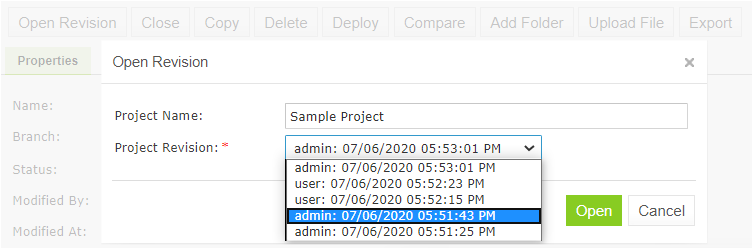
Opening a project revision using the Open Revision button
- Click Open.
Opening a Project Revision Using the Revisions Tab
To open a project revision using the Revisions tab, proceed as follows:
- In the Projects tree, select a project.
-
Click the Revisions tab.
A list of revisions appears.
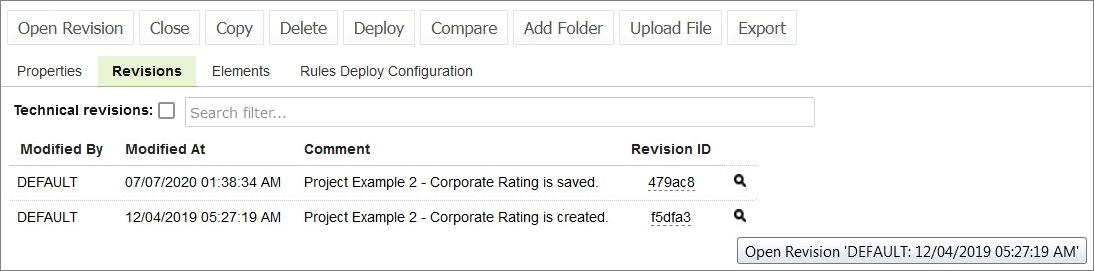
List of project revisions
- Navigate to the revision that needs to be opened and click the corresponding magnifier icon in the Action column.
- In the information message, click OK.
If a project has the Viewing Revision status, the opened project revision becomes available for viewing and modifying, not the latest revision.
If user tries to modify an old revision of the project, the system displays the warning message, “You are trying to edit old revision of the project. Do you want to overwrite newer revision?” When user modifies the old revision, it becomes the current version of the project, and its status changes to In Editing.
Revisions can also be accessed through Editor by selecting More > Revisions for a project.
The features Technical Revision and Search Filter are available in OpenL Studio when the repository type is Git.
The Technical Revisions feature, when checked, allows users to see revisions that are not directly related to the current project (for example, changes related to code updates or changes in other projects).
The Search Filter field helps users quickly locate specific revisions by searching through the comments, modified by, and revision IDs.
Closing a Project
Closing a project deletes it from the user’s workspace. No changes made to the project will be applied and stored. From that point, the project is not available for selection in Rules Editor. Users can still browse closed projects in repository editor.
To close a project, in the project tree, select the project and, in the right pane, click Close.
Saving a Project
A modified project is saved and copied from the user’s workspace to Design repository as a new revision.
Save is available only for a project linked to a Design repository. A project with the Local status has no Design repository revision to update; export it as described in Exporting a Project or a File and import the archive as described in Creating a Project from ZIP Archive instead. The imported project cannot be opened while the Local project of the same name is still in the workspace, so delete the Local project after the import.
To save a project, proceed as follows:
-
In the project tree, select the project, and, in the right pane, click Save.
The Save changes window appears:
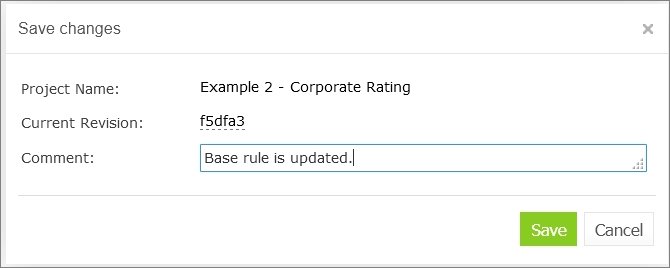
Save changes in a project
The number of a revision is updated automatically and is specified in the Next Revision field.
-
Enter comments if needed and click Save.
An editable project can be saved and closed directly from Rules Editor as described in Editing and Saving a Project.
Viewing Project Properties
Each rule project has a set of properties displayed in the Properties tab when a project is selected.
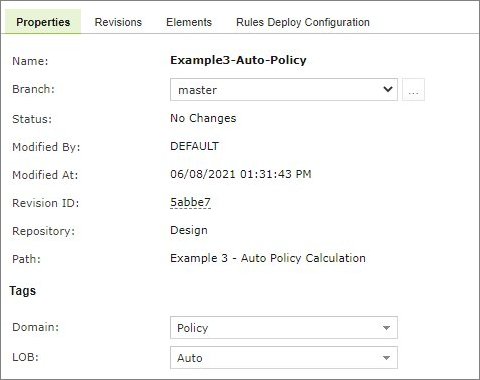
Project properties
Properties, such as Name and Created At / Created By, are updated automatically by the system, and users cannot edit them in the OpenL Studio UI. However, a user can modify tags in this tab.
If the user chooses to modify tag values, the project status will change to In Editing, unless it is already in this state.
There are scenarios where a project has a tag that does not have a configured tag type, as described in the Managing Tags section, or contains a value that is not permitted. This can occur if a project was created before tag types were reconfigured or removed.
In cases where a tag type is missing, the user can only change its value to None, effectively removing the tag.
If a tag contains a value that is not permitted, the user can only update it to a permitted value.
If a tag is used for grouping in a project tree, its value in a tree gets updated only when the project is saved.
Note that in case of the Git repository, in the Modified By field, the user’s display name is used, not the username, and the tooltip for this field displays the user’s email.
Modifying Project Contents
This section describes modifying the physical structure of the project and includes the following topics:
An uploaded Excel workbook or ZIP archive is checked for completeness before it is stored. A file that did not arrive in full — an upload interrupted halfway, or content damaged on its way — is rejected with an error, so a module nobody can open never reaches the project. Files of any other type are stored as they arrive, and an upload larger than 1000 MB is refused rather than checked.
Creating a Folder
To create a new folder in the project structure, proceed as follows:
-
In the project tree, select the parent folder in which the new folder must be created.
To create a root level folder, the project name must be selected in the project tree.
- In the right pane, click Add Folder.
- In the Add Folder window, enter the folder name and click Add.
Uploading a File
To upload a file to a project folder, proceed as follows:
-
In the project tree, select the folder where the file should be uploaded.
To upload a file to the root level, the project name must be selected in the project tree.
-
In the right pane, click Upload File.
The Upload File window appears:
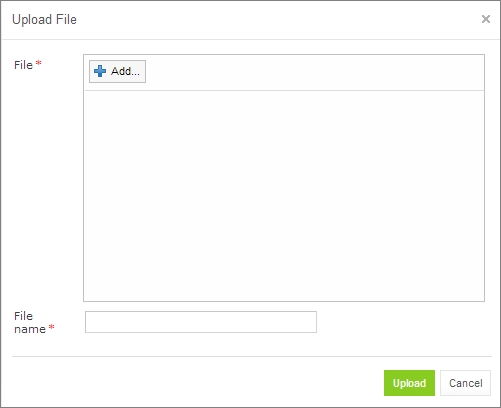
Uploading a file
- Click Add in the File area and select the file to be uploaded.
- Click the upper Upload button (with a green arrow).
- In the File name field, enter or modify the name of the file to be used in Design repository.
- Click the Upload button at the bottom.
Updating a File
To update a file of a project via repository editor, proceed as follows:
- In the project tree, select the file to be updated and, in the right pane, click Update file.
- In the window that displays, click Add and choose the required file for updating.
- Click the Upload button to load the file.
- Click Update to end the action.
Deleting a Folder or a File
To delete a folder or a file in the project structure, proceed as follows:
- Perform one of the following steps as required:
- Expand the project tree, select the folder or file to be deleted and, in the right pane, click Delete.
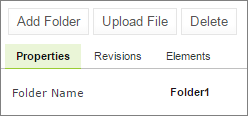
Deleting a project element
- To delete an element inside the parent folder, select that folder, click Elements to expand the folder and then click Delete
 at the right of the item to be deleted.
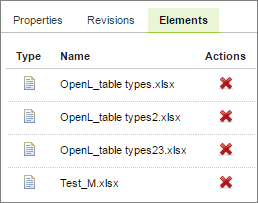
Deleting project elements from the Elements tab
- In the confirmation window, click Delete.
Deleting a folder or a file changes the opened project. Save the project to store the deletion in Design repository.
Copying a File
A user can create a copy of a file using the repository editor. The current revision of the file or any revision stored in the repository can be used for copying. Proceed as follows:
- Select a project that contains a file to copy and in the files tree, select the required file.
- In the upper left corner of the page, click Copy file
 .
. - In the window that appears, select the Current Revision or clear it and in the File Revision field, select a value.
- Optionally, enter the New File Path property value.
-
In the New File Name field, enter the file name.
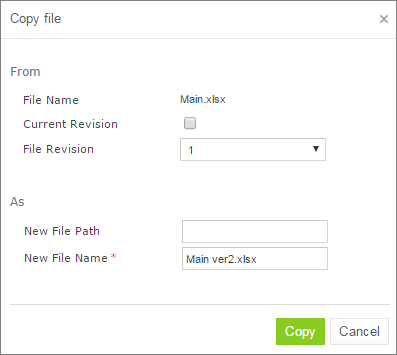
Copying a file in repository editor
- Click Copy.
The newly created file appears in the file tree.
Copying a Project
Copying a project creates a new project with identical contents and a different name in Design repository. A copy can be created from the Create Project wizard or from the selected project’s Copy action.
To copy a project from the Create Project wizard, proceed as follows:
- Click Create Project and select Copy project.
- Select the source project and enter the new project name.
- Select the target repository.
- For a branch-capable repository, select an existing branch or enter a new branch name in the single Branch field.
- If necessary, specify a path and modify the commit comment.
- Click Create.
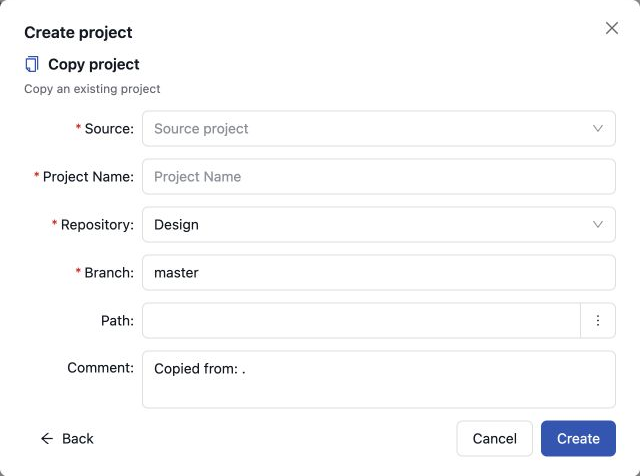
Copying a project in the Create Project wizard
To copy the selected project, proceed as follows:
- In the Projects tree or list, select the project and click Copy.
- Select Create a New Project if the dialog initially offers to create a project branch.
- Enter the new project name and select the target repository.
- For a branch-capable target repository, select an existing branch or enter a new branch name in Branch.
- If necessary, specify the target path and modify the commit comment.
- To copy an earlier state, select Copy an Old Revision and choose the revision.
- Click Copy.
The new project appears immediately in the project list. The selected branch is its home branch when no other branch contains the project.
Removing a Project
Deleting a project removes it from the user’s workspace and from the current state of Design repository. For Git repositories, OpenL Studio stores this change as a regular delete commit, so repository history keeps the deletion event. If the project is opened by any user on the deleted branch, OpenL Studio closes it before removal and discards unsaved changes. If the project also exists in another branch, it remains in the project list and copies opened from those other branches are not removed.
Note: Projects in the Local status that were not uploaded to Design repository will be removed physically and cannot be restored.
To delete a project, proceed as follows:
- Perform one of the following steps as required:
- In the Projects tree, select the project and, in the right pane, click Delete.
- Click Projects in Navigator to get a list of projects, navigate to the project you want to remove and click the corresponding Delete item on the right.
- In the confirmation window, enter a comment.
- Select I understand that the project will be deleted.
- Click Delete.
Deploying a Project
OpenL Studio allows deploying a project directly to a deployment repository.
To deploy a project, proceed as follows:
- In the Projects tree, select the project to deploy.
-
In the top menu, click Deploy.
Note: The Deploy button is disabled if the selected project has the Local status or is currently being edited.
The Deploy “<Project Name>” project dialog appears.

Deploy project dialog
- In the Repository dropdown, select the target deployment repository.
- In the Deployment Name field, select an existing deployment from the list or type a new name to create one.
- In the Comment field, enter a comment describing the deployment.
- Click Deploy.
The project is deployed to the selected deployment repository.
The following topics are included in this section:
Configuring Rules Deploy Configuration Settings
Deployment rules can be added before deploying a project to deployment repository. If a project already has the rules-deploy.xml configuration file, it can be edited via the Rules Deploy Configuration menu.
Proceed as follows:
- In the top line menu, click Rules Deploy Configuration.
- Click Create rules deploy configuration.
- In the window that appears, enter the following information about the rules:
- Provide runtime context.
- Use the Rule Service runtime context.
- Create services specifying the versions of web services to support.
-
Enter the service name.
The service name is displayed for a deployed project only in the embedded mode.
- Define the service class.
-
Define the service version.
For more information on service version definition, see Defining Rule Service Version.
- Enter URL of the service.
-
In the Template class field, define Annotation template class.
Note: In OpenL Tablets versions prior to 5.24.1, separate fields for Intercepting template class and Annotation template class are supported. Since Annotation template class completely covers Intercepting template class and have a higher priority, from 5.24.1, only Annotation template class is displayed in the Template class field. If the existing configuration have both Annotation template class and Intercepting template class, only Annotation template class is displayed on UI and saved in the file after editing.
Exception: For projects with OpenL version compatibility and version prior to 5.16, only the Intercepting template class: field is displayed instead of Template class.
- Define comma separated service groups.
-
Add configuration description to the XML file.
For more information on the Rules Deploy Configuration tab settings configuration, see OpenL Tablets Rule Services Usage and Customization Guide > Service Configurer.
-
Click Save Configuration.
The selected rules are displayed in the Rules Deploy Configuration tab.
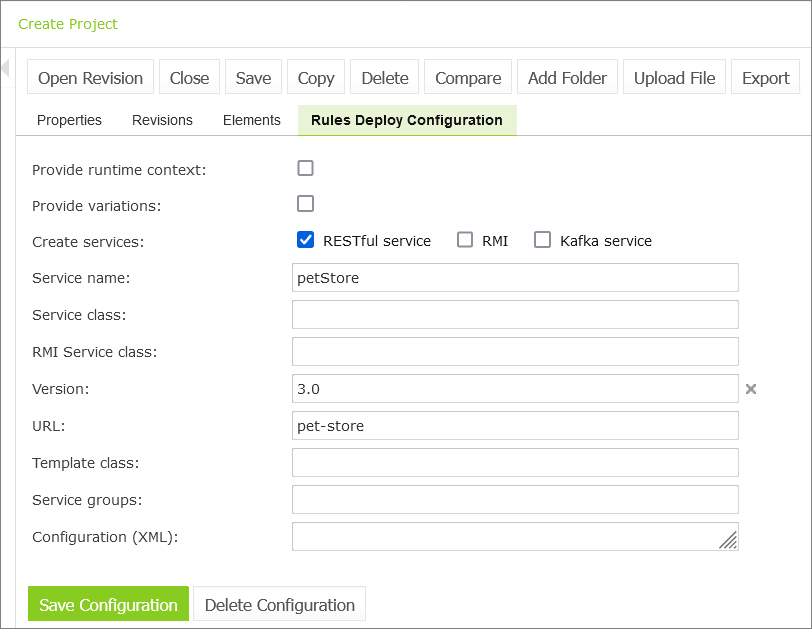
Defining rules deploy configuration settings
Defining Rule Service Version
OpenL Studio supports versioning definition for rule services. This functionality allows specifying a version for the project revision to be deployed. The required version of the deployed project can be called from deployment repository. All specified versions of the project appear on the OpenL Tablets Rule Services page with a version number defined in brackets.
To check the services version deployment, in OpenL Tablets Rule Services, find the name of the deployed project. Services version is set both in the services header and in the services URL.
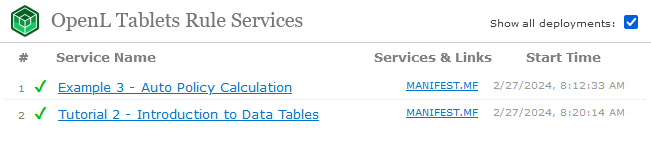
Services header and URL with the version number
To define the rule service version, proceed as follows:
- In the Projects tree, select a project.
- In the top line menu, click Rules Deploy Configuration.
-
In the window that appears, click the Version field.
By default, the Major 0, Minor 0 scroll list appears.
- For more information on how to configure deployment configuration settings, see Configuring Rules Deploy Configuration Settings.
-
In the scroll list, select the services version.
For example, to create the services version 1.0, Major = 1 and Minor = 0 must be selected.
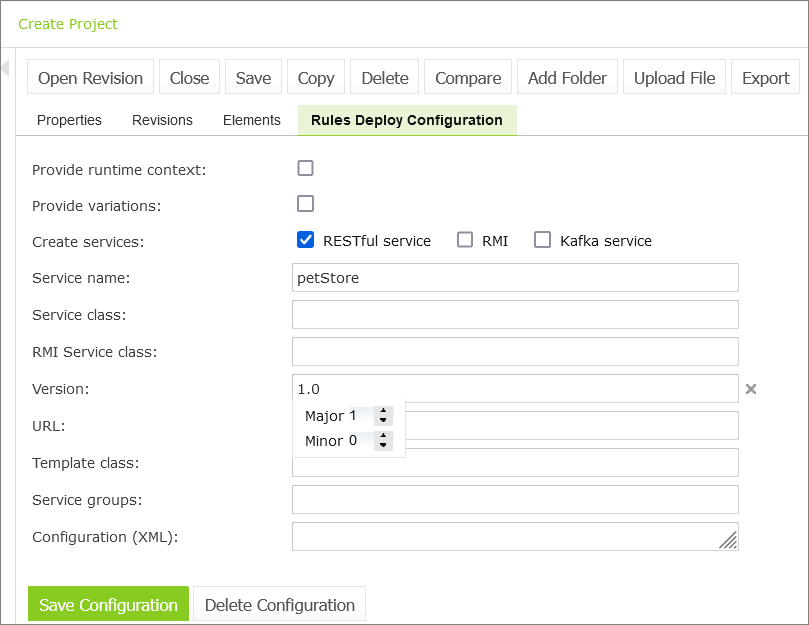
Defining services versioning
- Click Save Configuration.
The selected services version is displayed in Rules Deploy Configuration for the selected project. For the example displayed in this section, the project version is 1.0.
Comparing Project Revisions
OpenL Studio compares an Excel file of the project as the working copy has it now with the same file as a revision holds it. To compare the working copy with another revision, proceed as follows:
- In the project tree, select the project.
-
In the right pane, click Compare.
The comparison opens in a window of its own, where what to compare is picked: the Excel file of the working copy on the left, and the branch, the revision and the Excel file to compare it with on the right.
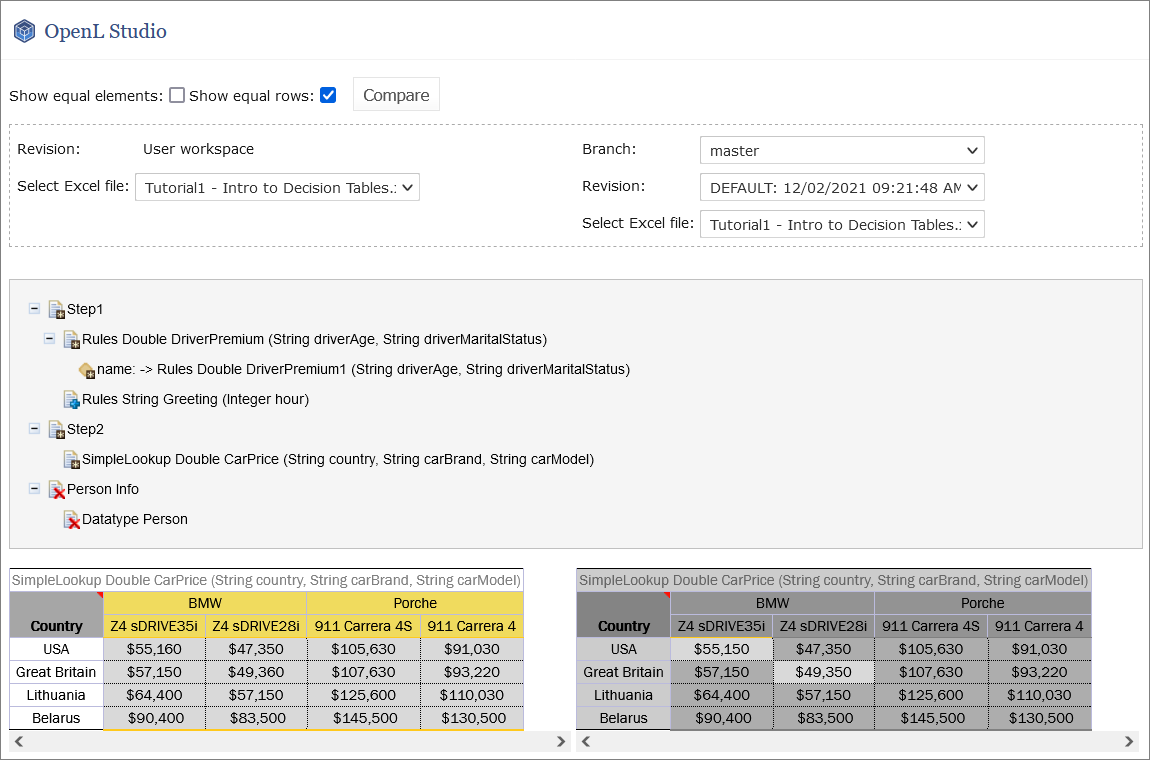
Picking the working copy on one side and a revision on the other
- To list the elements that are the same in both files as well, select the Show equal elements check box.
-
Click Compare.
The elements that differ are listed grouped by Excel sheet. Selecting an element displays the two versions of it next to each other, with the cells that read differently highlighted, exactly as described in Comparing Excel Files.
- To compare another pair, click Select other files.
Exporting a Project or a File
To export a project from repository editor, proceed as follows:
- In the project tree, select the project.
- In the right pane, click Export.
- In the displayed window, select the required project revision, click Export and a full project in the selected revision will be exported.
The default project version for export is the one that a user has currently open in Rules Editor. If it contains unsaved changes, it is marked as In Editing, otherwise, it is called Viewing.
To export any revision of a file from Repository, proceed as follows:
- In the project tree, select the project.
- Expand the project tree and select the file to be exported.
- In the right pane, click Export file.
- In the displayed window, select the required file revision and click Export.
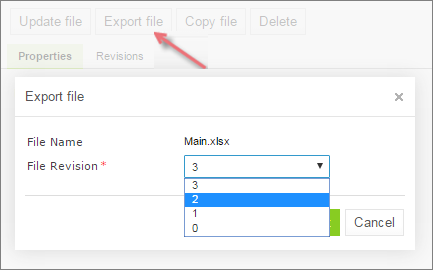
Exporting a file from a project
Note: A project in the Local status has no revisions in a Design repository, so the export window offers its working copy only, listed as Local.
Unlocking a Project
OpenL Studio provides a function for a user to unlock a project which is edited and, therefore, locked by another user. Be aware that after unlocking, all unsaved changes made by another user will be lost and the project will be closed. The name of the user who locked the project appears in project summary, next to the project status.
To unlock a project, proceed as follows:
- Perform one of the following steps as required:
- In the Projects tree, select the project and, in the right pane, click Unlock.
- Click Projects in Navigator to get a list of projects, navigate to the project that needs to be removed and click the corresponding Unlock item
 on the right.
- In the confirmation window, click OK.
It is recommended to grant permission to the “Unlock” functionality only for administrators.
Browsing the Deployment Repository
The Deployment repository contains project deployments and is also the location from where solution applications use them. OpenL Studio allows connecting several deployment repositories. For information on how to configure deployment repositories, refer to Managing Repository Settings.
To browse a deployment repository, proceed as follows:
- Switch from the Design repository view to the Deployment repositories view by clicking Deployment in the top of the left pane.
-
In the project tree, select the deployment repository to be browsed (repositories are marked by
 icon).
The list of project deployments in the selected deployment repository are displayed in the middle pane.
- If needed, expand the repository tree and browse project deployments.
OpenL Studio displays only the latest revisions of each deployment in the deployment repository.
When browsing deployments in the deployment repository, users can see their content, namely what rules projects are deployed.
For every deployed project, the list displays the following information:
- Revision in Design Repository — the revision the project has in the design repository it was built from, named by who committed it and, underneath, when
- Modified By and Modified At — who deployed the project and when
A deployed project keeps no reference back to where it came from, so its design revision is recognized by content: OpenL Studio indexes the revisions of the design repositories in the background and looks for the one whose files match the deployed project. Two consequences follow:
- the revision of a project that was just deployed appears once the indexing reaches it, not immediately;
- the revision stays unknown for a project deployed from a design repository this OpenL Studio does not have, and for content that no design revision matches.
The indexing is controlled by the repository.cache.monitor.enabled property. Switching it off leaves the Revision in Design Repository column empty for every deployed project.
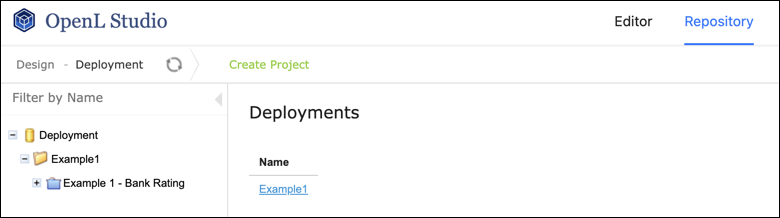
Deployment repository with deployed projects
User Data for Git Commits
Upon user logon, OpenL Studio requires the user’s email address and display name. If either value is missing, the Complete Your Profile window opens before the user can continue to OpenL Studio. First Name and Last Name are optional and can be used to generate the display name. The completed display name and email are used for Git commits for the following actions:
- create a project
- copy a project
- save a project
- merge a project
- delete a project
- delete a branch
- deploy a project
- synchronize a project