Using Rules Editor
Using Rules Editor
This chapter describes basic tasks that can be performed in Rules Editor. For more information on Rules Editor, see Introducing Rules Editor.
The following topics are included in this chapter:
- Filtering Projects
- Viewing a Project
- Viewing a Module
- Managing Projects and Modules
- Defining Project Dependencies
- Viewing Tables
- Modifying Tables
- Referring to Tables
- Managing Range Data Types
- Copying a Table
- Performing a Search
- Creating Tables
- Comparing Excel Files
- Viewing and Editing Project-Related OpenAPI Details
- Reconciling an OpenAPI Project
Filtering Projects
To limit a list of projects displayed in the Projects list, start typing a project name in the field located above the list of projects.
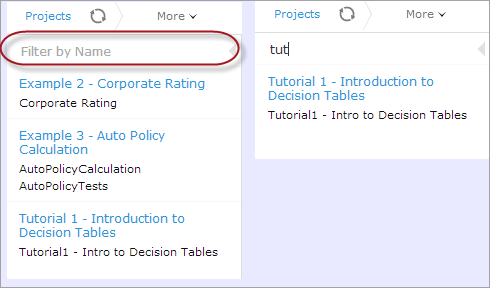
Filtering projects by Name
To get a full list of projects, delete filter text value in the field.
Viewing a Project
Rules Editor allows a user to work with one project at a time. To select a project, in the Projects tree, select the blue hyperlink of the required project name. The project page with general information about the project and configuration details appears in the middle pane of the editor.
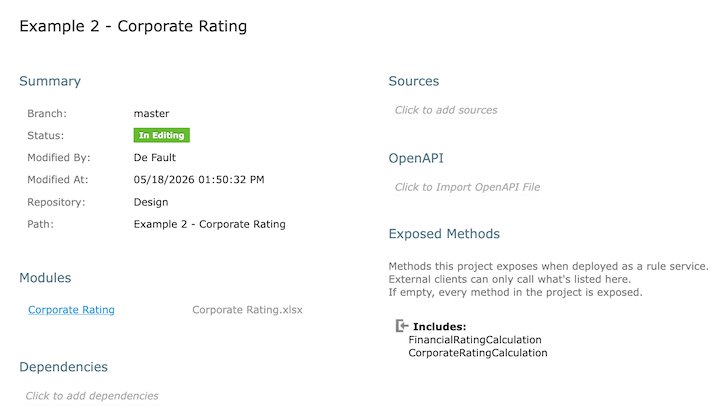
A project page in Rules Editor
If a particular project is not available, it must be opened as described in Opening a Project.
Viewing a Module
Rules Editor allows a user to work with one module at a time. To select a module, in the Projects tree, select the black hyperlink of the module name. The following module information is displayed:
- tree in the left pane displaying module tables
- general module information displayed in the middle pane, including project and module names, associated Excel file, number of tables, and module dependencies
If a particular module is not available, the project in which it is defined must be opened as described in Opening a Project.
By default, a project is opened in the multi-module mode. This is a common production mode. In the multi-module mode, all modules of the current project with all their dependencies are displayed, that is, modules of projects defined as the project dependencies.
For more information on project and module dependencies, see OpenL Tablets Reference Guide > Project and Module Dependencies.
The first opened module page is displayed right after the module is loaded, while loading of the whole project continues in the background. The loading progress bar is displayed in the Problems section. Errors and warnings are displayed dynamically while more modules are compiled.

Loading progress bar
If a module is modified during loading, this module is re-compiled and project loading continues. When the loading is complete, the progress bar is displayed for ten more seconds and then disappears.
The loading progress bar is not displayed for newly opened projects if a project has only one module or multiple small modules which loading takes less than one second. The loading progress bar is also not displayed if the project is already opened and fully compiled and the following actions happen:
- A page is refreshed using the browser refresh button.
- A user leaves the project by switching to the main Editor or Repository page and then returns to the project without opening other projects in the meantime.
- A user switches between modules of the same project.
If a user clicks the refresh button in OpenL Studio, loading restarts and progress bar appears again. While loading in process, the Run, Trace, Test, and Benchmark actions work only for currently opened module. That is why the Within Current Module Only check box is selected and cannot be edited in the menu of these actions while loading is in progress.
When loading is completed, the Within Current Module Only check box is cleared and becomes editable.
Managing Projects and Modules
This section explains the following tasks that can be performed on projects in Rules Editor:
- Editing and Saving a Project
- Updating and Exporting a Project
- Copying a Project
- Exporting, Updating, and Editing a Module
- Comparing and Reverting Module Changes
- Copying a Module
Editing and Saving a Project
A project can be opened for editing and saved directly in Rules Editor.
-
To save the edited project, click Save
 .
.Note: If a project is in the Local status, this option is not available in Rules Editor.
-
To modify the project in the Project page, modify the values as described in the following table:
| Project details | Available actions |
|---|---|
| General project information and configuration, such as OpenL version compatibility, description, project name, and custom file name processor |
Put the mouse cursor over the project name and click Edit  . . Project name can be edited only for projects in a non-flat Git repository. The project name will be changed in OpenL Studio only, while the folder name remains unchanged. For more information on properties pattern for the file name, see OpenL Tablets Reference Guide > Properties Defined in the File Name. |
| Project sources | Put the mouse cursor over the Sources label and click Manage Sources . |
| Modules configuration | Put the mouse cursor over the Modules label or a particular module name and click Add Module  or Edit Module or Edit Module or Remove Module  . . |
| Project dependencies | Manage dependencies as described in Defining Project Dependencies. |
All changes are saved in the project rules.xml file. For more information on this XML file, see the OpenL Tablets Developers Guide.
Updating and Exporting a Project
To update or export a project, proceed as follows:
-
To update a project directly in Rules Editor, in the top line menu, click Update.
The Update button is available for projects in the In Editing status.
In the dialog that appears, upload a
.ziparchive with the project content, or switch to Folder and select a folder with the project files. The upload replaces the project content: files with the same path are overwritten, new files are added, and project files absent from the upload are deleted. -
To export the project to the user’s local machine, for a project, in the top line menu, click Export and select a project revision.
The default project version for export is the one that a user has currently open in Rules Editor. If it contains unsaved changes, it is marked as In Editing, otherwise, it is called Viewing.
The most recent revisions are offered first; older ones are loaded on demand through Load older revisions.
Exported project is downloaded as a .zip archive.
Copying a Project
To create a copy of a project, proceed as follows:
- In the top line menu, click Copy.
- Select Create a New Project if the dialog initially offers to create a project branch.
- Enter the new project name and select the target repository.
- In Branch, select an existing target-repository branch or enter a valid new branch name.
- Modify Path and Comment if needed.
- To copy an earlier state, select Copy an Old Revision and choose the revision.
- Click Copy.
The new project appears in the project list with the selected branch as its home branch.
Exporting, Updating, and Editing a Module
A user can export, update, or edit a module directly in Rules Editor. Proceed as follows:
- To upload a changed module file, for a module, in the top line menu, click Update and select an Excel file. The uploaded file replaces the module file. When the selected file name differs from the current module file name, a warning is displayed.
-
To export the module to the user’s local machine, for a module, in the top line menu, click Export and select a module revision.
The default module version for export is the one that a user has currently open in Rules Editor. If it contains unsaved changes, it is marked as In Editing, otherwise, it is called Viewing.
The list offers the revisions of the module file itself, so a project revision that did not change the module is not proposed. Older revisions are loaded on demand through Load older revisions.
-
To modify module configuration, such as module name, path, and included or excluded methods, in the Module page place the mouse cursor over the module name and click Edit
.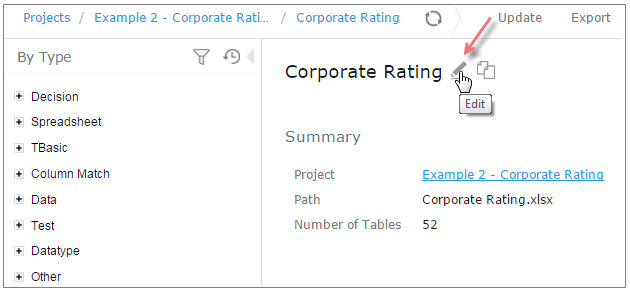
Initiating module editing
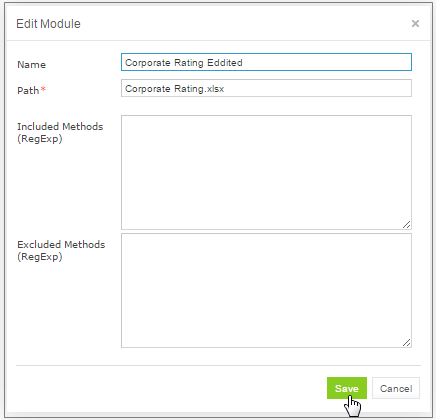
Editing module information
- To save the changes, click Save .
Notes: The ‘Included Methods’ and ‘Excluded Methods’ on this UI has been deprecated and kept for backward compatibility. The new fields for filterring exposed methods are located on the project info UI. For more information, refer to the Rule Services and Customization Guide > Dynamic Interface Support
Comparing and Reverting Module Changes
OpenL Studio allows comparing module versions and rolling back module changes against the specific date. To compare module versions, proceed as follows:
- In the Projects tree, select the module.
-
In the top line menu, select More > Local Changes. The Local Changes page appears displaying the selected module’s local versions, with the latest versions on the top. In a multi-module project, switching modules shows the local history stored for that module only.
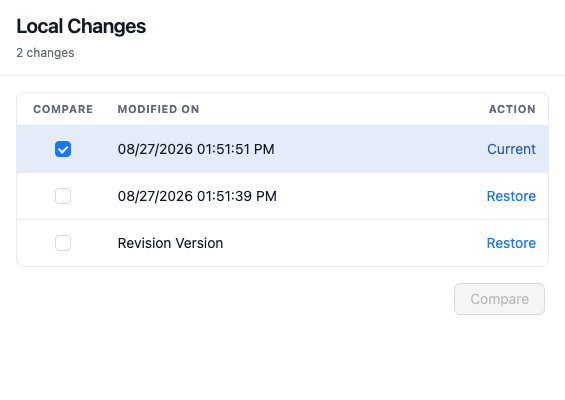
Displaying the Changes window
When a project is modified, upon clicking the Save icon
 , a temporary version of the module is created, and it appears in the list of local changes. When project update is complete, clicking Save removes all temporary versions from Local Changes, and a new version is added to the list of revisions.
Clicking Save to complete project update and save changes as a revision version
-
To compare the changes, select check boxes for two required versions and click Compare.
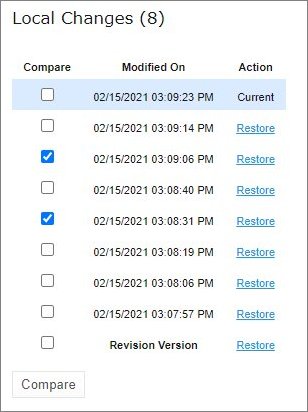
Comparing module versions
The comparison opens in a window of its own and lists the elements that differ, grouped by Excel sheet, as displayed in the following example.

Tables with changes
-
To view the changes, click the required element.
The two versions of the element are displayed next to each other, with the cells that read differently highlighted. The window is the one described in Comparing Excel Files, except that it has no files to pick: it opens on the comparison of the two versions, and the Show equal elements check box heads the list of elements instead of standing next to the files.
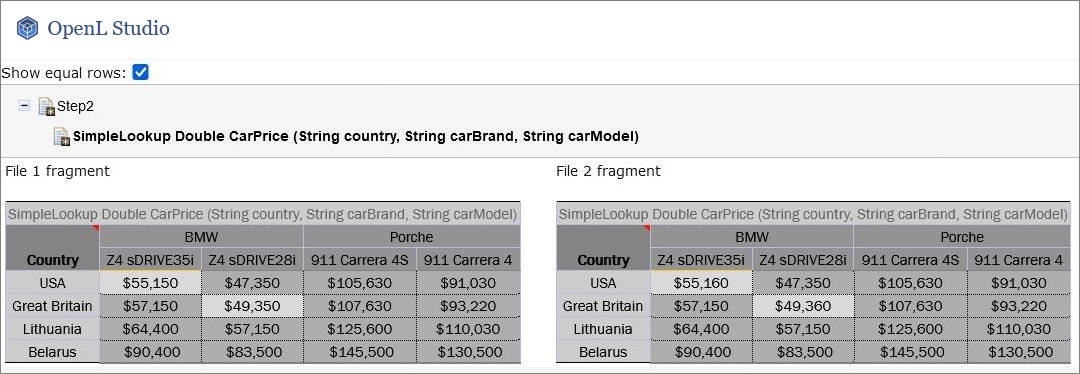
The result of the module version comparison
-
To revert module changes, for the required module version, click the Restore link and confirm the changes.
When Restore is clicked, the corresponding changes are restored but this action is not added to the history as a change.
Copying a Module
OpenL Studio allows creating a copy of the existing module, in Editor, in either Project page, or in the Module page. The following topics are included in this section:
Copying a Simple Module
To create a copy of a module, proceed as follows:
- Do one of the following:
- To create a copy of a module using the Project page, in the project tree, select a project which module must be copied, in the modules list, put the mouse cursor over the selected module name, and click Copy Module
 .
. - To create a copy of a module using the Module page, in the project tree, select a module to be copied, put the mouse cursor over the module name, and click Copy Module .
- To create a copy of a module using the Project page, in the project tree, select a project which module must be copied, in the modules list, put the mouse cursor over the selected module name, and click Copy Module
-
In the window that appears, enter the new module name.
When the new module name is entered, the Copy button becomes enabled.
-
Optionally, edit the New File Name field value.
The file name can differ from the module name.
-
Optionally, to copy the module to the specific folder, in the New File Name field, enter the file name and its location.
The original path cannot be modified other than by entering the specific path in the New File Name field. For example, if the original module is located in
folder1, the new module will be copied tofolder1.Folder1cannot be changed, but a user can define a new file name, such asfolder2/Bank Rating ver2.xlsx,and then the new module will be created infolder1/folder2/Bank Rating ver2.xlsx. - Click Copy.
A new simple module is displayed in the modules list.
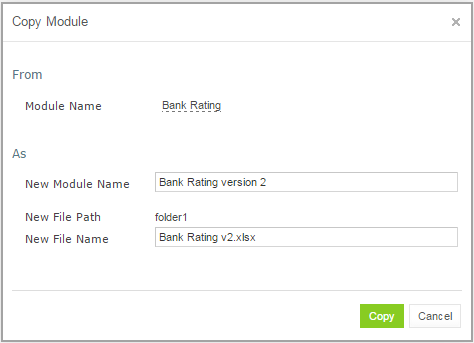
Creating a copy of a module
Copying a Module Defined Using the File Path Pattern
If the module is defined using File Path Pattern, to copy such module, proceed as follows:
- Do one of the following:
- To create a copy of a module using the Project page, put the mouse cursor over multiple modules, click Copy Module , in the window that appears, click Select module, and in the File Path drop-down list, select the name of the module to copy.
- To create a copy of a module using the Module page, in the project tree, select a module to copy, put the mouse cursor over the module name, and click Copy Module .
- To create a copy of a module using the Project page, put the mouse cursor over multiple modules, click Copy Module
- Click Select module and in the File Path drop-down list, select the name of the module to copy.
- Enter the new module name.
- Click Copy.
The new module is displayed in the modules list.
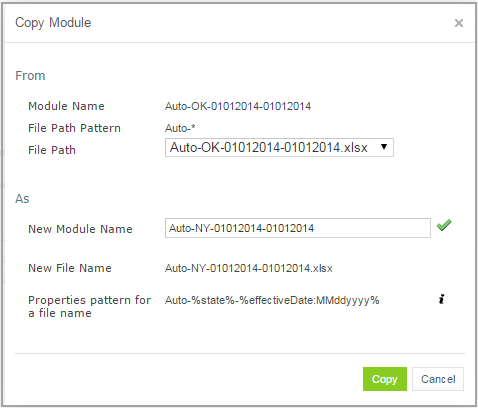
Copying a module with the defined file path and properties patterns
If the new module name does not match the properties pattern for the file name, no business dimension properties will be applied to the rules inside the module.
Defining Project Dependencies
A project dependency can be defined when a particular rule project, or root project, depends on contents of another project, or dependency project. Project dependencies are checked when projects are deployed to the deployment repository. OpenL Studio displays warning messages when a user deploys projects with conflicting dependencies.
To define a dependency on another project, proceed as follows:
- In Rules Editor, in the project tree, select a project name.
- If the project is not editable, make it editable as described in Editing and Saving a Project.
- Put the mouse cursor over the Dependencies label and click Manage Dependencies .
- In the window that appears, update information as required and click Save.
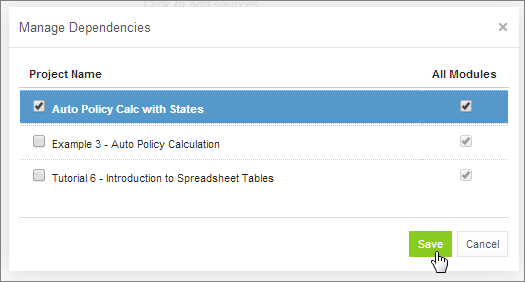
Managing project dependencies
If the All Modules option is selected in the multi-module mode, tables of all modules of the dependency project are accessible from any module of the root project.
If the All Modules option is cleared or the single module mode is selected, the root project module has access to the particular module of the dependency project only if an appropriate dependency is added in the Environment table of the root module.
Note: Module names of the root and dependency projects must be unique.
Note: Dependency projects must be available in Rules Editor to make dependency work.
For more information on project and module dependencies, see the OpenL Tablets Reference Guide > Project and Module Dependencies.
Viewing Tables
OpenL Tablets module tables are listed in the module tree. Table types are represented by different icons in Rules Editor. The following table describes table type icons:
| Icon | Table type |
|---|---|
 |
Decision table. |
 |
Decision table with unit tests. |
 |
Column match table. |
 |
Column match table with unit tests. |
 |
Tbasic table. |
 |
Tbasic table with unit tests. |
 |
Data table. |
 |
Datatype table. |
 |
Method table. |
 |
Unit test table. |
 |
Run method table. |
 |
Environment table. |
 |
Property table. |
 |
Table not corresponding to any preceding types. Such tables are considered comments. |
 |
Spreadsheet table, Constants table. |
For more information on table types, see OpenL Tablets Reference Guide. If a table contains an error, a small red cross is displayed in the corner of the icon.
To view contents of a particular table, in the module tree, select the table. The table is displayed in the middle pane. If the project is not in the In Editing status, the table can be viewed but cannot be modified.
Modifying Tables
OpenL Studio provides embedded tools for modifying table data directly in a web browser. To modify a table, proceed as follows:
-
In the module tree, select the required table.
The selected table is displayed in the middle pane in read mode.
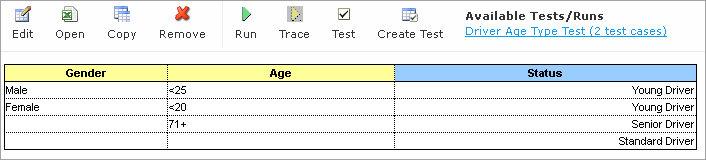
Table opened in OpenL Studio
- To switch between simple and extended view, in My Settings, select or clear the Show Header and Show Formula options as required.
- To switch the table to the edit mode, perform one of the following steps:
- Above the table, click Edit.
- Right-click anywhere in the table and click Edit.
- Double click the cell to edit.
Alternatively, the file can be edited in Excel. Clicking the Export button initiates file download. After editing the file locally, it can be uploaded back to the project in Rules Editor as described in Exporting, Updating, and Editing a Module or via the repository.
The following table is switched to the edit mode:

Table in the edit mode
The edit mode provides the following functional buttons:
Button Description 
Saves changes in table. 
Reverses last changes. 
Reapplies reversed changes. 
Inserts a row after the selected one. 
Deletes a row. 
Inserts a column before the selected one. 
Deletes a column. 
Aligns text in currently selected cell with left edge. 
Centers text in currently selected cell. 
Aligns text in currently selected cell with right edge. 
Make the text font bold. 
Applies italics to the cell text. 
Underlines the cell text. 
Sets the fill color. 
Sets the font color. 
Decreases indent. 
Increases indent. - To modify a cell value, double click it or press Enter while the cell is selected.
-
To enter a formula in the cell, double click it, perform a right click, and select Formula Editor.
Now a user can enter formulas in the selected cell.
-
To save changes, click Save
.If a table contains an error, the appropriate message is displayed.
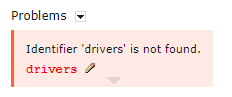
Example of an error in a table
The arrow under the message allows viewing all stack trace for this error.
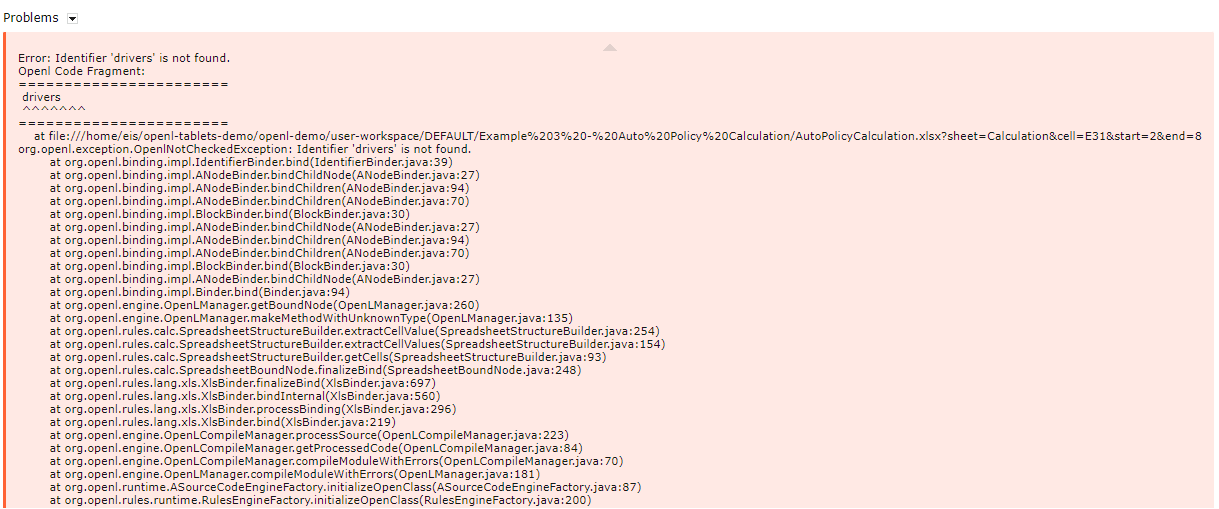
Error stack trace example
Referring to Tables
OpenL Studio supports references from one table to another table. A referred table can be located in the same module where the first table resides, or in the different module of the same project.
Links to the following tables are allowed:
- data table
- datatype table
- rule table types
Links to the rule tables are underlined and marked blue. When a mouse cursor is put over the link, a tooltip with method name and input parameters with types is displayed.

A tooltip for the linked method to a decision table
Links to the data and datatype tables are underlined with a dotted line and has an appropriate tooltip with description.
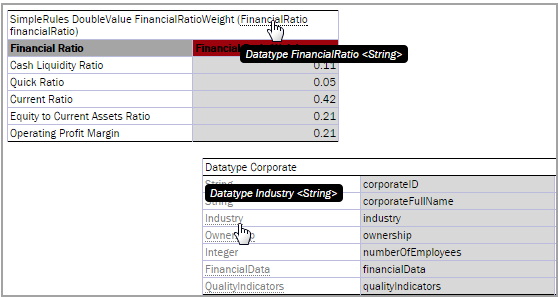
Links to the datatype tables from the decision and datatype table
All fields of the datatype tables are also linked and contain tooltips.

A link to the field of the Corporate datatype table
Managing Range Data Types
OpenL Studio provides a special tool, Range Editor, for adding and editing range data types, such as IntRange and DoubleRange, in rule tables and test tables.
This section briefly introduces Range Editor and provides examples of its functionality.
The main Range Editor goal is to move to a single range format in OpenL rules, namely, the ‘..’ format. For more information on ranges on OpenL Tablets, see OpenL Tablets Reference Guide > Representing Range Types.
Consider the following principles while working with Range Editor:
- The default range format is set to ‘..’ in OpenL Studio.
- When a new range is created, the ‘..’ format is used.
- When a range format other than ‘..’ is edited, if only range values are edited, the format remains the same.
If any editor control is used, for example, a check box or the Done button, the range format is set to ‘..’.
The following example displays the decision table with data represented as a range:
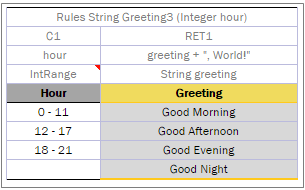
Decision table with a range data type
In this table, the Hour column contains hours with the IntRange Data type. All range sells are filled except for the last one. This example is used further in this section to demonstrate how Range Editor works.
The following controls are available in Range Editor:
- From — indicates the left border of the range
- To — indicates the right border of the range
- Include — indicates whether the border is included in the range
- ‘>’ — indicates values greater than the specified border
- ‘<’ — indicates values smaller than the specified border
- ‘=’ — indicates a constant
- ‘-’ — indicates a range
To create a range, proceed as follows:
-
Double click the cell to be edited.
For example, edit the cell containing 18-21. The table is extended by the pop-up window with a set of controls for editing the range.
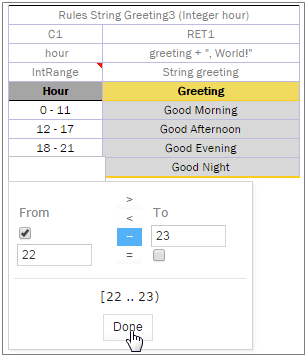
Creating a range in Range Editor
- In the From field, enter the left border of the range, which is 22 for the example described in this section.
-
In the To field, enter the right border of the range.
In this example, the To value must be 24, but an erroneous value 23 is entered for further editing of this border.
- Clear the Include check box.
-
Click Done to complete.
The last cell in the Hour column is filled as follows:
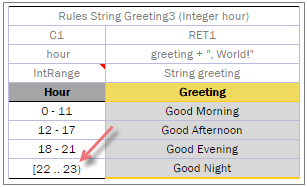
New range created in Range Editor
-
To modify the range in Range Editor, double click the cell with the [22-23) range.
The table resembles the following:
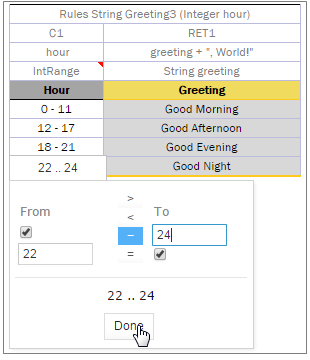
Editing a range in Range Editor
- Select the To field, set the right border to 24, and select Include.
-
Click Done to save the work.
The range resembles the following:
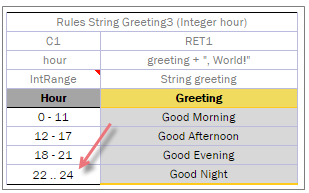
The range edited in Range Editor
A range can also be modified using ‘>’, ‘<’ and ‘=’ controls as described in the beginning of this section.
Copying a Table
To create a table as a copy of the existing table, proceed as follows:
- In the module list, select a table to copy.
-
Click the Copy Table icon
 .
OpenL Studio displays the Copy table “TableName” window.
.
OpenL Studio displays the Copy table “TableName” window.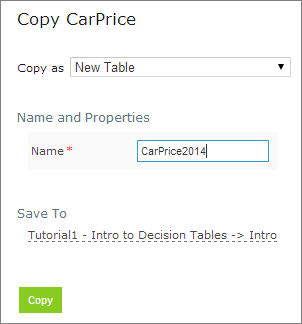
Copying an existing table
- Enter a valid OpenL identifier in Table Name. It may match an existing table name when the table is distinguished by its signature or properties. A name of any other shape is refused, by the window and by the server alike.
- Select or enter the destination Module.
- Select or enter the destination Sheet. The sheet is the table’s category, so a new sheet name creates a new category.
- Review the property name and value rows. The names are the properties applicable to the copied table’s type,
offered the way the Table Details editor lists them — by display name, under the Info, Business
Dimension, Version and Dev groups, so the dimensional properties are presented rather than guessed:
- complete the last row to add another property, or delete a row with its row control;
- select a property by its display name;
- enter text directly, select a date in the date picker, select or clear a Boolean check box, or select an enum
display value from the dropdown, according to the property type. A single-value enum is selected from a closed
dropdown and does not accept typed text.
The date picker opens on the date the copied table declares and follows the user’s locale; OpenL Studio
carries a date value as ISO 8601
yyyy-MM-dd. A date naming a moment of the day keeps that moment when another day is selected, because the picker chooses a day. - Version is entered as its three numbers — major, minor and variant — with the version the copied table stands for named beside them. It opens on the first version the table’s versions leave free, and a version one of them already carries is refused.
- Click Copy to save your changes.
The copy is stamped as created: OpenL Studio records Created By and Created On on it, as it does for a table created from scratch, provided Update table properties is selected in the system settings.
The table appears in the module list.
Performing a Search
OpenL Studio provides search functionality available both from the module level and the project-level. When opened from the project level screen, the search covers the entire project without requiring a specific module to be open.
The following topics describe search modes in OpenL Studio:
Performing a Simple Search
In the simple search mode, the system searches for a specific word or phrase across all tables within the current module, the current project, or the current project and its dependency projects depending on the selected option. To perform a simple search, in the Search field, enter a word or phrase and press Enter.

Starting a simple search
OpenL Studio displays all tables containing the entered text. The View Table link opens the table in Rules Editor.
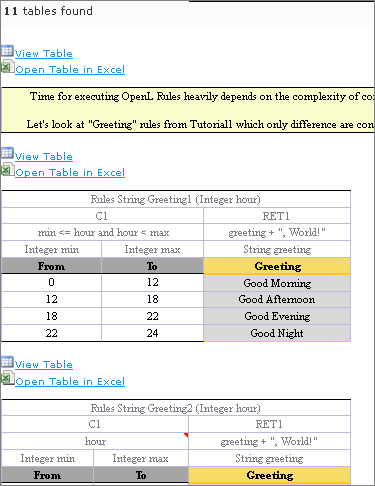
Search results
To search for any cell contents, right click the cell and in the context menu, select Search. The table is opened in the read mode.
Performing an Advanced Search
Advanced search allows specifying criteria to narrow the search through tables. To limit the search, specify the table type, text from the table header, and table properties as described further in this section.
-
To launch an advanced search, click the arrow to the right of the search window.

Initiating the advanced search
-
In the Search field on the top, select whether search must be performed within the current module, or within the project, or within the current project and its dependent projects.
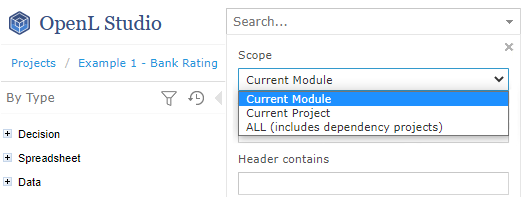
Specifying search area
- In the filter form, click the Table Types field and select the required table type or select Select All to search in all table types.
- In the Header contains field, enter the word or phrase to search for.
-
Expand the Table Properties list, select the required table property, and then click the Add button on the right.
The text field for entering the property name appears.
- Enter the property name.
- In the similar way, add as many table properties as required.
-
To remove a property, click the cross icon to the right of the property.
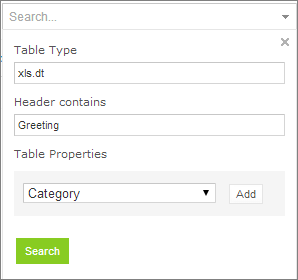
A filled form for advanced search
- Click Search to run the search.
As a result, the system displays the tables matching the search criteria along with links to the relevant Excel files and the View Table links leading to the table editing page.
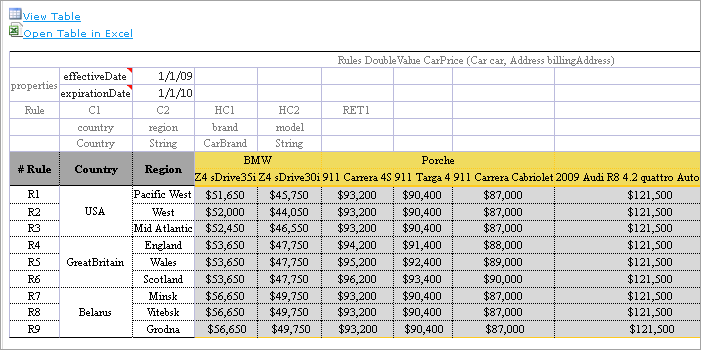
Advanced search result
Creating Tables
The Create Table action opens one window that holds the whole table: a settings strip for the type, the name and the destination, and below it the sheet itself. The skeleton is rebuilt the moment the table type changes, and the header cell at the top of the sheet shows the exact OpenL header the table will be written with.
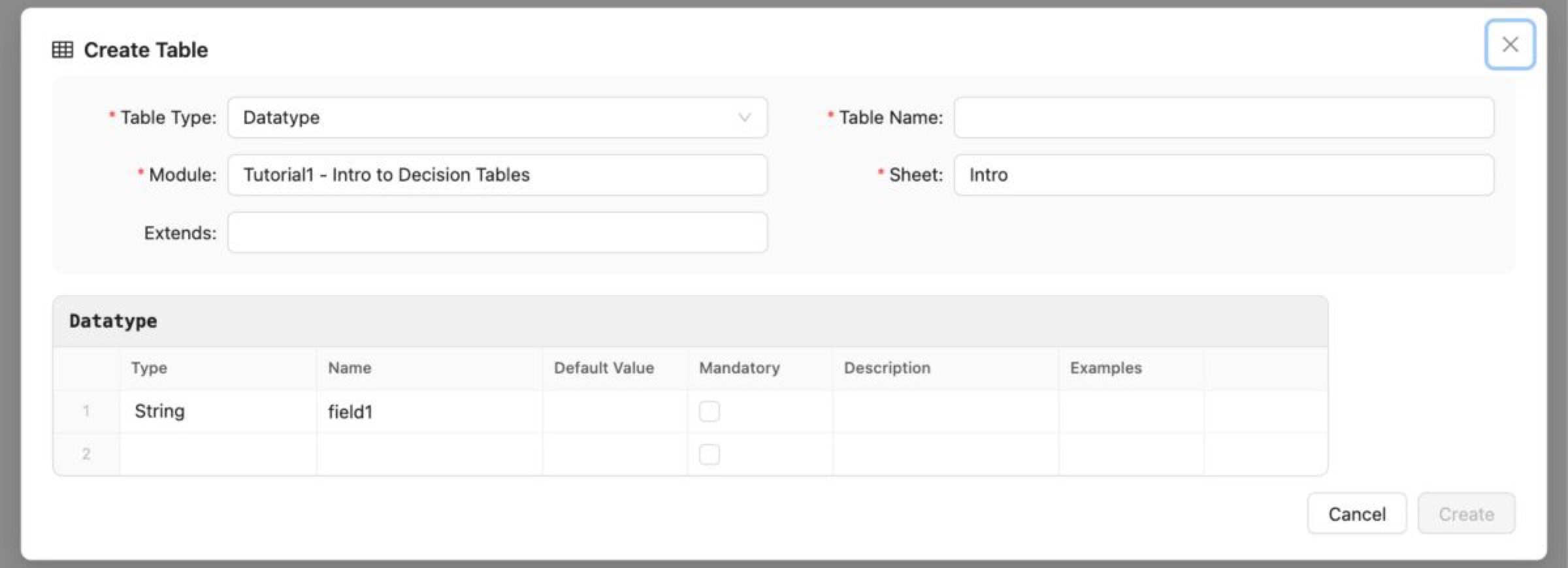
The Create Table window
To create a table:
- In OpenL Studio, click Create Table.
-
In Table Type, select one of the supported types:
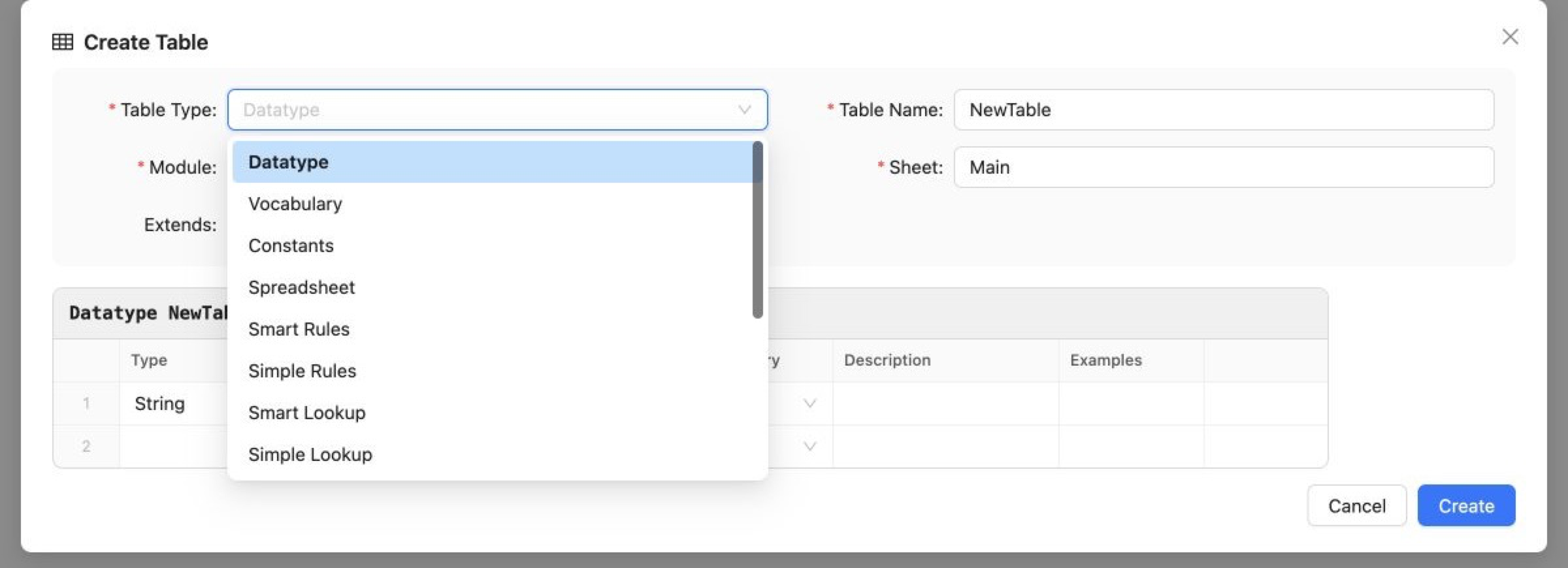
Selecting the table type
- Datatype — Type, Name, Default Value, Mandatory, Description, and Examples. Type accepts a value directly or
a value selected from simple types, vocabularies, and datatypes visible to the module. Extends suggests only
the project’s complex datatypes and writes the selected parent into the header; it does not offer
SpreadsheetResult. Select the Mandatory check box to writetrue; clear it to leave the cell empty. - Vocabulary — one value column and a simple Base Type, written in angle brackets in the Datatype header. The value cells use that type’s editor.
- Constants — Type, Name, and Default Value. Type is selected from simple types, and Default Value uses the selected type’s editor. A Constants table carries no name of its own, so the Table Name field is not shown.
- Spreadsheet — Steps and Formula, returning
SpreadsheetResultunless another type is chosen. A Spreadsheet names its own columns in the first row of the table, so those names are cells to edit and more columns can be added beside them. - Smart Rules and Simple Rules — one column for each input argument. A simple result adds an Output column; a Datatype result adds one output column for each Datatype field.
-
Smart Lookup and Simple Lookup — a two-dimensional table, read where a row and a column cross. The leading arguments run down the left, one column each, and the trailing ones across the top, one row each. The corner where the two meet is kept as square as it can be and gains a row before a column: two arguments give one of each, three give two rows and one column, five give three and two. That corner is written as a merged cell, because its height is what tells OpenL how many arguments run across the top.
A lookup of one argument has no second axis to spread over, so it is laid out exactly like a Simple Rules table — the argument down the left, the result beside it, and no corner at all. Every row is a rule from the first one, so no title row is written above them.
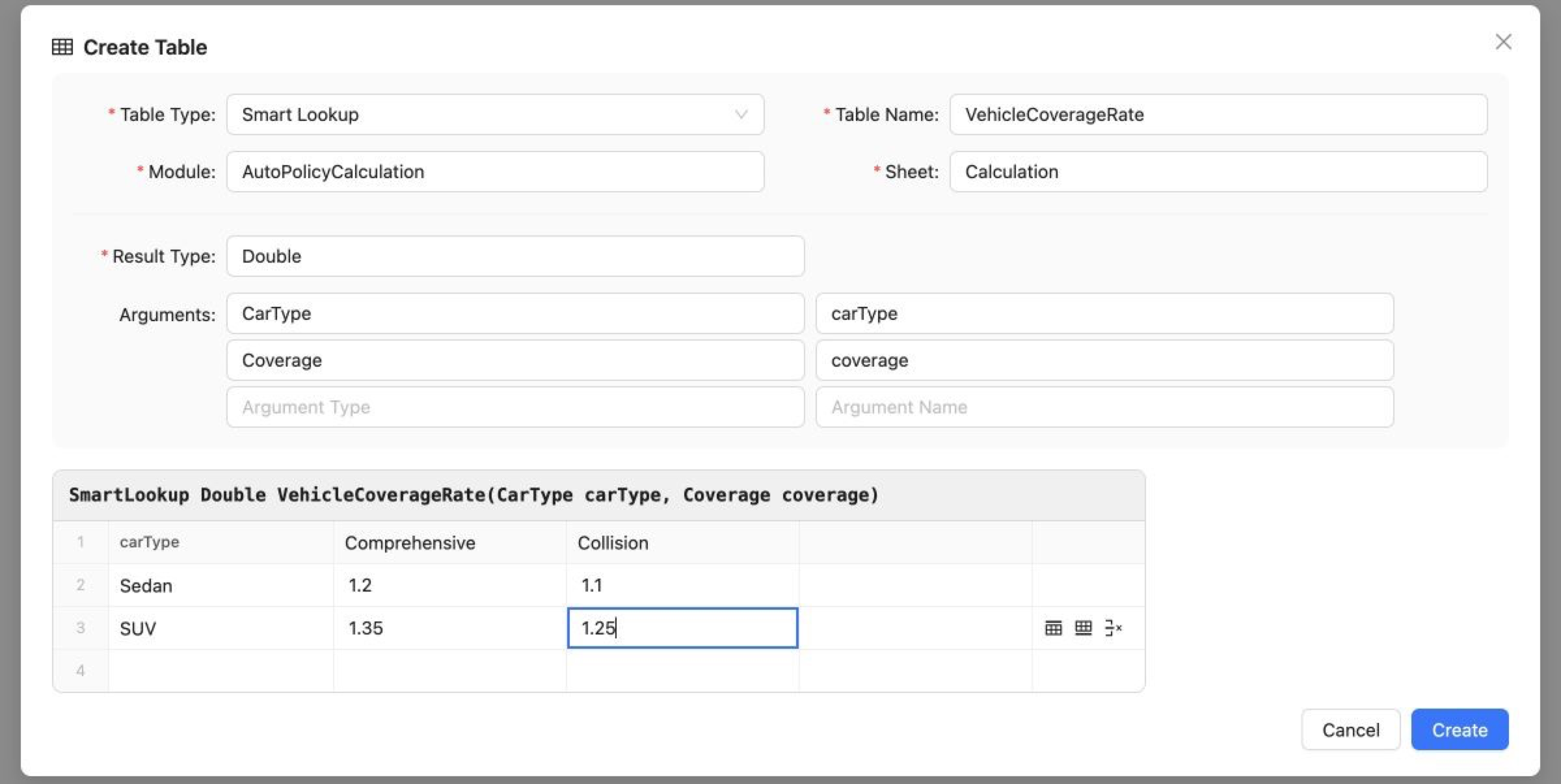
A lookup with one argument down the left and one across the top
- Rules — Condition and Output.
- Test and Run — columns generated from the signature of the selected executable table: one for every
value a call has to supply, plus
_res_for the expected result, which Run omits. An argument of a datatype contributes one column per field, named by the path OpenL reads it back with —policy.mainDriver.age— as deep as the datatypes nest. An argument of any other type, a collection included, stays one column. The target can be any executable table in the project, whichever module holds it. Test excludes a table that returns nothing because there would be no result to assert; Run includes it because Run only calls the table. The new table opens named after the table it exercises —PremiumTest,PremiumRun— and can be renamed. A Test or Run table is placed with the project’s tests: selecting the type moves the destination to a module undertests/, and a module created for it goes undertests/too. Select Transposed to put the generated fields down rows and test or run cases across columns. - Data — columns generated from the selected Datatype. Select Transposed to put fields down rows and data records across columns. Test, Run and Data display every word in generated titles in Title Case, such as Main Driver Age.
- Environment — Key and Value. Key is suggested from the three keywords OpenL acts on —
dependency,importandinclude. An Environment table carries no name of its own. - Properties — Property and Value. Property is suggested from the properties that may appear in a Properties
table. Its value uses the editor declared for that property: text, date picker, Boolean check box, or enum
dropdown. Single-value enum dropdowns do not accept typed text. Enum lists show display values and write their
codes. Multiple selected values wrap onto additional lines within the value column. Dates follow the user’s
locale in the date picker and are written as ISO 8601
yyyy-MM-dd. The skeleton starts with the mandatoryscopeproperty set toModule; change it toGlobalor toCategory— adding acategoryrow to name the category — as required. A Properties table carries no name of its own. - Free Form Table — a plain grid, with the sheet’s own column letters over it and nothing else. It has no header cell and no name: OpenL does not recognize such a table, and names it after whatever its first cell says. It is written exactly as it stands. Only that first cell is required — OpenL reads a table from it.
- Datatype — Type, Name, Default Value, Mandatory, Description, and Examples. Type accepts a value directly or
a value selected from simple types, vocabularies, and datatypes visible to the module. Extends suggests only
the project’s complex datatypes and writes the selected parent into the header; it does not offer
-
Enter the table name, where the table type has one. The field opens empty and is required wherever it is shown.
The name must be a valid identifier — letters, digits,
_and$, not starting with a digit — because it becomes the name OpenL compiles. It may match an existing table name: signatures and properties supplied by the file name, a Properties table, or the table’s own properties section distinguish table overloads and versions. Constants, Environment, Properties and Free Form tables carry no name and do not show the field. -
In Module, choose the module that receives the table, then choose the sheet. Both fields suggest what the project already has and accept anything else typed into them. The sheets offered are the ones the chosen module’s own workbook holds, and choosing a module selects its first sheet, since a sheet belongs to a module. The module decides only where the table is written — it does not change what a Test or Run table may target.
A module name the project does not declare creates a module. OpenL Studio derives its project-relative
.xlsxpath —rules/for a rules table,tests/for a Test or Run table — creates the workbook, and registers it inrules.xmlwhen the path is not already covered by a module wildcard. For a simple project withoutrules.xml, OpenL Studio creates the descriptor and keeps all existing root modules registered.A sheet name that the chosen module does not have creates a sheet.
The sheet name cannot contain
/ \ * ? [ ] :, which Excel does not allow in a worksheet name.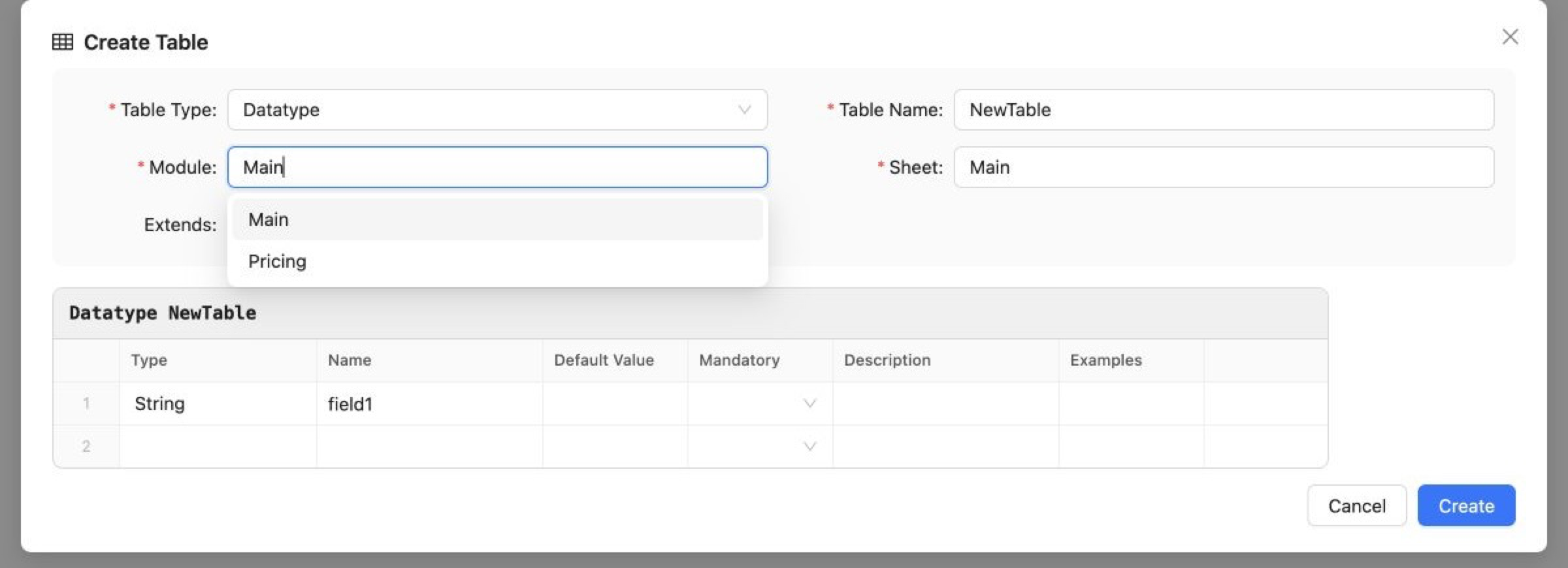
Choosing the module that receives the table
-
For Spreadsheet, Rules, Smart Rules, Simple Rules, Smart Lookup, and Simple Lookup, set Result Type and Arguments. A type can be a simple type, a vocabulary, or a datatype visible to the selected module;
SpreadsheetResultis offered here as well, because only a signature can name it. The header cell at the top of the sheet updates as the signature is filled in.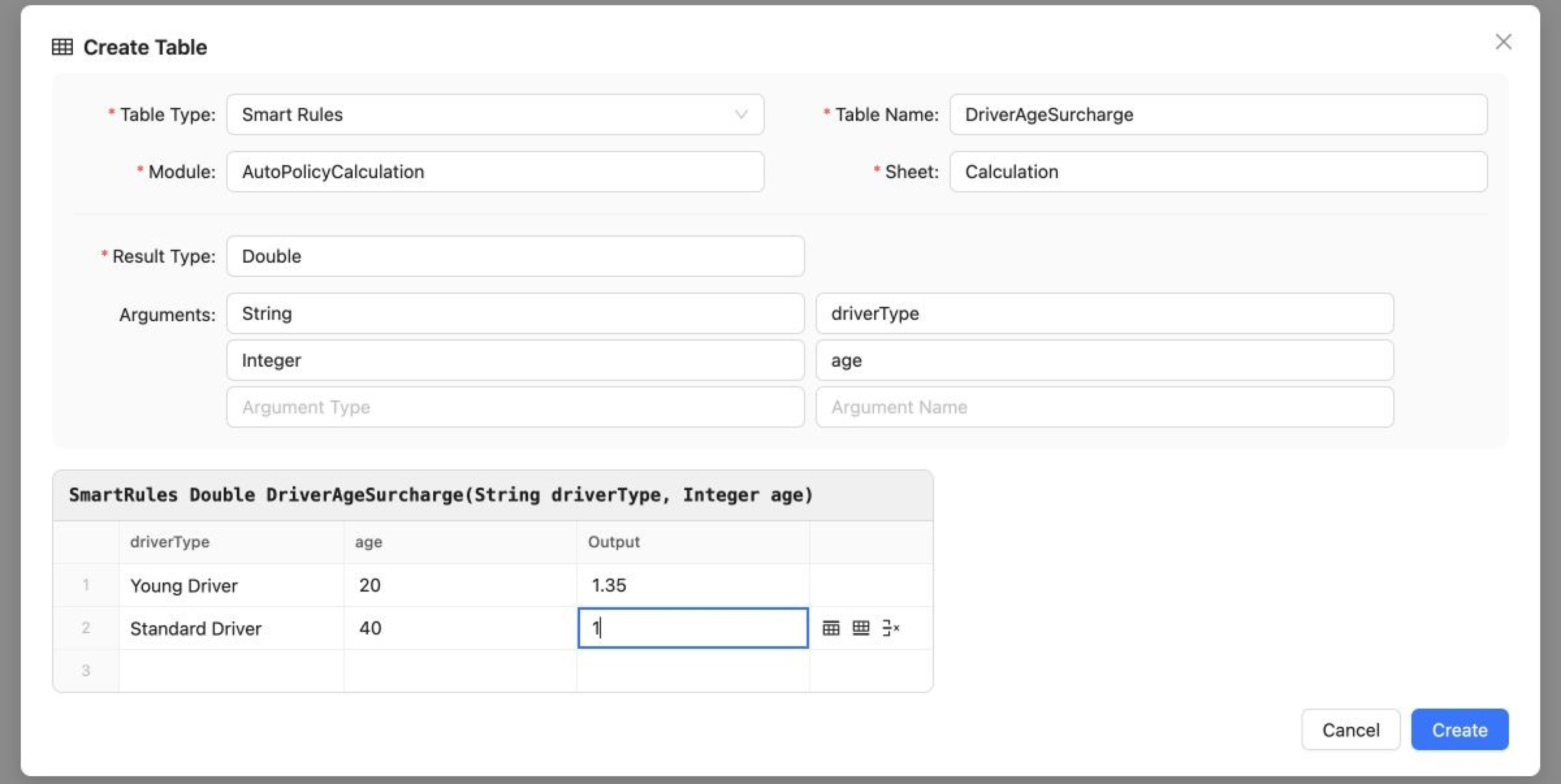
A signature builds the header cell and the columns
-
Edit the skeleton cells.
- Every body cell can be edited. The header cell at the top is a read-only preview generated from the settings.
A Datatype parent is set with Extends, which builds a header such as
Datatype Policy extends Base. - The first row opens filled in as an example. It is a placeholder to write over: every cell holds a value of
the type its column declares —
1for an Integer,TRUEfor a Boolean,2026-06-15for a Date,1-10for an IntRange, and for a vocabulary the first value that vocabulary offers — so a table created untouched is a table that works. A cell whose value no single cell can spell out, such as another datatype or a collection, opens on<field>_id_1, the way a Data table row holding that value is referenced. - A value cell uses the editor for the type its table definition gives it. Boolean cells offer
TRUE,FALSEand an empty value. Vocabulary cells use a closed dropdown that offers their declared values and empty, without accepting typed text. Numeric cells use a number input, Date cells a date picker that displays the user’s locale and stores ISO 8601yyyy-MM-dd, and Character cells accept one character. Byte, Short, Integer and Long values must stay within the range of the selected type. This applies to Datatype defaults and examples, Constants and Vocabulary values, and generated Rules, lookup, Test, Run and Data cells, except for the condition cells described below. - A condition cell of a Smart Rules, Simple Rules, Smart Lookup or Simple Lookup table is matched by range as
readily as by equality, so a condition of a numeric, Character, String or Date type is typed rather than
picked: it takes
18-30,>=18,[18 .. 30)or18 and moreas well as a single value, it is not held to the range of its type, and a Character condition is not capped at one character. What OpenL cannot read is reported when the table compiles. A Boolean or Vocabulary condition has no range of its own and keeps the dropdown its type gives it. - Filling the last row automatically adds an empty row below it.
-
Point at a row to reveal its actions: insert a row above or below it, or delete it. A Free Form Table reveals the same actions for its columns, above the grid.
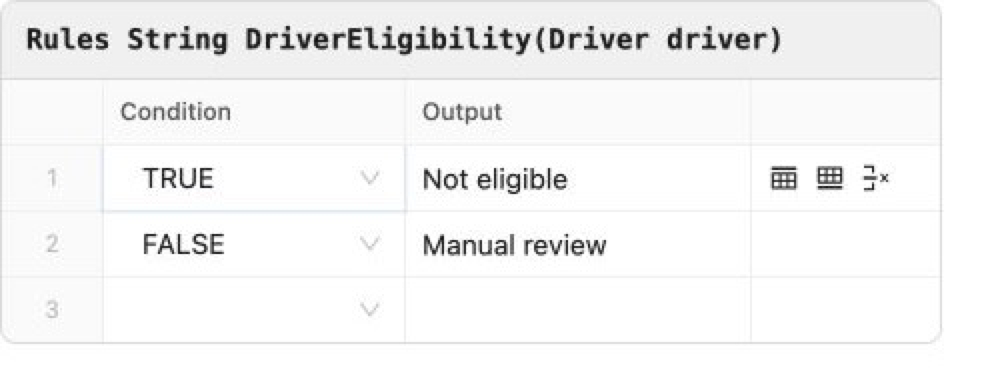
Actions revealed for the row under the pointer
- Columns controlled by a table signature, Datatype, or tested table change when that definition changes.
- Where a table type has no fixed set of columns — a Free Form Table, a Spreadsheet, a lookup — filling the last column adds an empty column to the right. A table wider than the dialog scrolls sideways rather than widening it.
- Blank rows are not written. OpenL reads a blank row as the end of a table, so an empty row left in the middle of the skeleton is dropped together with the trailing one kept for input.
- While Create is unavailable, the dialog names what is missing, one thing at a time and in the order the fields are laid out, so the first thing shown is the first thing to fix.
- A Spreadsheet needs at least one filled row, because OpenL rejects a table with no body. Create stays disabled until one is entered.
- A lookup of two or more arguments needs a value in every row of its top band — one for each argument running across the top — and at least one row below to look up by. A blank row is never written, so a top row left empty would shorten the merged corner and change how many arguments OpenL reads as horizontal. Create stays disabled until both are filled. A lookup of one argument has no band, so it needs only a filled row.
- A lookup’s top band and the argument titles beside it belong to the table type and carry no row controls.
- Every body cell can be edited. The header cell at the top is a read-only preview generated from the settings.
A Datatype parent is set with Extends, which builds a header such as
- Click Create.
The table is created in the selected module and opens in the Rules Editor. Its availability to other modules depends on project and module dependencies. For more information, see OpenL Tablets Reference Guide > Project and Module Dependencies.
For an executable table, Create Test opens the same window with a Test table skeleton generated from the selected table signature. The generated columns contain every input parameter and the expected result. The tested table can also be changed in the window.
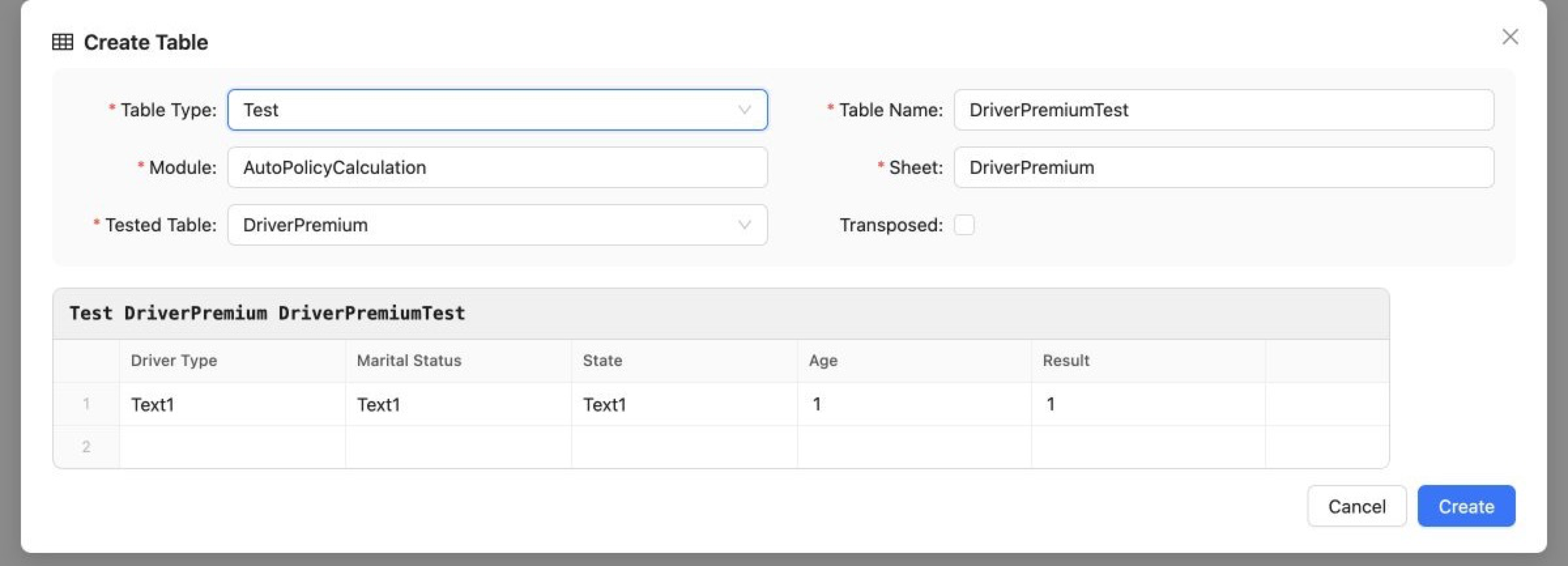
A Test table generated from the tested table
Comparing Excel Files
OpenL Studio compares two Excel files and shows the tables and other elements that differ. To compare two Excel files, proceed as follows:
-
In OpenL Studio Rules Editor, in the top line menu, select More > Compare Excel Files.
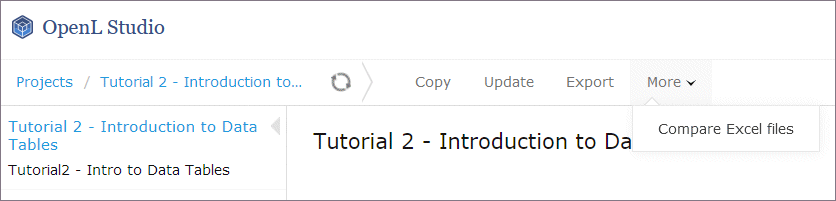
Initiating Excel comparison functionality
The comparison opens in a window of its own.
-
Drag the two files to compare into the box, or click it and select them.
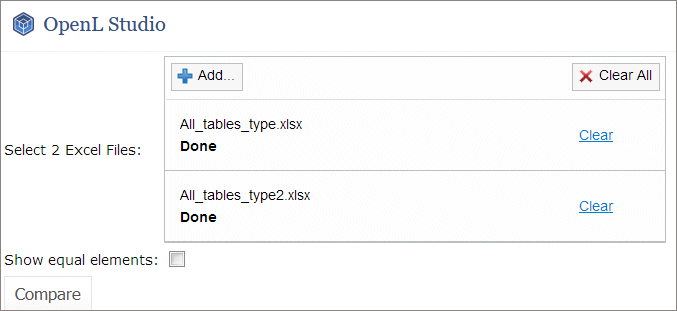
Excel files ready for comparison
- To list the elements that are the same in both files as well, select the Show equal elements check box.
-
Click Compare.
The elements of the two files are listed grouped by Excel sheet. Selecting an element displays it as it stands in each of the files, one next to the other, with the cells that differ highlighted. The cells that read the same in both files are drawn in grey, so that the differences are what the eye lands on.
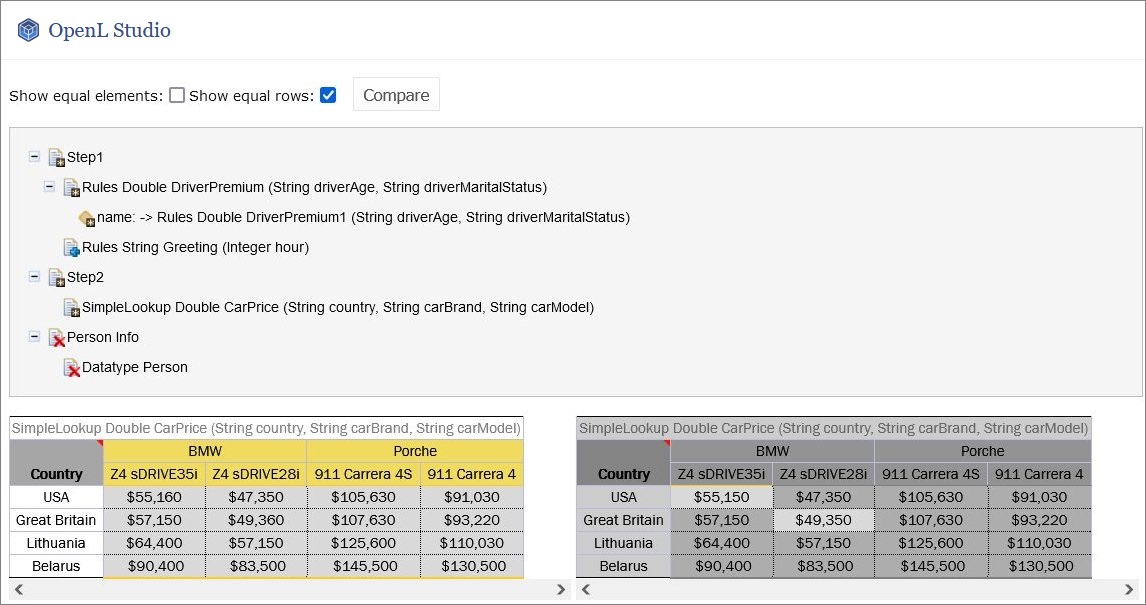
Excel file comparison results
Every element is marked with what became of it. An element that changed its location or its contents carries the changed file icon
 , one that the second file adds carries the added file icon
  , one that it no longer holds carries the removed file icon
  , and one that reads the same in both files carries a plain file icon.
The list of elements, the first file and the second one are separated by dividers. Drag a divider to give either side more room. The button above the list hides it and leaves the tables alone; while the list is hidden, the button that brings it back and Select other files are above the first file.
-
To read the two versions as one table instead of two, select Combined at the end of the line the files are named on.
Each row is led by the sign that says what became of it, and a cell the two files read differently carries both values, the one the first file has before the one the second file has in its place. The signs the table is read by are listed beside the file names, and each sign in the table says what it means when the pointer rests on it.
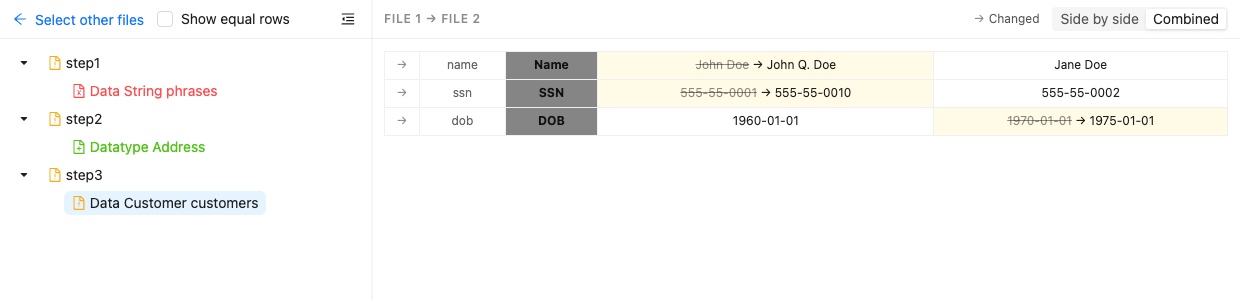
The two versions drawn as one table
When the two files hold a different number of rows, there is nothing to read one against the other. What the first file holds is shown first, each row marked with a minus, and what the second file holds after it, each row marked with a plus.
- To display the rows that read the same in both files, select the Show equal rows check box. Without it, an element shows only the rows that differ.
- To compare another pair of files, click Select other files.
If the two files hold the same elements with the same contents, the File elements are identical message is displayed.
Viewing and Editing Project-Related OpenAPI Details
When a project is created from an imported OpenAPI file, the normalized file in the project root is used for
reconciliation by default. The generated rules.xml does not store OpenAPI generation settings, so OpenL Studio does
not regenerate the workbooks automatically and overwrite later edits.
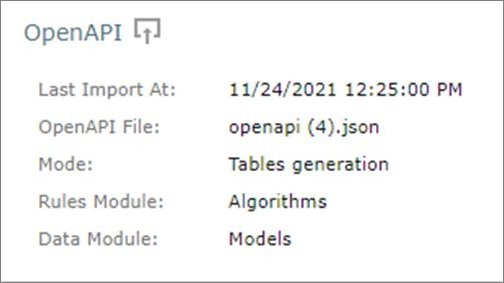
After an explicit OpenAPI import or generation operation stores its settings in rules.xml, the OpenAPI section shows
the last file import date, OpenAPI file name, mode, and module names.
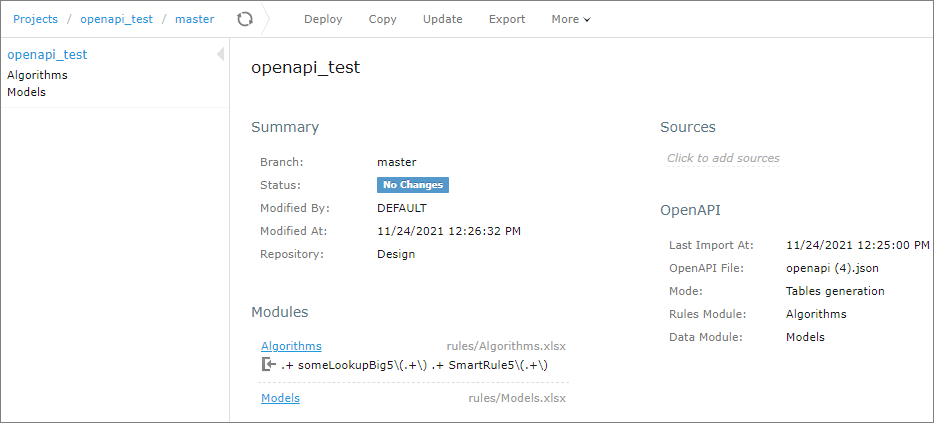
OpenAPI project after explicitly running Tables generation
It contains the following information:
| Field | Description |
|---|---|
| Last Import At | Date of the last upload of the OpenAPI file. The OpenAPI file can be replaced in the Repository tab or generated or regenerated from rules tables and datatype tables. |
| OpenAPI File | Location and name of the OpenAPI file, such as openAPI.json and files/example.json. |
| Mode | Last operation performed with this OpenAPI project. - Tables generation mode means that the last performed operation is generation or regeneration of the project based on the OpenAPI file. For the Tables generation option, project reconciliation is done, too. - Reconciliation mode is set to validate the project against the newly uploaded OpenAPI file with a new name. |
| Rules Module | Name of the module that contains rules. |
| Data Module | Name of the module that contains data types. |
The following topics are described in this section:
- Generating an OpenAPI File from Rules and Datatype Tables for Reconciliation
- Adding OpenAPI for Reconciliation to an Existing Project
- Regenerating a Project from Another OpenAPI File
- Updating the OpenAPI File
Generating an OpenAPI File from Rules and Datatype Tables for Reconciliation
If a project is not generated from an OpenAPI file and it is necessary to add the OpenAPI file, this file can be generated in Rules Editor from the existing rules and datatypes tables. Proceed as follows:
- In Rules Editor, open the project overview page.
-
Click the OpenAPI section.
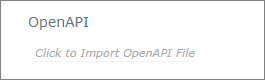
Initiating OpenAPI file generation
-
If an OpenAPI file does not exist, ensure that the Generate from Rules and Datatype tables and Reconciliation options are selected.
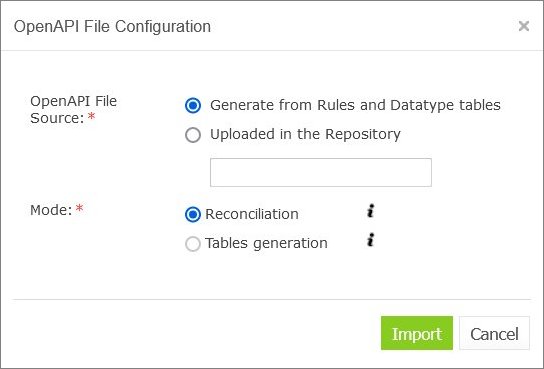
Reviewing settings for the OpenAPI file generation
If the OpenAPI file already exists, the Uploaded in the Repository option is selected by default and the file name is displayed in the field. If the file must be regenerated according to the current project tables, the Generate from Rules and Datatype tables and Reconciliation options must be selected.
- Click Import.
The file creation confirmation message is displayed. The OpenAPI file is added to the project and appears in the OpenAPI section.
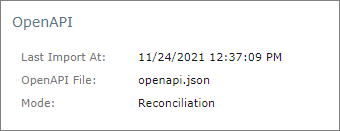
The OpenAPI file added to the OpenAPI section
Note that successful generation of the OpenAPI file requires that the project has no compilation errors and tables contain data for the OpenAPI methods.
Adding OpenAPI for Reconciliation to an Existing Project
If a project is not generated from the OpenAPI file, but it is required to add the OpenAPI file and generate modules from it, proceed as follows:
- Ensure that the OpenAPI file is uploaded to the project via the Repository tab.
-
In Rules Editor, click Click to Import OpenAPI File.
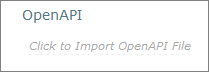
Initiating OpenAPI file import
- Enter the name of the OpenAPI imported file, such as example.json.
-
Select the Tables generation mode.
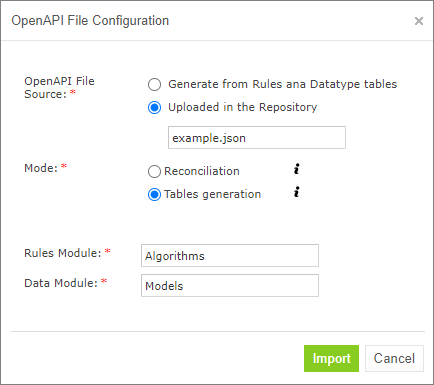
Selecting the generation mode
- If necessary, modify the default values for the rules and data modules and click Import.
-
If no module with the entered name is found, set up the path to the generated file and click Import.
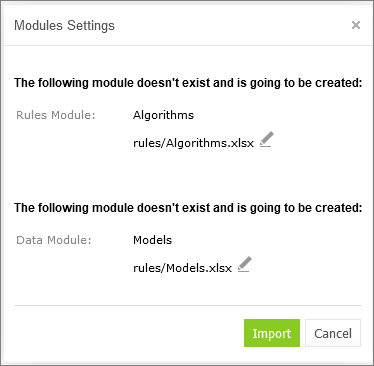
Module settings window, both modules are new
If a module already exists, it will be overwritten, and the corresponding warning message is displayed. In this case, there is no option to define a file name.
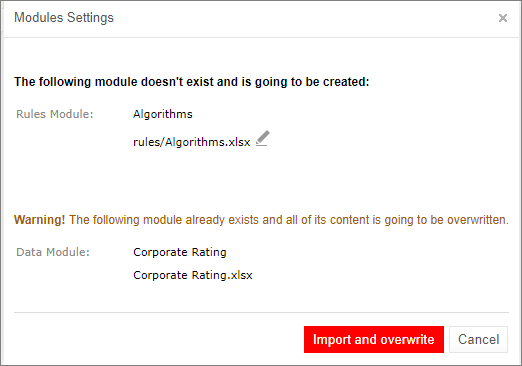
Module settings window, one of modules already exists
- Click on the Import and overwrite.
The rules and model modules are created or updated. The OpenAPI data is updated.
Regenerating a Project from Another OpenAPI File
If a project is initially created from an OpenAPI file, it can be regenerated explicitly from another OpenAPI file. Follow the steps described in Adding OpenAPI for Reconciliation to an Existing Project, select Tables generation, and choose the OpenAPI file. Regeneration overwrites the selected rules and data modules.
Updating the OpenAPI File
When the project is generated from the OpenAPI file and reconciliation is done, the system automatically validates the generated OpenL Tablets rules and data types. If the file is updated in the Repository tab and the name is not changed, reconciliation is completed immediately.
To reconcile a project using an OpenAPI file with a different name, proceed as follows:
- Ensure that the OpenAPI file is uploaded to the project via the Repository tab.
-
In Rules Editor, click OpenAPI Import icon
 .
.
Initiating OpenAPI import
-
In the Import OpenAPI File window, enter the OpenAPI file location, select Reconciliation, and click Import.
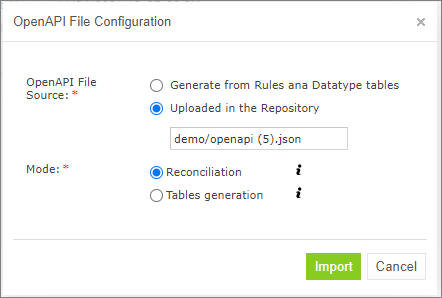
Selecting an OpenAPI file for reconciliation
The project is validated using the newly imported file.
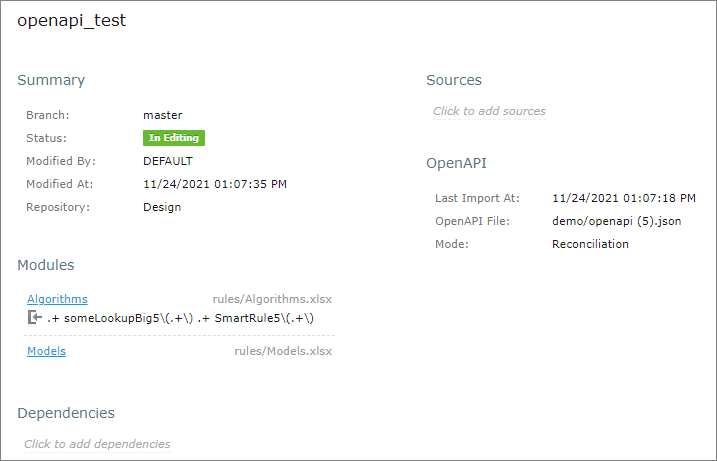
Viewing results of the last reconciliation
Reconciling an OpenAPI Project
If an OpenAPI file is set for a project, during project compilation, the system automatically checks whether the project matches the defined OpenAPI file. If the generated OpenAPI for the deployed project does not match the existing OpenAPI file, errors and warnings are displayed. This process is called reconciliation.
Reconciliation does not expect exactly the same OpenAPI generated by the project and checks the following:
- All paths defined in the existing OpenAPI file are generated by the project.
- All paths generated by the project are defined in the existing OpenAPI file.
- All operations for each path in the existing OpenAPI file are the same as operations in the generated OpenAPI file for the correspond path.
- Operation parameters in the existing OpenAPI file and parameters in OpenAPI generated based on the project for a corresponding operation are the same and all parameter types are compatible.
- Schemas that are not a part of API are ignored in the reconciliation process.
- All schemas in the existing OpenAPI file that are a part of API must be generated by the project.
- All schemas generated by the project must be defined in the existing OpenAPI file.
- All fields defined in schemas must exist in schemas generated by the project.
- All fields generated by the project for corresponding schemas must be defined in the existing OpenAPI file.
- Field types in schemas must be compatible.
| OpenAPI type defined in the file | OpenAPI type generated by the project |
|---|---|
| Integer (int32) | Integer (int32) |
| Integer (int64) | Integer (int32), Integer (int64) |
| Integer(no format) | Integer (int32), Integer (int64), Integer(no format) |
| String | String |
| String (date/date-time) | String (date/date-time) |
| Number(float) | Number(float) |
| Number (double) | Number(float), Number (double) |
| Number(no format) | Number(float), Number (double), Number(no format) |
| Boolean | Boolean |