Getting Started with OpenL Tablets
Getting Started with OpenL Tablets
Introduction
The purpose of this tutorial is to help you get started with OpenL Tablets. This page describes how to start using OpenL Tablets with a simple example.
In the course of this tutorial, we will create a simple rule based on existing requirements in an Excel file and show how to verify that it works.
OpenL Tablets is a business rules management system based on tables presented in Excel documents. Providing a business-oriented approach, OpenL Tablets treats business documents containing business logic specifications as executable rules. In a very simplified view, OpenL Tablets extracts rule tables from Excel documents and executes them. The rules can be accessible from different applications. OpenL Tablets tools check all data, syntax, and type errors in order to avoid any user mistakes.
OpenL Studio is a web interface application employed by business users and rules experts to view, edit, and manage business rules and rule projects created using OpenL Tablets technology.
OpenL Studio and Excel are used for comfortable work of business analysts and subject matter experts with OpenL Tablets rules, allowing them to represent, test, and maintain business logic.
Before we dive in, here are the OpenL Tablets basic concepts:
| Concept | Description |
|---|---|
| Rules | In OpenL Tablets, a basic rule is a logical statement consisting of conditions, actions, and returned values. If a rule is evaluated and all its conditions are true, then the corresponding actions are executed and/or the result value is returned to the calling program. Basically, a rule is an IF-THEN statement. There are calculator and workflow (algorithm) rule representations as well. |
| Tables | Basic information that OpenL Tablets deals with, such as rules and data, is presented in tables. OpenL Tablets offers different types of tables for different types of processing. OpenL includes rule table types such as decision tables, lookup tables, decision trees, and spreadsheet-like calculators. |
| Projects | An OpenL Tablets project is a container of all resources required for processing rule-related information. Usually, a simple project contains just Excel files with rules. |
More details can be found in OpenL Tablets Reference Guide, Chapter 1: Introducing OpenL Tablets.
Quick Start
The quickest way to get started is the OpenL Tablets Demo — a ready-to-run package that comes with OpenL Studio, OpenL Rule Services, and example projects preconfigured. To download and install it, follow the OpenL Tablets Demo Package Guide.
When you open OpenL Studio, you will see the OpenL Studio start page in your browser:
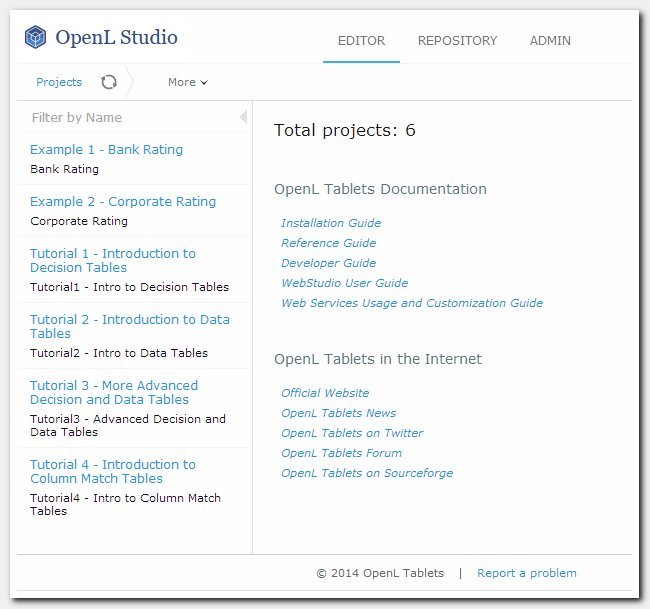
Figure 1: OpenL Studio Home page
Rule Creation
OpenL Tablets utilizes Excel concepts of workbooks and worksheets containing rules. A rule project where rules are maintained consists of Excel files that are called modules. Each workbook is comprised of one or more worksheets used to separate information by logical categories (so you will understand your rules better). Each worksheet, in turn, is comprised of one or more OpenL tables that represent rules. Workbooks can include rule tables of different types and different underlying logic.
Rules can be created with the following tools:
- The OpenL Studio Create Table dialog.
- Microsoft Excel. In this case, the rule file should be uploaded in OpenL Studio where it will be validated and properly tested.
In this tutorial, we are going to see the creation of a rule and its test in Microsoft Excel, and then their updating and testing in OpenL Studio. You can also create the same rule directly in OpenL Studio by picking the Simple Rules table type in the Create Table dialog.
Details about creating rules and different rule table types can be found in OpenL Tablets Reference Guide, Creating Tables for OpenL Tablets.
Here we are going to create a business rule according to an Excel file that contains requirements. The idea is that by slightly modifying the original requirements, we can create ready-to-execute OpenL rules without any special effort and with little special knowledge.
‘Air Ticket Price’ Rule Creation in Excel
The following example demonstrates how to create a simple rule that determines the air ticket price value depending on a city of departure and a city of destination. For example, if the departure city is Chicago and the destination city is Madrid, we want our rules to return $900 as an air ticket price.
The business requirements are represented as the following Excel table in the TicketsPrice.xlsx file:
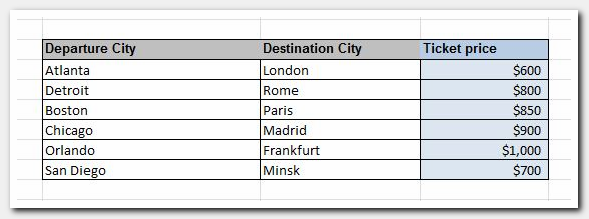
Figure 2: A spreadsheet requirements for Air Tickets Price rule
To enable this table as an executable rule table, all you need to do is add several OpenL Tablets instructions.
This table matches the Simple Decision Table structure. To instruct OpenL how to treat your rules and to specify that the table is a Simple Decision Table, add a new row just above the requirements table, merge its cells across the table width, and enter the corresponding OpenL Tablets instruction with the following content:
SimpleRules Double AirTicketsPrice (String departureCity, String destinationCity)
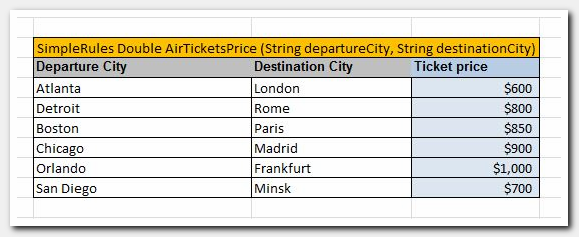
Figure 3: Adding a table header with OpenL Tablets instructions
Here:
SimpleRulesis the keyword identifying a decision table. It instructs OpenL how to process your table.DoubleandStringare type names specifying the value types returned by the rule and input value types respectively.Doublestands for a number with a floating point;Stringstands for any text input.AirTicketsPriceis the name of the rule used to reference this table from other rules or your rules-consumer application.departureCityanddestinationCityare the names of input parameters for the rule. You can use these names anywhere in your rule. Depending on the input values that the user enters, OpenL Tablets selects the result value.
Details on data types can be found in OpenL Tablets Reference Guide, OpenL Tablets Functions and Supported Data Types.
Rule Project Creation
Now that we have the rule created and ready to use, let’s create a project with the just-created rules in OpenL Studio.
We will create a project from the Excel file TicketsPrice.xlsx containing our AirTicketsPrice rule that we prepared
in the previous step.
To do it:
-
Switch to the Repository Editor by clicking the Repository link.

Figure 4: Repository Editor
Repository provides the following main features:
- Organizing collaborative work within the company
- Modifying project structure and properties
- Managing project deployments and project revisions
-
Click the Create Project button. The Create Project from window will appear. Select the Excel Files tab.
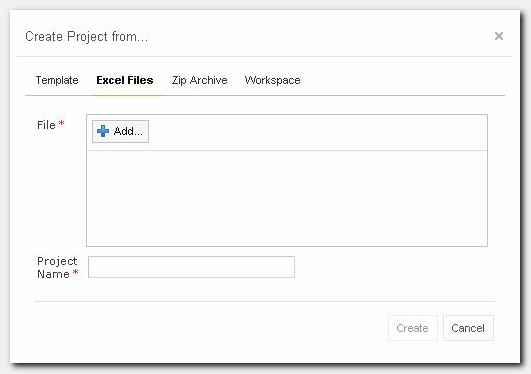
Figure 5: Create Project from.. window
-
Add and Upload the TicketsPrice.xlsx file.
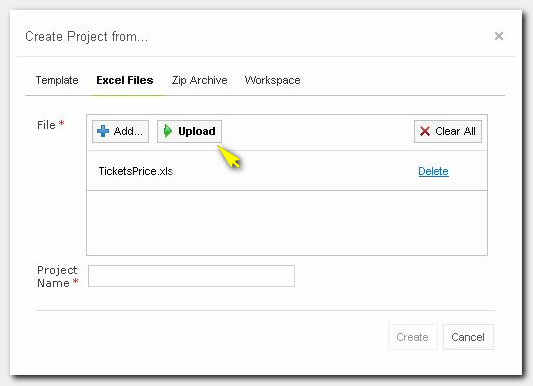
Figure 6: Upload Excel file
-
In the Project Name field, enter
Air Ticket Priceand click Create.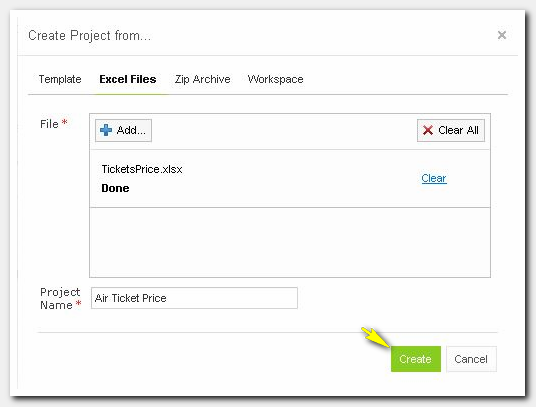
Figure 7: Creating project from Excel file
-
Your new project Air Ticket Price appears in the Projects tree with the
Editingstatus. This means that you can change your project and rules in it in the Rules Editor.OpenL Studio creates
rules.xmlin the project root and stores TicketsPrice.xlsx in therules/folder.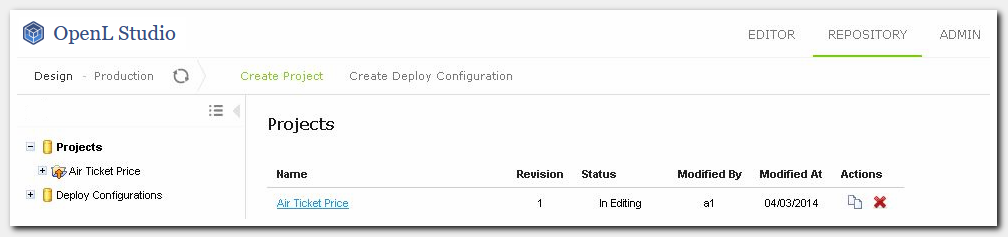
Figure 8: Created Air Ticket Price project
[!Note] OpenL Studio also allows creating projects with Tutorials and Examples quickly from the Create Project dialog.
Editing a Rule
-
Switch to the Rules Editor using the top-level menu and select the created Decision rule from the tree on the left.
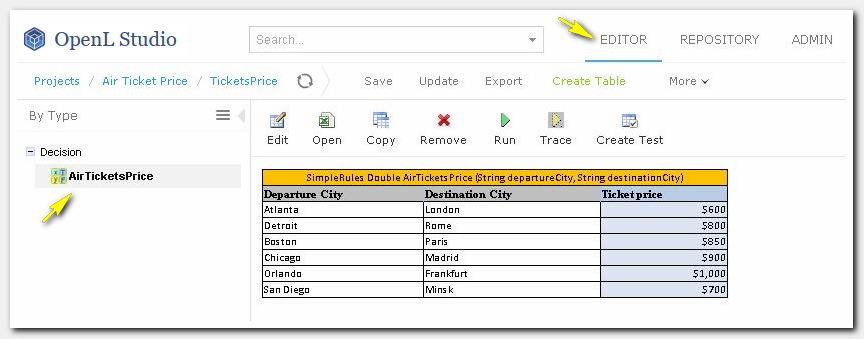
Figure 9: Air Tickets Price Decision table in Rules Editor
Rules Editor allows you to browse rule modules (in other words — Excel files in the project), create and modify rules and other rule tables, ad-hoc test rules, and create test tables for them. OpenL Tablets verifies syntax and type errors in all tables. Moreover, Rules Editor provides calculation explanation capabilities, enabling expansion of any calculation result and viewing the source rule table for that result, so that the user gets full information on how the rule result was calculated.
-
Now you can edit the
AirTicketsPricerule directly in OpenL Studio. -
Click the Edit
 button to edit the Decision Table and update the ticket price for
Atlanta/London.
button to edit the Decision Table and update the ticket price for
Atlanta/London.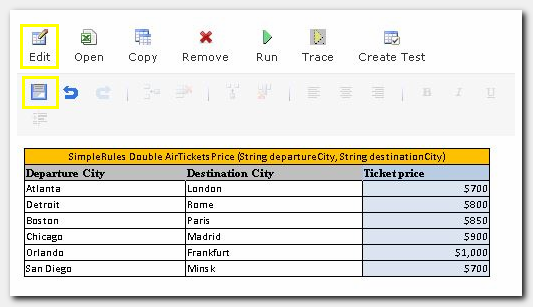
Figure 10: Air Tickets Price Decision table update
-
Save the updated Decision Table.
Testing a Rule
OpenL Studio does not highlight the rule we created in red and the problem pane at the bottom of the page is empty. This means we have created the rule correctly.
Now let’s ensure that the rule logic is correct.
OpenL Studio has an ad hoc rule testing feature. To use it, click the Run button on the menu, input values for the test, and click the Run button in the popup.
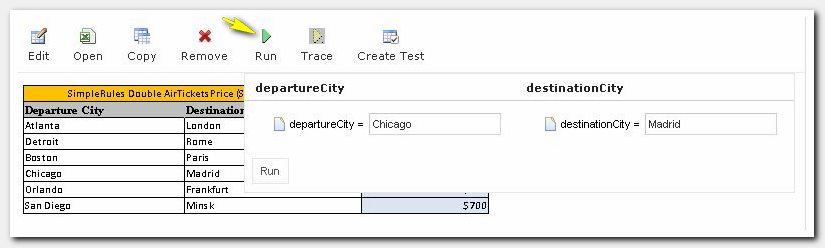
Figure 11: Running ad hoc test
The following result will appear:
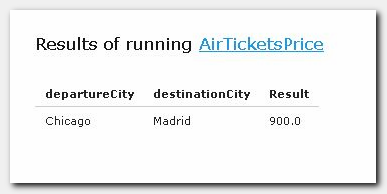
Figure 12: Results of test run
The second way to test the rule is to create a test table where you define test cases — their input and expected result values. A test table calls the rule for each test case and checks whether the actual returned value matches the expected value or not. Test tables can be created and modified in OpenL Studio or Excel; it is up to you which option to choose.
Let’s create a test table for our rule in OpenL Studio.
‘Air Ticket Price’ Test Creation in OpenL Studio
To create a table for testing the AirTicketsPrice rule, proceed as follows:
-
Click the Create Test button to create a new test while viewing the rule table.
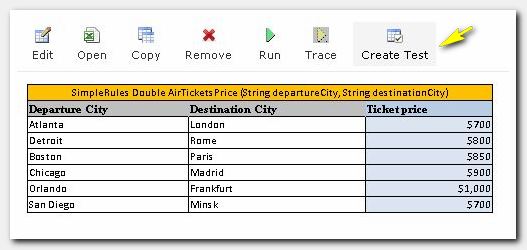
Figure 13: Create Test
-
The Test Name is prefilled automatically with the decision table name and the word
Testappended at the end. Click Next.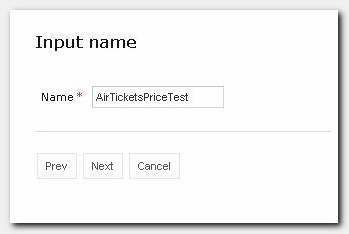
Figure 14: Create test window
-
Click Save, accepting the default values for the destination where the test table will be placed.
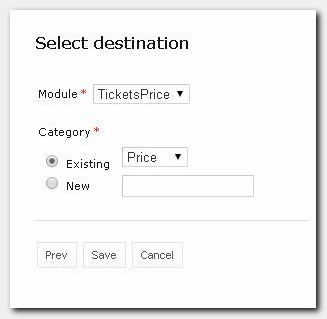
Figure 15: Select destination window
-
The Test Table is created. Now you can edit the table by updating column titles (if needed) and adding test data (as with rule tables, this can be done in OpenL Studio or in the Excel file).
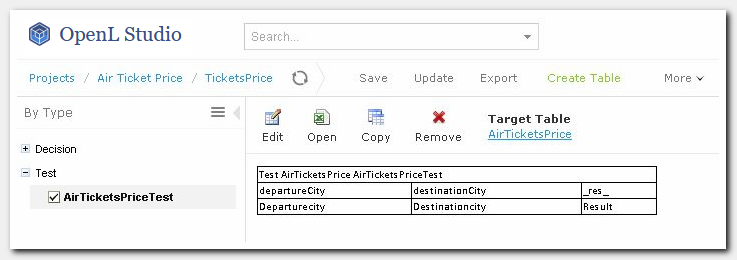
Figure 16: Initial Test Table
Editing a Test in OpenL Studio
-
Click the Edit
button to edit the test table in OpenL Studio. -
Add test data:
a. Click on any table cell. The table editor menu becomes enabled.
b. In the table editor menu, select the
 button to insert a row after the
selected one. Insert two rows.
button to insert a row after the
selected one. Insert two rows.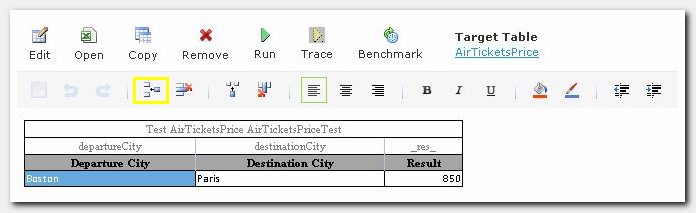
Figure 17: Table editor menu
c. Add test data and Save your changes.
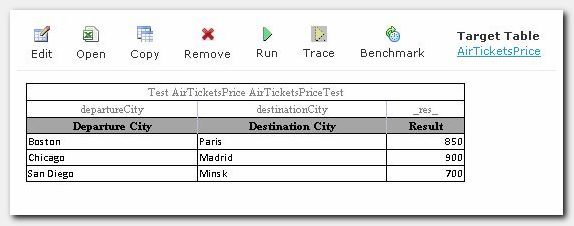
Figure 18: Add test data
Test Execution
-
Run the test table. To execute all test cases, click the Run button.
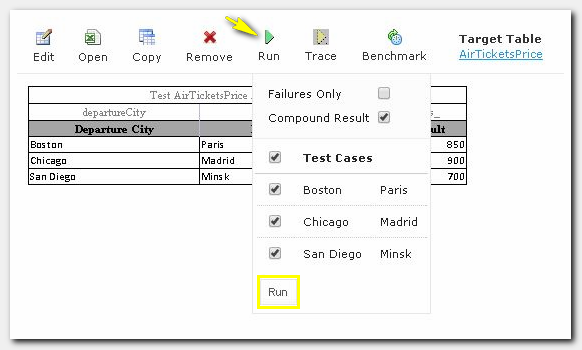
Figure 19: Run Test
-
OpenL Studio will display the test results.
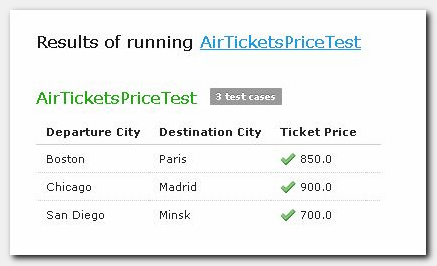
Figure 20: Test results window
Failed test cases are marked by the  icon.
icon.
Passed test cases are marked by the  icon.
icon.
All test cases passed. Hence, our rule AirTicketsPrice works correctly.
Conclusion
Congratulations — your first rule is created, tested, and ready to be used by the consumer application!
You have created the rule that defines the air ticket price value depending on the city of departure and the city of destination. You have also created a test for your rule to verify the correctness of the rule logic.
We hope that working with OpenL Tablets was interesting and easy for you.
OpenL Tablets Documentation is licensed under a Creative Commons Attribution 4.0 International License.