Spreadsheet Result Output Customization
To simplify integration with OpenL rules, customize serialization output of SpreadsheetResult objects by adding or removing steps or columns from spreadsheet result output.
- To identify steps or columns to be returned in the SOAP/REST response, mark them using the * asterisk symbol.
- To ensure that certain steps or columns are not included in output, mark them with the ~ tilde symbol.
Consider the following spreadsheets.
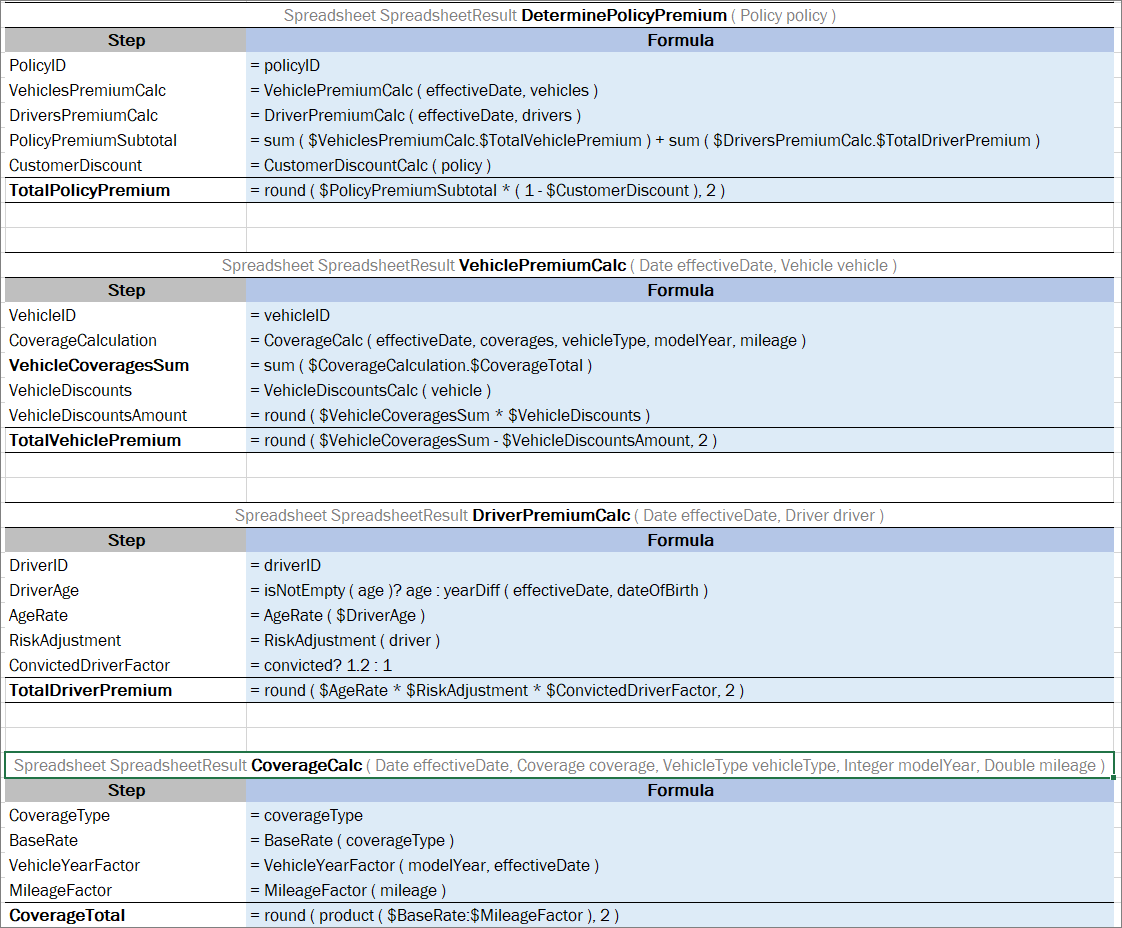
Spreadsheets example
For these spreadsheets, output result is as follows.
{
  "PremiumCalc": {
    "PolicyID": "P1",
    "VehiclesPremiumCalc": [
      {
        "VehicleID": "V1",
        "CoverageCalculation": [
          {
            "CoverageType": "Bodily Injury",
            "BaseRate": 150,
            "VehicleYearFactor": 1.35,
            "MileageFactor": 1.19,
            "CoverageTotal": 240.98
          },
          {
            "CoverageType": "Property Damage",
            "BaseRate": 130,
            "VehicleYearFactor": 1.35,
            "MileageFactor": 1.19,
            "CoverageTotal": 208.85
          }
        ],
        "VehicleCoveragesSum": 449.83,
        "VehicleDiscounts": 0.08,
        "VehicleDiscountsAmount": 36,
        "TotalVehiclePremium": 413.83
      }
    ],
    "DriversPremiumCalc": [
      {
        "DriverID": "D1",
        "DriverAge": 44,
        "AgeRate": 1,
        "RiskAdjustment": 1,
        "ConvictedDriverFactor": 1.2,
        "TotalDriverPremium": 1.2
      }
    ],
    "PolicyPremiumSubtotal": 415.03,
    "CustomerDiscount": 0.12,
    "TotalPolicyPremium": 365.23
  }
}
In the following example, some steps are marked with the asterisk to be included in the output.
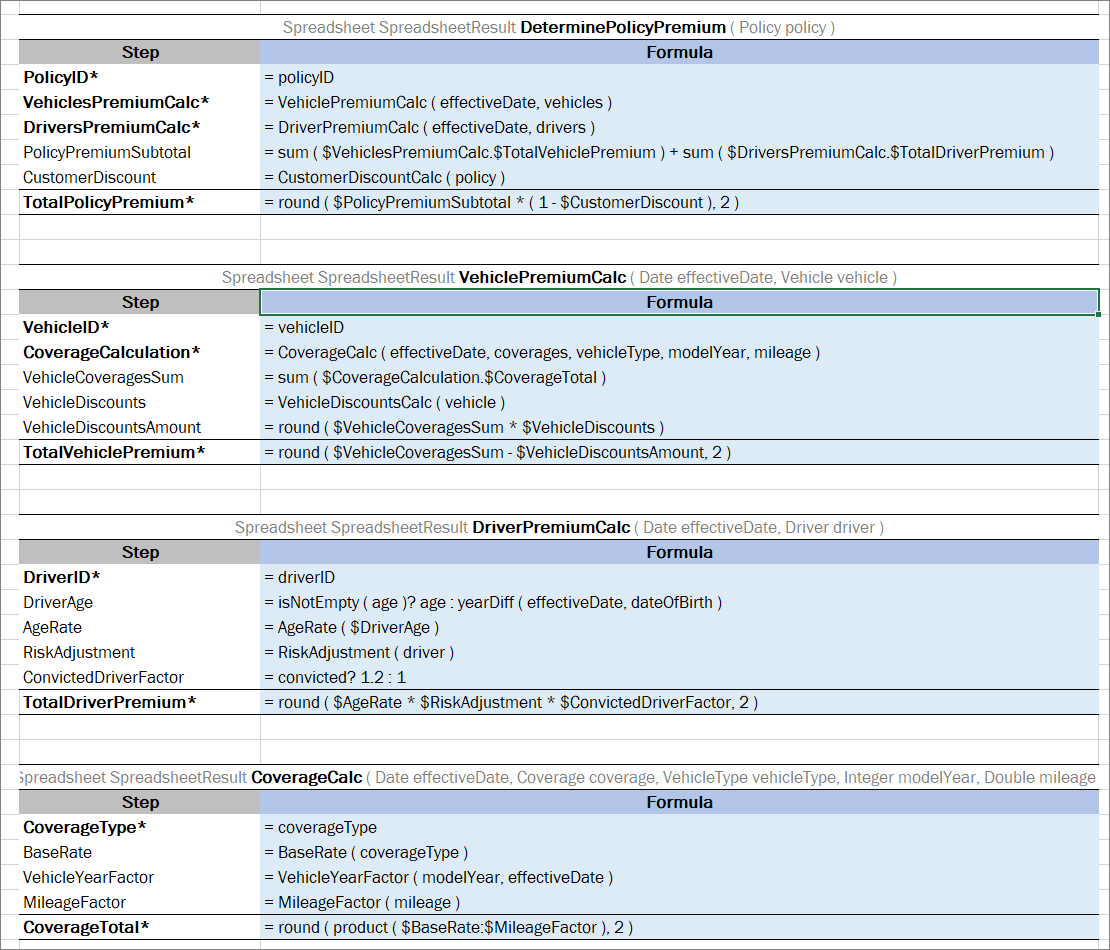
Example of spreadsheets with mandatory steps
An output for these tables is as follows:
{
  "PremiumCalc": {
    "PolicyID": "P1",
    "VehiclesPremiumCalc": [
      {
        "VehicleID": "V1",
        "CoverageCalculation": [
          {
            "CoverageType": "Bodily Injury",
            "CoverageTotal": 240.98
          },
          {
            "CoverageType": "Property Damage",
            "CoverageTotal": 208.85
          }
        ],
        "TotalVehiclePremium": 413.83
      }
    ],
    "DriversPremiumCalc": [
      {
        "DriverID": "D1",
        "TotalDriverPremium": 1.2
      }
    ],
    "TotalPolicyPremium": 365.23
  }
}
Within a project, different tables can contain ~ or * markings. Using one or another depends on whether a user needs more steps to include or exclude into the final result. An example is as follows.
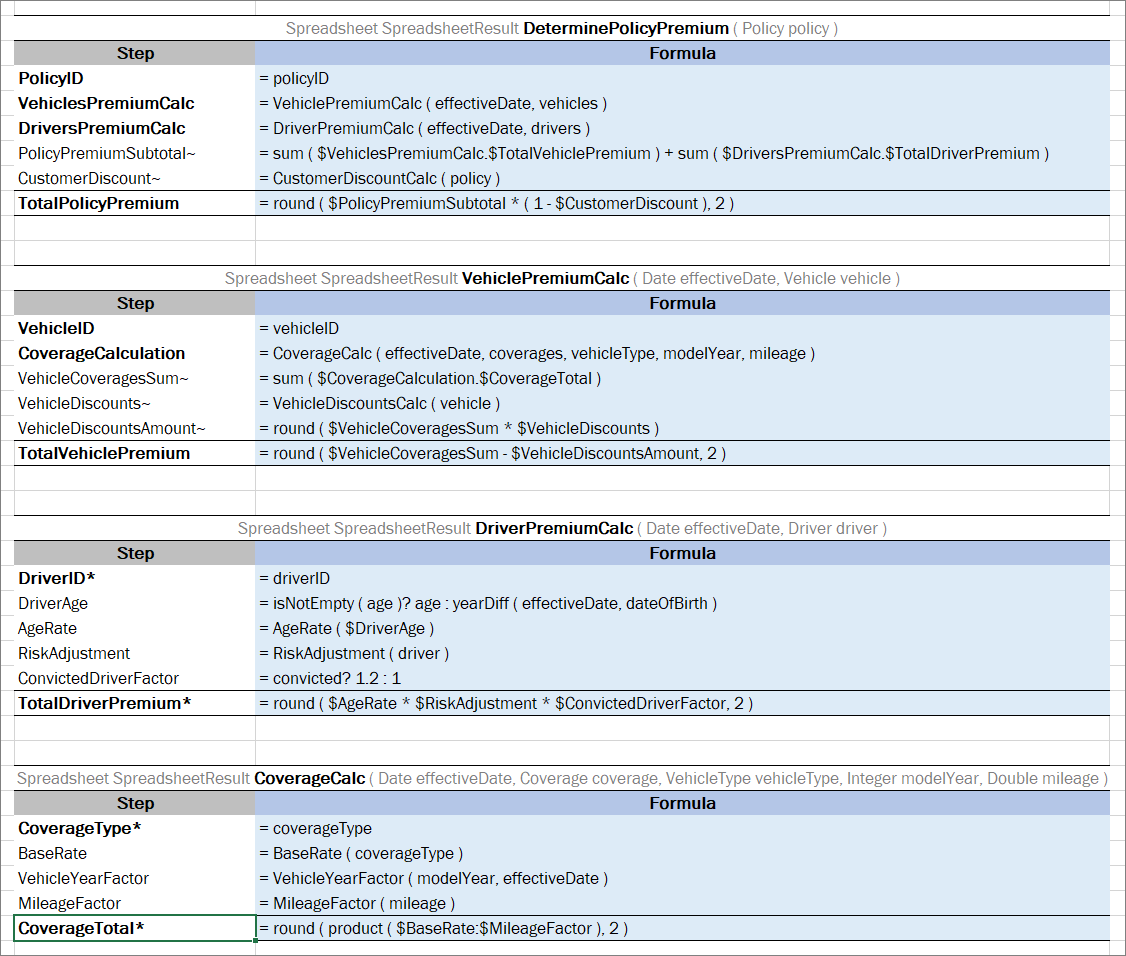
An example of spreadsheets with steps marked to be included and excluded
An output result for these spreadsheets is as follows.
{
  "PremiumCalc": {
    "PolicyID": "P1",
    "VehiclesPremiumCalc": [
      {
        "VehicleID": "V1",
        "CoverageCalculation": [
          {
            "CoverageType": "Bodily Injury",
            "CoverageTotal": 240.98
          },
          {
            "CoverageType": "Property Damage",
            "CoverageTotal": 208.85
          }
        ],
        "TotalVehiclePremium": 413.83
      }
    ],
    "DriversPremiumCalc": [
      {
        "DriverID": "D1",
        "TotalDriverPremium": 1.2
      }
    ],
    "TotalPolicyPremium": 365.23
  }
}
It is also possible to filter spreadsheet columns identifying the ones to be displayed or hidden in the output result. Use the ~ or * markings depending on whether there are more columns to include or exclude from the final result. The following naming rules apply:
- If a spreadsheet has two columns, the step name in API is RowName.
- If a spreadsheet has more than two columns, the step name in API is ColumnName_RowName.
Note: If there is only one spreadsheet column marked as mandatory, its name in API is just RowName. If there is only one spreadsheet column left after exclusion besides the step column, its name in API is also just RowName.
An example is as follows.
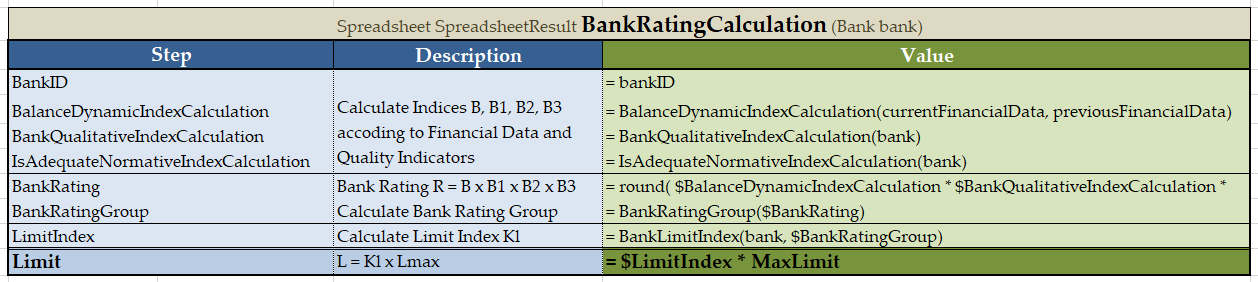
A spreadsheet table with three columns
An output result for this spreadsheet is as follows.
{
  "Value_BankID": "commerz",
  "Description_BalanceDynamicIndexCalculation": "Calculate Indices B, B1, B2, B3 according to Financial Data and Quality Indicators",
  "Value_BalanceDynamicIndexCalculation": 0.94,
  "Description_BankQualitativeIndexCalculation": "Calculate Indices B, B1, B2, B3 according to Financial Data and Quality Indicators",
  "Value_BankQualitativeIndexCalculation": 0.9,
  "Description_IsAdequateNormativeIndexCalculation": "Calculate Indices B, B1, B2, B3 according to Financial Data and Quality Indicators",
  "Value_IsAdequateNormativeIndexCalculation": 1,
  "Description_BankRating": "Bank Rating R = B x B1 x B2 x B3",
  "Value_BankRating": 0.85,
  "Description_BankRatingGroup": "Calculate Bank Rating Group",
  "Value_BankRatingGroup": "R2",
  "Description_LimitIndex": "Calculate Limit Index Kl",
  "Value_LimitIndex": 1,
  "Description_Limit": "Max Limit which Bank is Allowed\nL = Kl x Lmax",
  "Value_Limit": 5000
}
Note that the step names are in the ColumnName_RowName format.
An example of the same spreadsheet with one of the columns excluded using the tilda ~ sign is as follows.
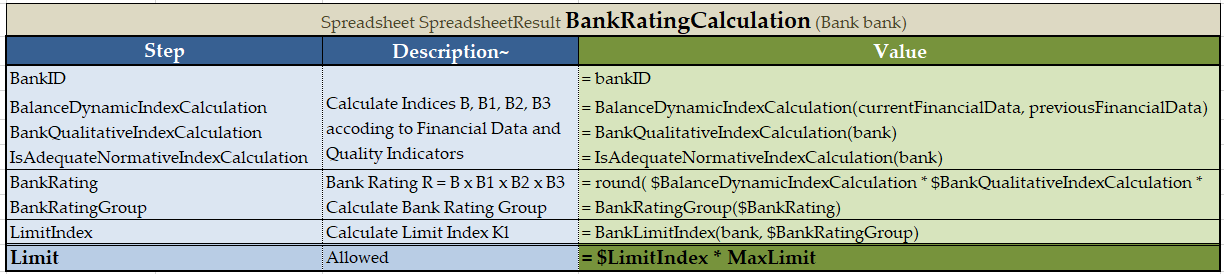
A spreadsheet table with excluded column
An output result for this spreadsheet is as follows.
{
  "BankID": "commerz",
  "BalanceDynamicIndexCalculation": 0.94,
  "BankQualitativeIndexCalculation": 0.9,
  "IsAdequateNormativeIndexCalculation": 1,
  "BankRating": 0.85,
  "BankRatingGroup": "R2",
  "LimitIndex": 1,
  "Limit": 5000
}
Note that the step names are in the RowName format because there is only one column left besides the Step column.
Now consider the following example that illustrates simultaneous usage of asterix in columns and steps.
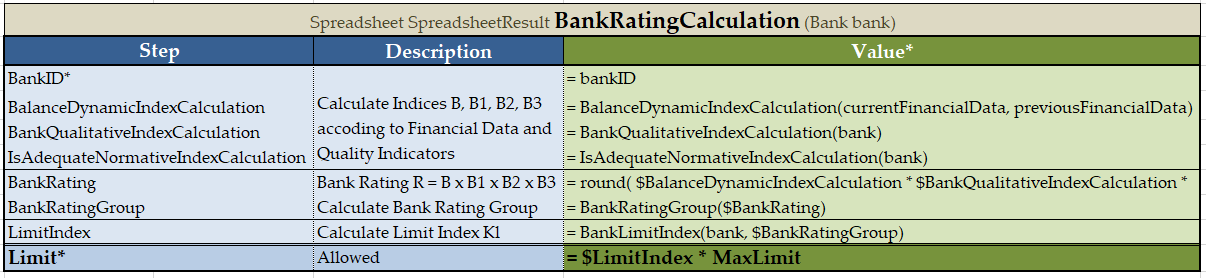
A spreadsheet table with filtered columns and steps
An output result for this spreadsheet is as follows.
{
  "BankID": "commerz",
  "Limit": 5000
}
If the description column is marked with // it is displayed as a field property in the JSON structure. However, the steps listed in this column are excluded from the schema tree representation.
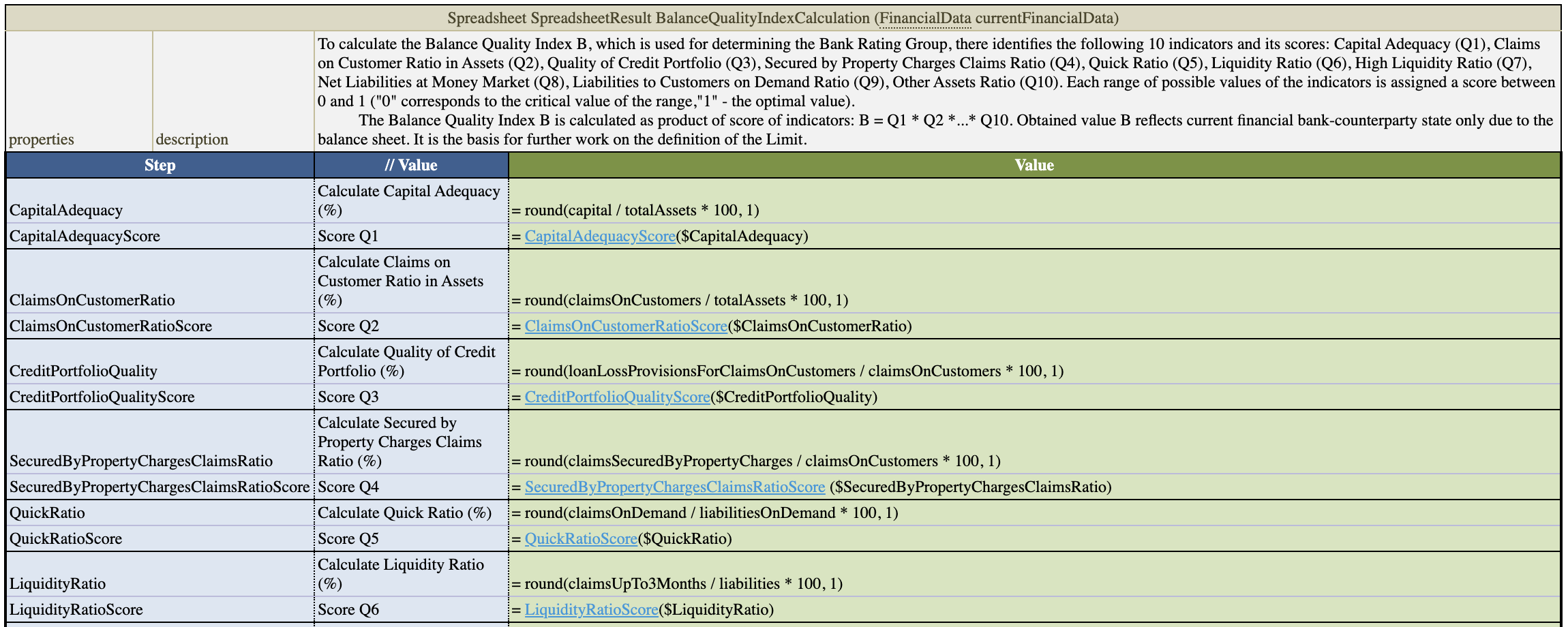
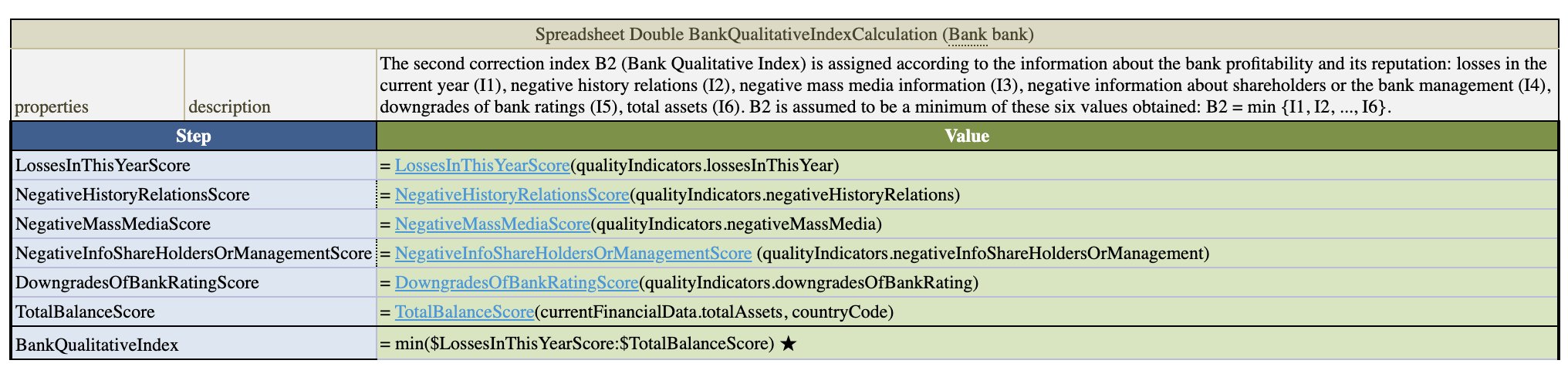
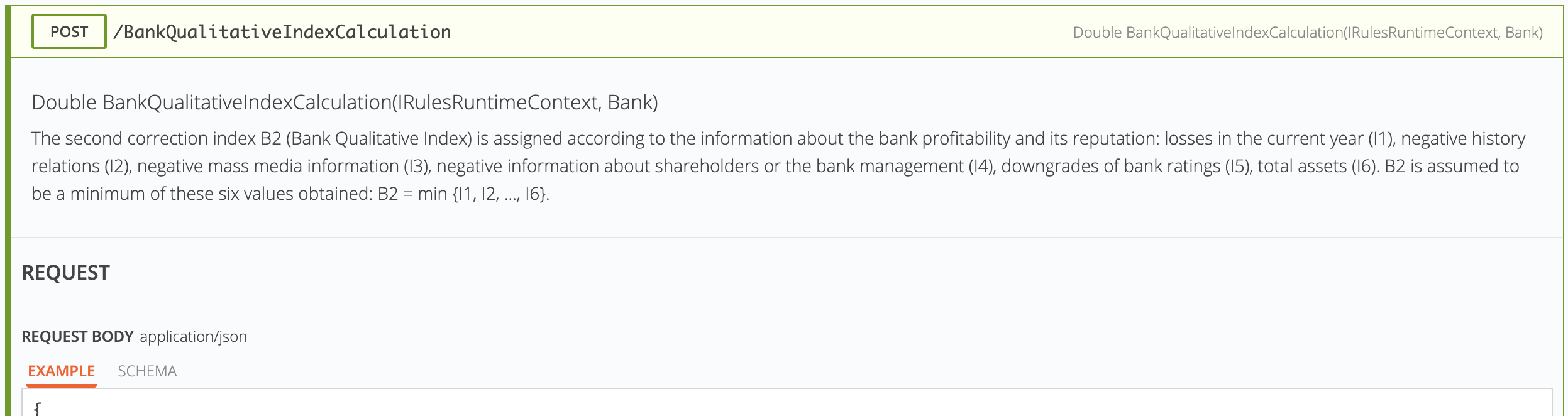
Rule description displayed in OpenL Rule Services
Note: If the Maven plugin is used for generating a spreadsheet result output model, system integration can be based on generated classes. A default Java package for generated Java beans for particular spreadsheet tables is set using the spreadsheetResultPackage table property. Nevertheless, it is recommended to avoid any integration based on generated classes.