Managing General Repository Settings
To add a repository, proceed as follows:
- In the Repositories section, click the Design Repositories or Deployment Repositories tab as needed.
-
Click the Add Design Repository or Add Deployment Repository button in the top-right corner.
A new repository form opens with default Git settings pre-filled.
- In the Name field, enter the repository name to be displayed in the repository editor.
-
In the Type field, select the connection type.
Type Description Git The repository is located on a local or remote machine. See Managing Git Repository Settings for Git-specific parameters. Database JDBC The repository is located in a local or remote database accessed via a JDBC URL. Supported databases include MySQL, MariaDB, PostgreSQL, MS SQL, and Oracle.
For more information on supported versions, see https://openl-tablets.org/supported-platforms.Database JNDI The repository is located in a database accessed via a JNDI data source. AWS S3 The repository is located in Amazon Simple Storage Service (AWS S3).
A “bucket” is a logical unit of storage in AWS S3 and is globally unique.
Choose a region for storage to reduce latency and costs. An Access key and a Secret key are required to access storage.
If left empty, the system retrieves credentials from one of the known locations as described in AWS Documentation. Best Practices for Managing AWS Access Keys.
The Listener period is the interval in which to check for repository changes, in seconds.Azure Blob Storage The repository is located in Microsoft Azure Blob Storage. For more information on repository settings, see OpenL Tablets Rule Services Usage and Customization Guide > Configuring a Data Source.
-
Provide the URL value.
The following table provides examples of JDBC URL values for different databases.
Database URL value sample MySQL, MariaDB jdbc:mysql://localhost:3306/prodRepository, jdbc:mariadb://localhost:3306/ prodRepository (for MariaDB driver) PostgreSQL jdbc:postgresql://localhost:5432/ prodRepository MS SQL jdbc:sqlserver://localhost:1433;databaseName=prodRepository;integratedSecurity=false Oracle jdbc:oracle:thin:@localhost:1521:prodRepository -
For Database JDBC and Database JNDI types, to set up a secure connection, select the Secure connection check box and fill in the Login and Password fields.
For more information on repository security, see OpenL Tablets Installation Guide > Configuring Private Key for Repository Security.
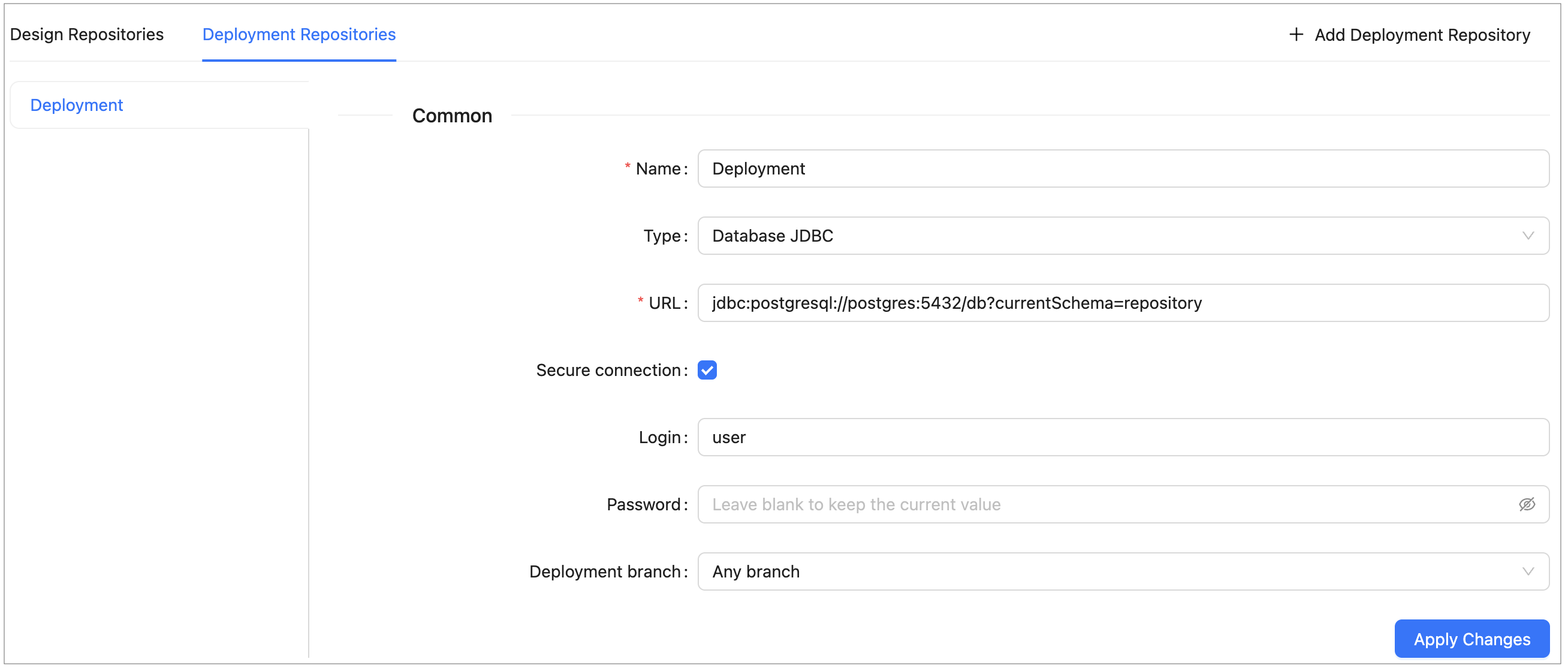
Configuring deployment repository settings
Connection to a local deployment repository is configured by default.
-
For Deployment Repositories, select the Deployment branch option:
Option Description Any branch Projects can be deployed to any branch. Main branch only Projects can only be deployed to the repository’s default branch. - When finished, click Apply Changes to save the settings.
To delete a repository, click the × button on the repository’s tab and confirm the deletion.
To enable storing large files in a Git repository, Git Large File Support (LFS) can be used.
- To enable the Git repository use LFS before it is cloned by OpenL Studio, perform the necessary configuration as described in https://git-lfs.github.com/.
- If the Git repository is already cloned by OpenL Studio, to enable using Git LFS, proceed as follows:
- Close all projects in the workspace.
- Delete all deployment configuration settings.
- Stop OpenL Studio.
- Drop the local folder with the Git repository to the OpenL Studio home directory.
- Start OpenL Studio. OpenL Studio will re-clone the directory.
- Recreate the required deployment configuration settings that were deleted previously.